
Table of Contents
In this video I’m looking at WPCodeBox. WPCodeBox is an excellent plugin for creating and managing code snippets. It’s now on version 2 and they’ve introduced a new feature, the ability to save your code snippets as a standalone plugin. And that’s what we’ll be looking at in this video.
Video Version
WPCodeBox Website
This is the WPCodeBox website. It is a premium-only plugin. There’s no free version.
If we scroll down a bit, we’ll see here is a list of some of the features.
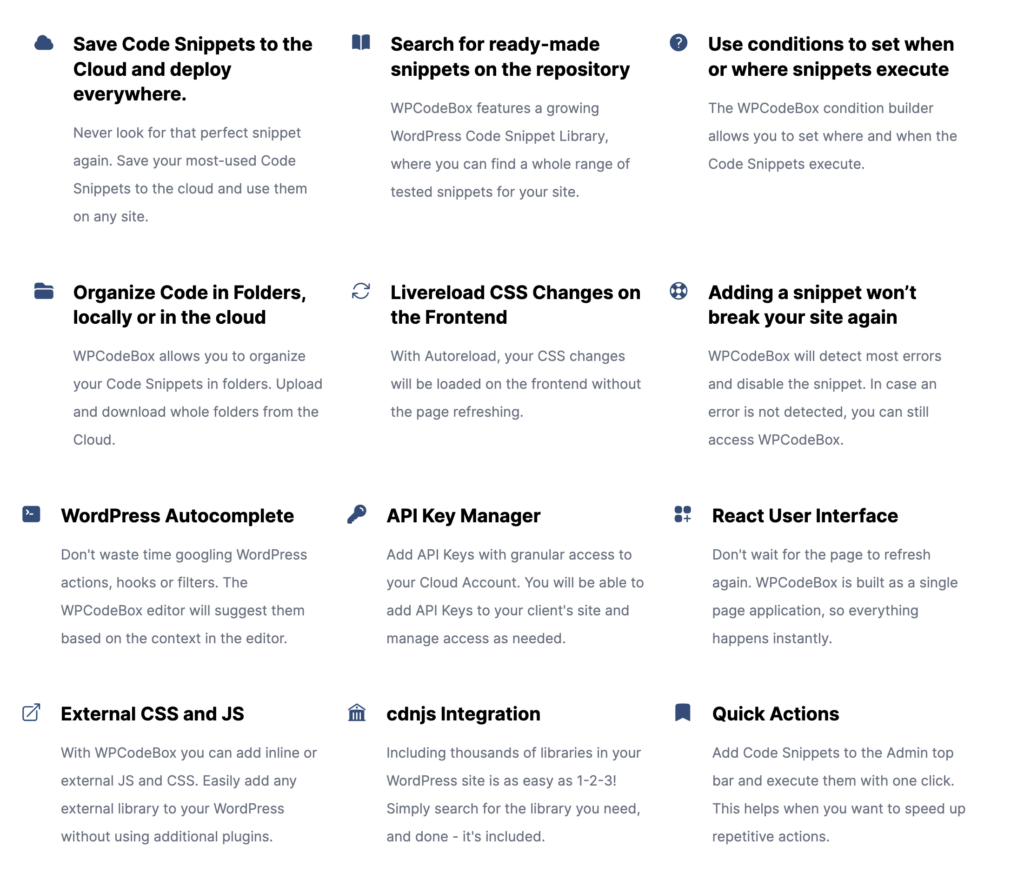
- It has cloud storage for your snippets, so when you create a snippet, you can upload it to your own cloud storage, your own account, and then bring that down on other sites where you’re using WPCodeBox.
- There is a repository on WPCodeBox with some snippets, and the number of snippets there is increasing over time.
- When you create snippets, there is a condition builder to help you focus in on where the snippet will be run.
- You can organize your snippets into folders.
- You can live load CSS changes on the front end, so you can edit your CSS in WPCodeBox and see it live without needing to refresh the page.
- It has some error handling, some error-catching features, so that if you have a bug in your snippet, it’ll prevent you from being locked out of your site and give you an option to go in and edit the snippet.
- The editor has autocomplete for WordPress, actions, hooks, and filters. It also has autocomplete for HTML, CSS, SAS, LESS, JavaScript, and JSON, so you have all those code hints there for when you’re creating your code.
- There’s an API key manager, so you can manage the keys for your client’s sites. The user interface is built in React, and so everything happens instantly. You don’t have to refresh, for example, when you save a snippet.
- You can load CSS and JS from your snippets, or you can load external files. In that regard, CDN.js is a CDN that hosts a large number of JavaScript libraries, and WP Code Box has an integration with that.
- And then there’s Quick Actions, where you can add a snippet to the admin bar.
Looking at the pricing, it’s $69 a year for a single domain, $89 a year for five domains, or unlimited domains for $119 a year. There’s pretty good documentation here also.
Reasons to Create a Stand-Alone Plugin
Let’s answer the question, why would you want to create a standalone plugin or functionality plugin? Using the code snippets interface is so convenient. And I can think of three reasons why you might want to do that:
- The first reason is that these scripts are run from the database and loading the code from the file system is a little bit faster than loading it from the database. So it’s a little speed advantage using a plugin.
- Second reason is that security researchers tell us that it’s a little bit more secure to use a regular plugin than it is to use a snippet’s plugin. Why? Well, if a hacker gets into your admin, they can use this interface to add any code that they want. Or if the hacker gets access to your database, they can inject code into your site that way as well. When you’re running your code from the functionality plugin, WP CodeBox does not run the scripts from the database. And of course, when you create a standalone plugin and disable or remove WP CodeBox, then there’s no database loading of snippets that way either.
- The last reason that I thought of that you may want to use a plugin over running the scripts from the database is if you’re building a site for a client or someone else, you can basically create a white label plugin with your own name or organization name, and you don’t need to provide access to WP CodeBox. You can totally remove it. So that is perhaps a little more professional, and your clients then wouldn’t be confused by coming across this code editor inside their site admin.
Two Options for Creating a Plugin
Functionality Plugin
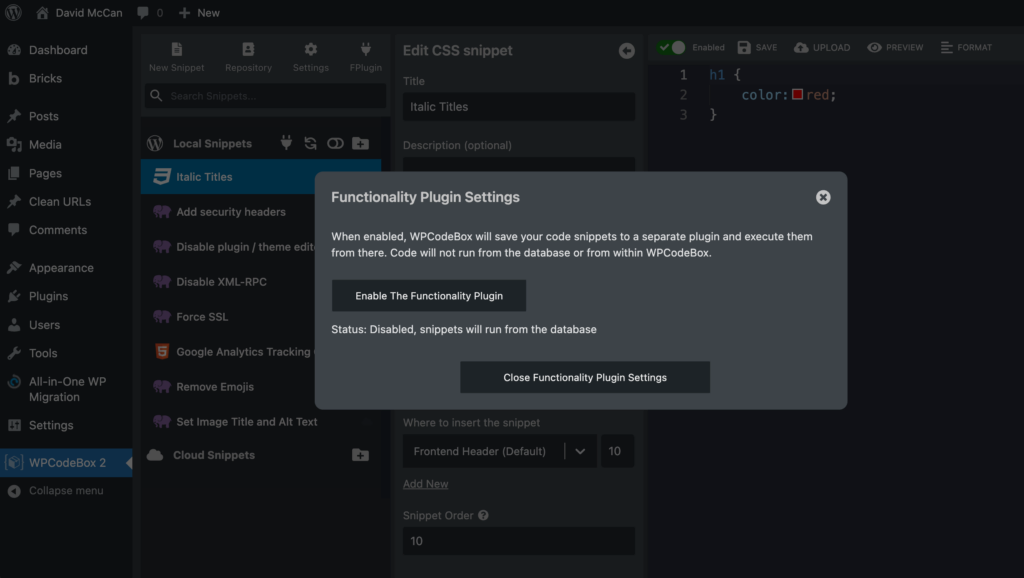
So now let’s take a look at these two plugin options. First, the functionality plugin. When I click on the functionality plugin, you can enable the functionality plugin or close the dialog. There aren’t a lot of options here. So I’m going to enable it, and after that we can disable WPCodeBox. If you go to plugins list and to the file system you can see the plugin.
Stand-Alone Plugin
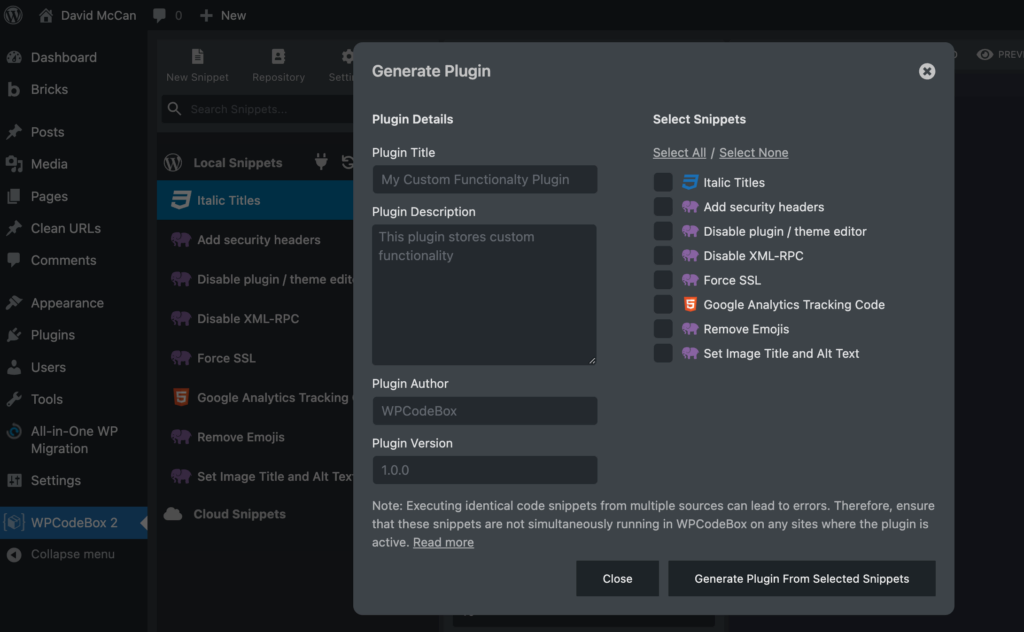
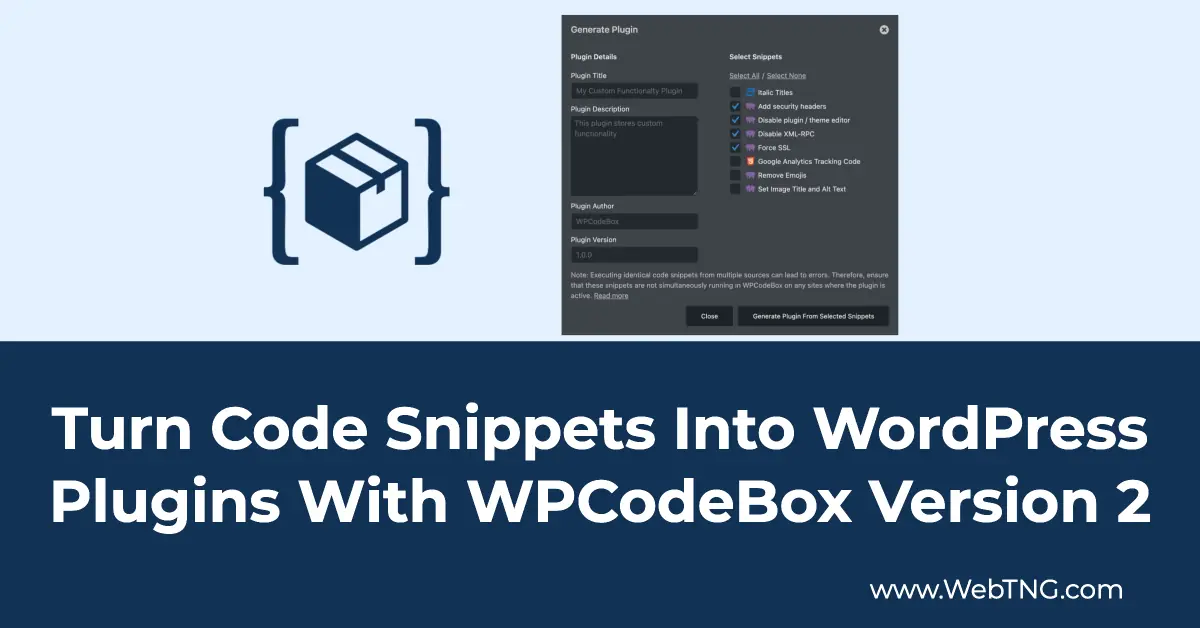
Now let’s create a custom plugin from our snippets. You see it’s listed all the snippets that we have active there, and we can pick the ones that we want. You fill in the parameters for the plugin header. When you click on the Generate Plugin From Selected Snippets the plugin zip is created and you are prompted to download it.
Discussion and Conclusion
So just a couple of thoughts as a conclusion. The WPCodeBox options to create standalone plugins I think is really nice. You get the performance boost from running it from the file system. You get the security boost by not running scripts from the database and removing the PHP editor from the WordPress admin. Plus you can create standalone plugins so you don’t have to give access to WPCodeBox to your clients, and also so you can white label the code that you’ve provided to your clients. I really like the ability to create the standalone plugin. You have the advantage of using the rich editor of WPCodeBox in doing your creation and testing of your snippets from within the WordPress admin. Plus you get the option to save the code as a plugin.
The author of WPCodeBox is very helpful and available in his Facebook group for the plugin. The plugin is now in its second version, and it’s been steadily improving and getting better. As I said in the introduction to the video, this is a great code snippets plugin. It just added a new fantastic feature. So that’s it for this look at the new features of WPCodeBox.