
Table of Contents
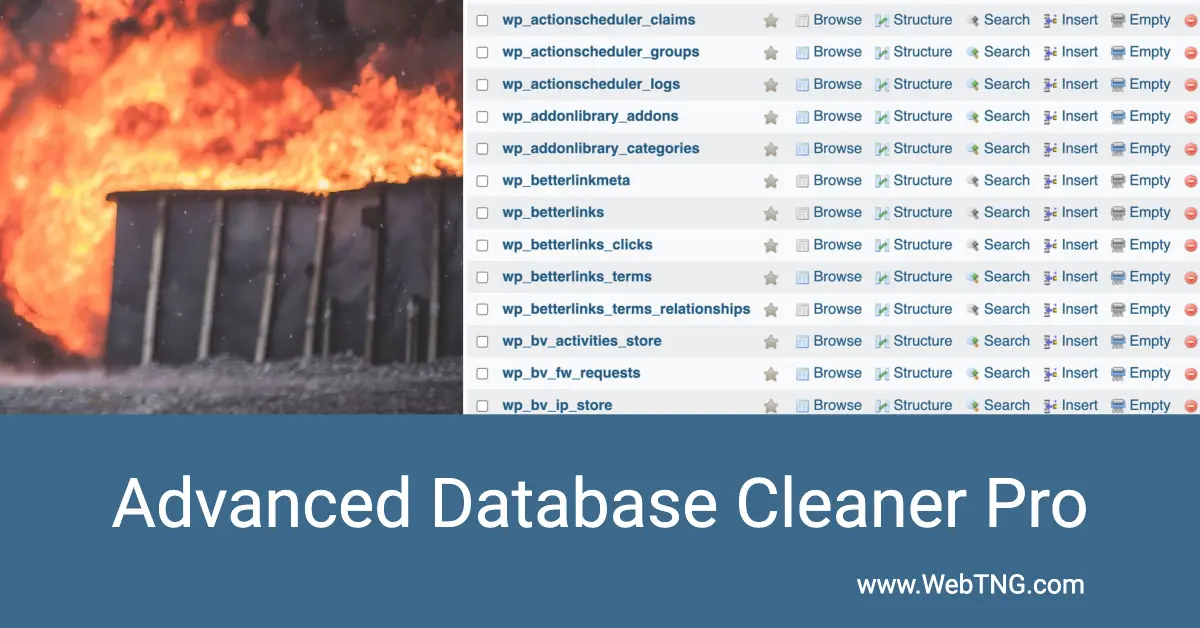
You know that old saying, “out of sight, out of mind”? There’s no place that’s more accurate than the WordPress database. Just using WordPress core itself, there are many ways that junk can accumulate in the database. Old post revisions, pingbacks, trackbacks, spam comments, orphan post meta, expired transients, and so on. A number of WordPress plugins add custom tables to the WordPress database, and many themes and plugins save their settings in the WP options table. If the site’s been around for a while, then there’s a good chance that the database needs to be cleaned and optimized. However, the tools that were usually given for working with the database, something like phpMyAdmin or Adminer, they will show you the tables, but finding that trash, the old revisions, the orphan post meta, the expired transients, would take custom queries, and finding and removing those would be error-prone.
Fortunately, there are some tools for working with the WordPress database, and the one I use is Advanced Database Cleaner Pro. It’s an easy-to-use tool that provides a UI so you can see what’s in your database, and you can clean and optimize the database. In this video, I’m going to do a walkthrough of Advanced Database Cleaner Pro, so you can see how it works.
Video Version
Advanced Database Cleaner Overview
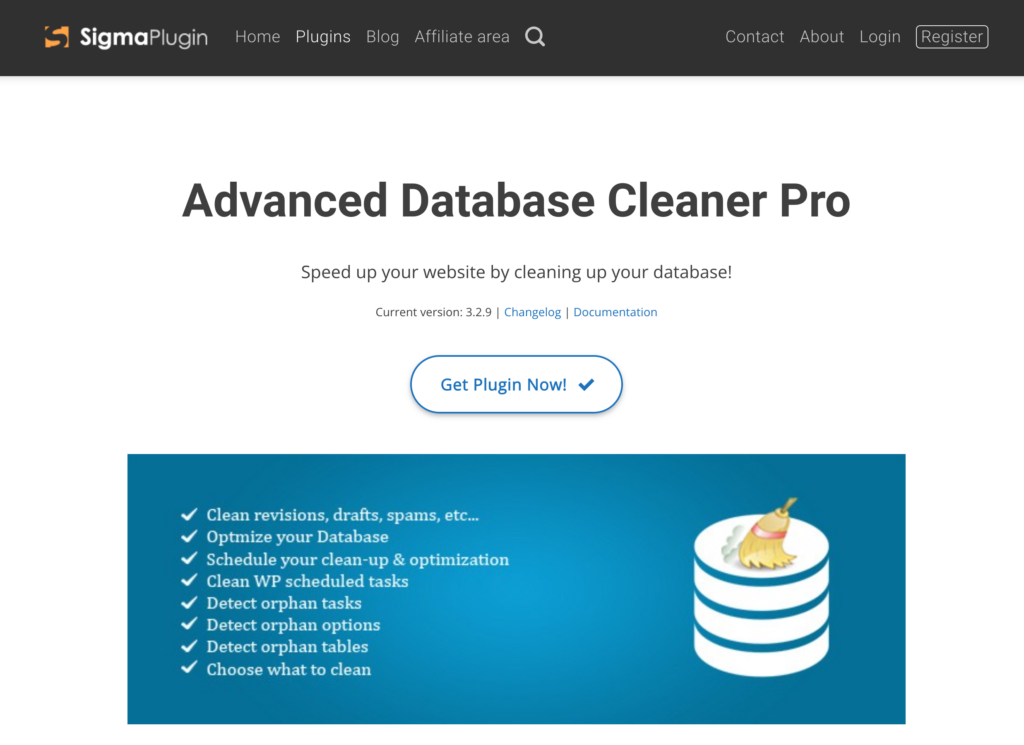
This is the website for Advanced Database Cleaner Pro. The plugin has one-time lifetime pricing. There are two-site, five-site, and unlimited sites, and the pricing is very reasonable. Also, on the website, there is some documentation help.
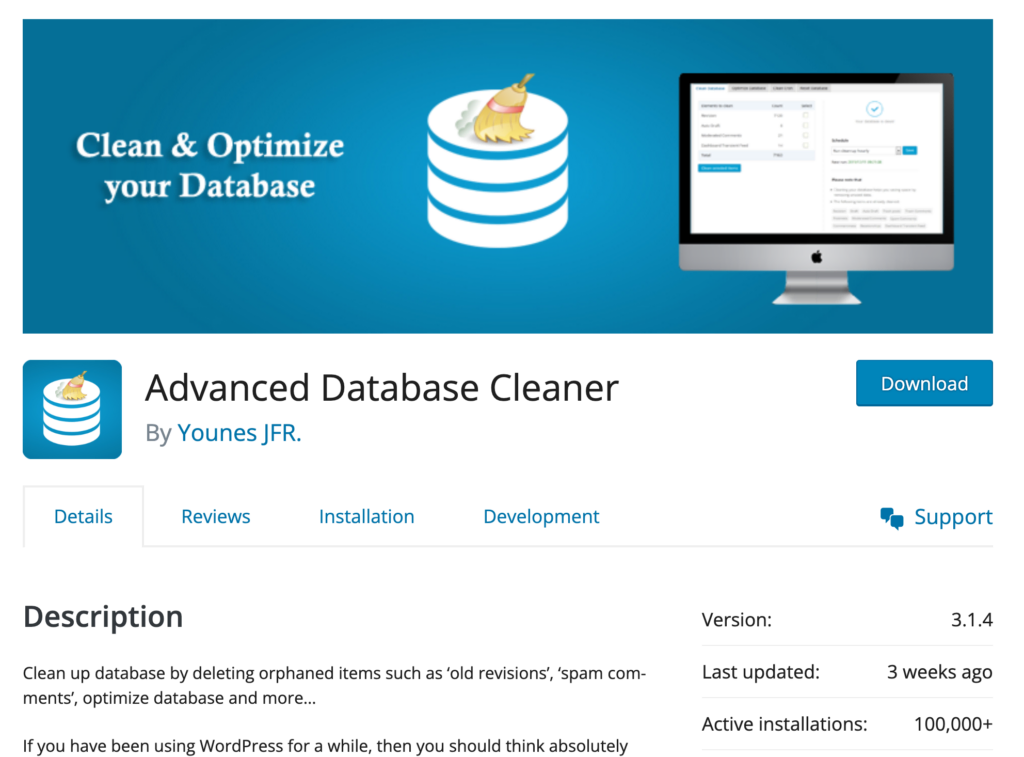
Advanced Database Cleaner also has a free version in the WordPress plugin directory. You can see that it’s regularly updated, it has more than 100,000 active installs, 1,364 five-star reviews, and it’s well supported. Now, the Pro plugin, as you would imagine, has more features than the free one. If you can’t afford the Pro plugin or you don’t need the features of the Pro plugin, I recommend you at least check out the free version.
So, I have a test site here where I’ve installed Advanced Database Cleaner Pro. I’ve already entered the license, and these are the tabs that relate to different functionality.
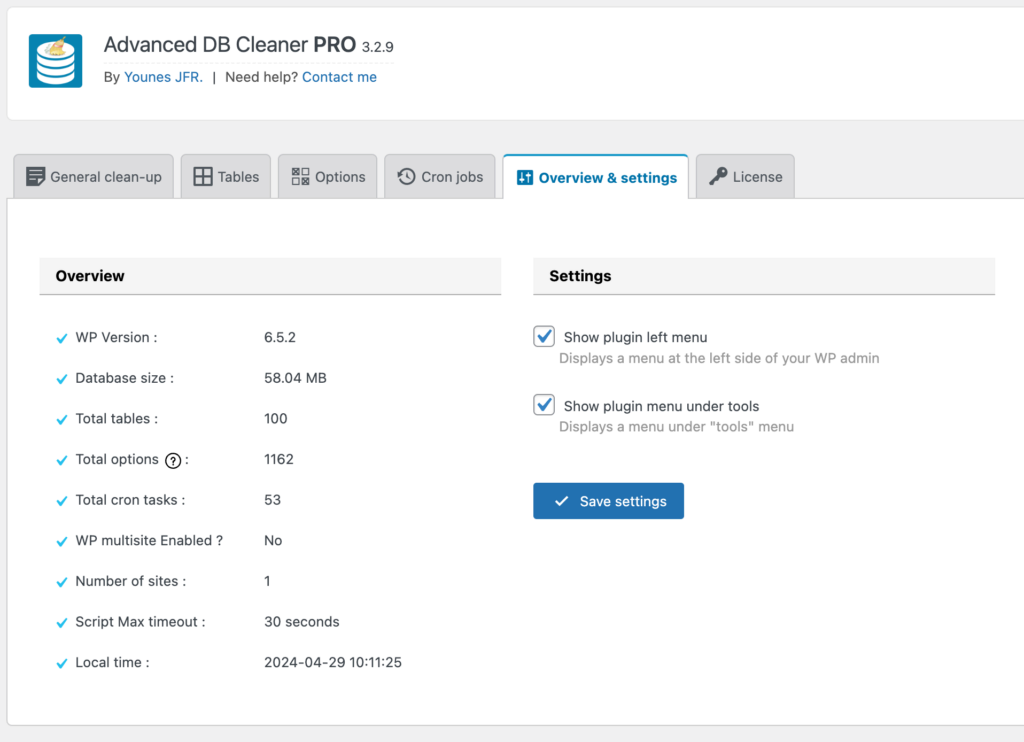
You can see the admin menu here on the top level, and there are two settings here that control where the admin menu shows. Here it says “Show plugin” on the left menu, and here it says “Show it on the Tools menu.” So, if we look at Tools, see that’s there also. And if we just, for example, uncheck this, click Save. So, it disappeared from the left menu there. So, that’s how you can keep your top level menu clean if you like to keep your utilities tucked away.
Then over here we have an overview, and you can see, for example, that there are 109 tables. Okay, so you can see there are 109 tables, a huge number of options. So, as we’ll see, this database hasn’t been cleaned for a long time, and it’s something of a dumpster fire. So, let me show you how you would use Advanced Database Cleaner to start to clean this up. There are four tabs here that relate to the different functional areas. There’s General Cleanup, Tables, Options, and Cron jobs.
General Clean-Up
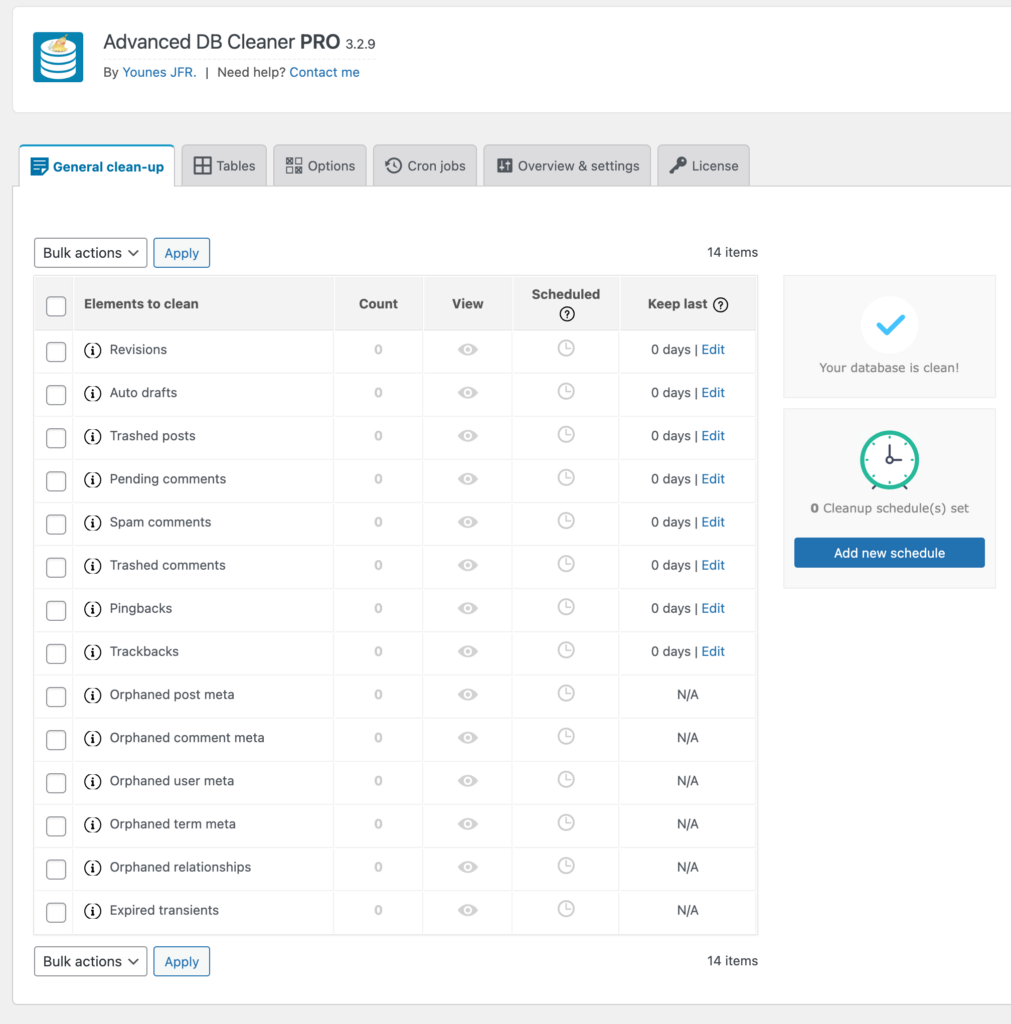
On the General Cleanup tab we can see that there are a bunch of old revisions. There’s an auto-draft, a large number of orphan post meta, and this site used to use Toolset, and now it uses Advanced Custom Fields. So, Toolset, a lot of stuff was left behind. Orphaned Comet Meta, Expired Transients, you know, there’s also Pingbacks, and Trackbacks, spam comments, and so on. It’s pretty safe to clean this stuff up. I just select it all and then the only thing we can do is click Clean and Apply.
This is a Power Tool, so of course you need to have a database backup.
You don’t have to backup the entire site because we’re just working with the database. You can take a backup of the database, you can take a backup of just the database, which would be a smaller backup file size.
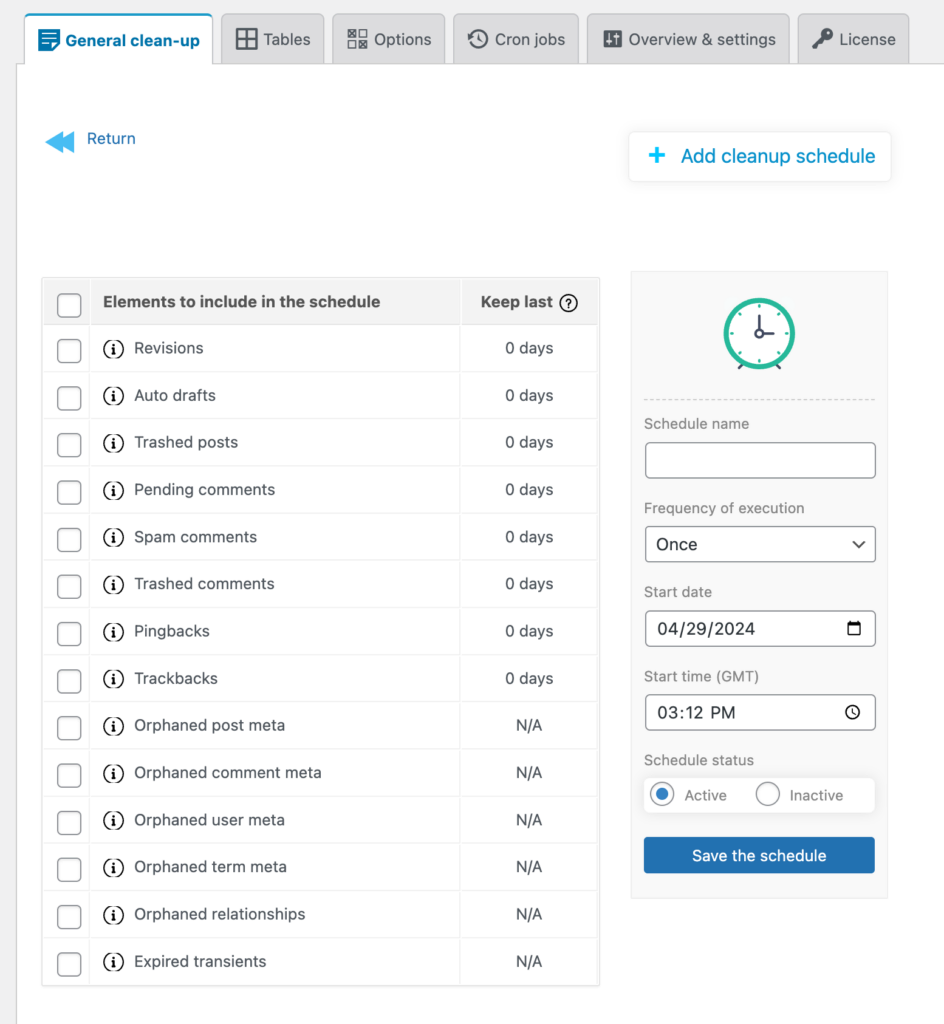
On this tab there is also another feature where you can schedule a cleanup. You can give the schedule a name, you can choose how often you want it to run. So, if you have a very busy site, you might want it to run daily, if you don’t have very busy site maybe monthly would be sufficient. You can choose the date and time, you can have your job be active or turn it off when you don’t need it. So, that’s a nice feature, so that’s a nice feature there for automating maintenance.
Delete and Optimize Database Tables
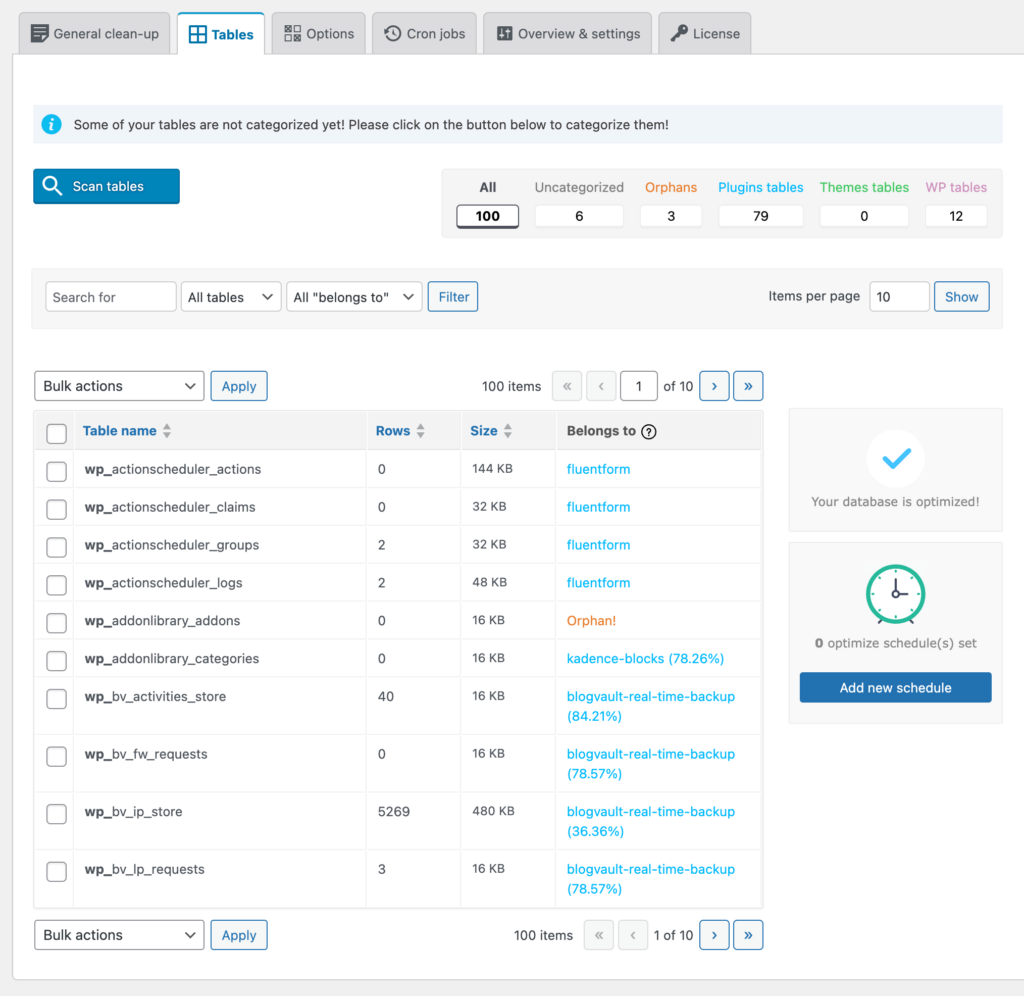
If we go then to the Tables tab, we look at the features here, there is this option to scan the tables. What that does is that Advanced DB Cleaner Pro will make its best guess of what plugin the tables are related to. And then it kind of groups them up near the top. That makes it a little bit easier to manage. Now, you still need to keep your thinking cap on and pay attention because, as I said, these are guesses and they may be incorrect.
If we look at the Bulk Actions, we’ll see what the options are here. We can scan the selected tables, we can edit the category, we can optimize the tables and repair the tables, so those are nice features. We can delete all the rows out of the tables or delete the tables themselves. So, you would select the tables that are no longer needed and delete them.
Sometimes you’re going to come across tables where you don’t know what it’s for. And in those cases, what I do is I copy the table name, I go and do a search and try to get information about it. If you are sure you don’t need it anymore then you can delete it. If you are not sure, it is better to keep it.
Just like with the general cleanup, there is an option here to create a schedule. And just like before, you give it a name, you can have it be active or inactive, you can choose your schedule, and then the options are to optimize or repair. Okay, so if you have a very busy website, you might want to run the optimize periodically.
Cleaning the Options Table
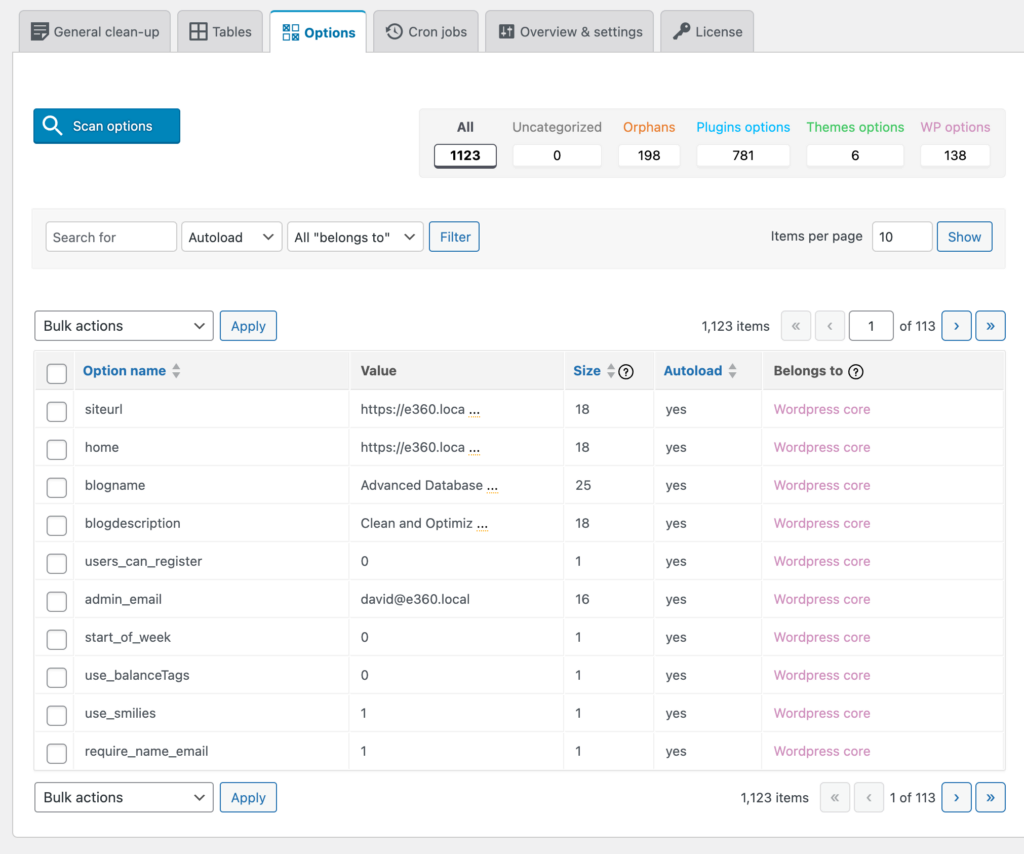
The third tab is for the WordPress options table. All of your themes and plugins have settings and they store the settings usually in the options table. You can see there are a huge number, 1128. I think the initial install of WordPress maybe has 138. So a lot of options here have been added by themes and plugins. You can run a scan and Advanced Database Cleaner will take its guess in finding the option source. Delete the ones you are sure you don’t need.
Option records have an auto-load column that can be set to “yes” or “no.” If set to yes then those settings are loaded into memory for every page load. Of course it might be cached, but when you have this large number of options, even if it’s cached, you can be using up a lot of resources. And if the plugin or theme has been removed, then you really shouldn’t be loading that. So you can change the options to no, maybe if you’re not sure if they’re needed or not. You can use Google to find the source of options you don’t know about.
Cron Jobs
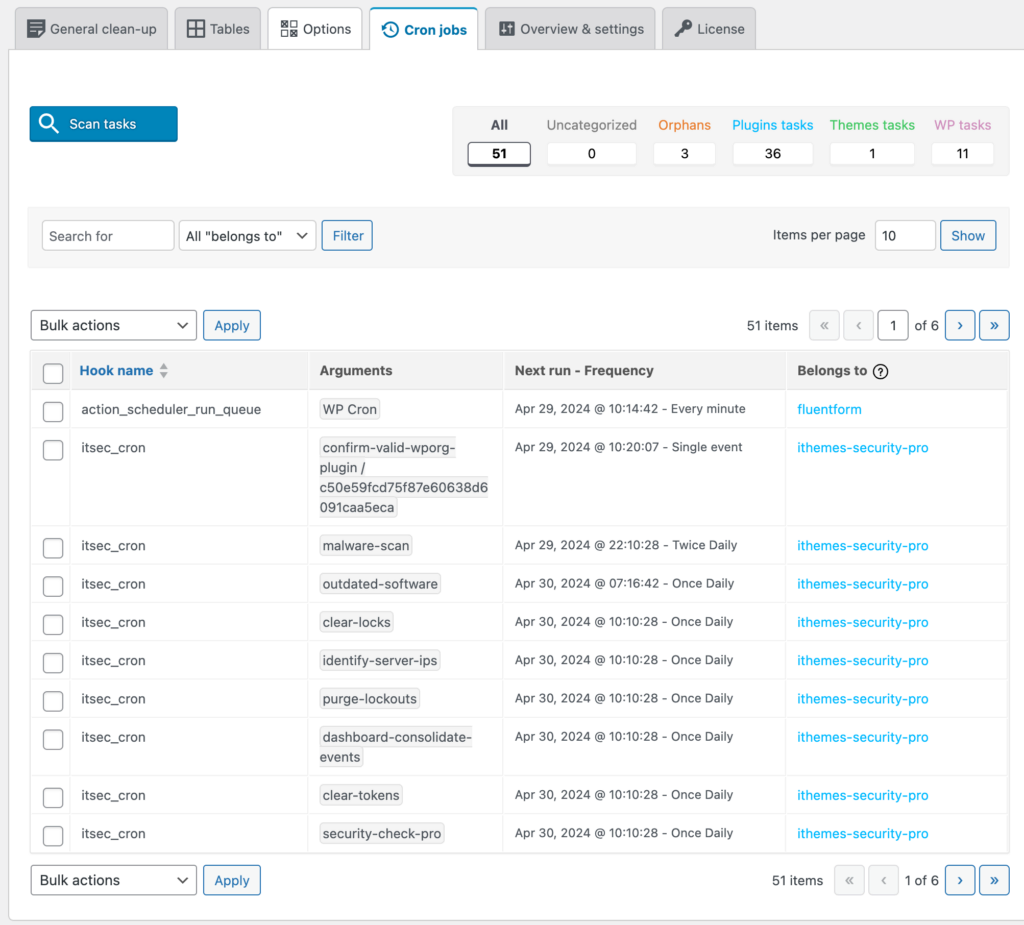
The last tab is for cron jobs. Again, you have the option to scan. And you can see there are 11 core Cronjobs. I’ve got 42 in total. You can delete the ones that are left-behind trash.
Discussion
So I think that gives you a good idea of how the Advanced Database Cleaner Pro plugin works. Just to summarize here, I think that the WordPress database is often neglected and ignored. That old saying, “out of sight, out of mind.” As we can see here, over time a lot of trash accumulates. So it’s possible to go in and clean it and optimize it.
The tool Advanced Database Cleaner gives you a window and helps organize the cleanup and optimization options for the database. It gives you a window, a GUI, to manage that process. I’ve used the plugin for several years. I know there are a number of WordPress professionals who also use this program in their maintenance routine.
I recommend and use Advanced Database Cleaner. I know a number of WordPress professionals also use this plugin in their maintenance routines. There is also a free version of the plugin that you can check out.