

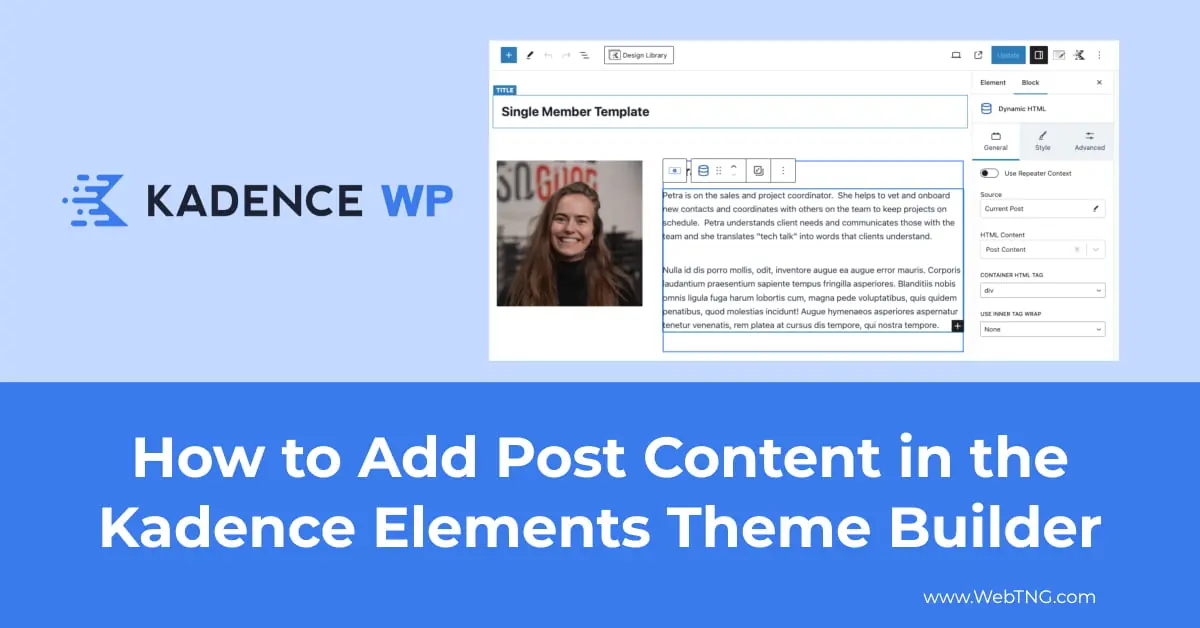
There was a change in WordPress 6.3 and the Post Content Block now only shows in the Site Editor and just when you’re using a block theme. I guess there were users who were trying to insert that block into regular post content and it caused errors and confusion. So they made this change. But what do you do then if you’re creating a template using Kadence Elements?
Kadence Elements, part of the Kadence Pro theme, has a theme builder where you can create templates for single posts and single Custom Post Types. But without the post content block, how are you gonna show the post content? So this question was asked in the Dynamic WordPress Facebook group, and I found an answer on WordPress.org in the support forums and I thought it would be worthwhile just to have a quick video might be useful for people.
Video Version
So here I have a test website, I have Kadence Pro Theme, Kadence Pro Blocks, some demo data here including a team Custom Post Type created using Meta Box.
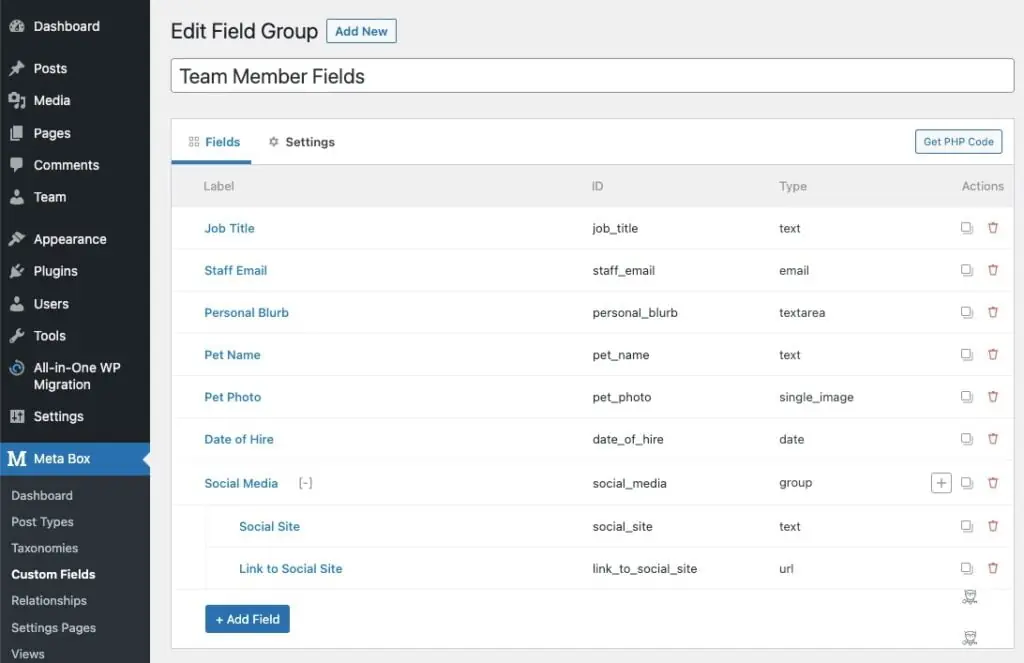
We’re going to use Kadence Elements to create the single team member template.
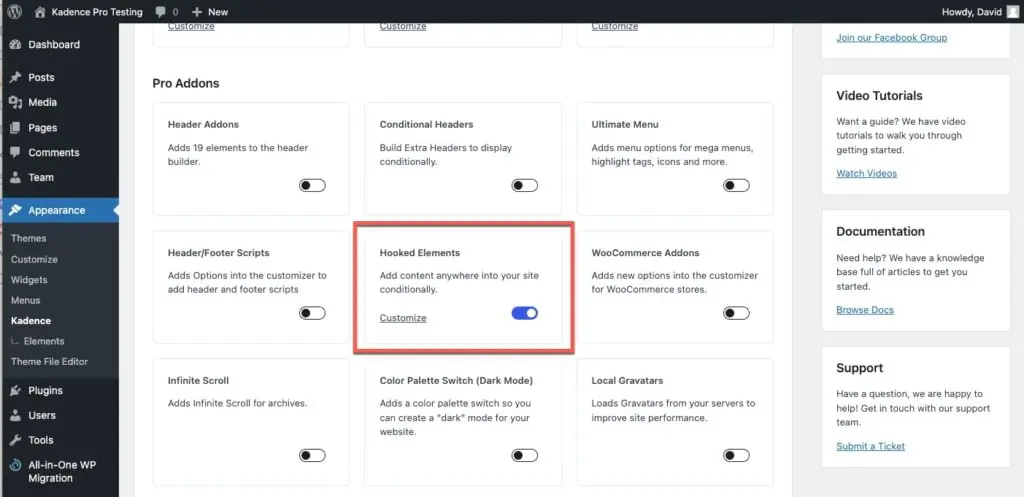
With Kadence Elements, if you want to use that then you have to go to Kadence under Appearance and you turned on hooked elements here. And when you do that then you can click to go to Elements or you can click this Customize link.
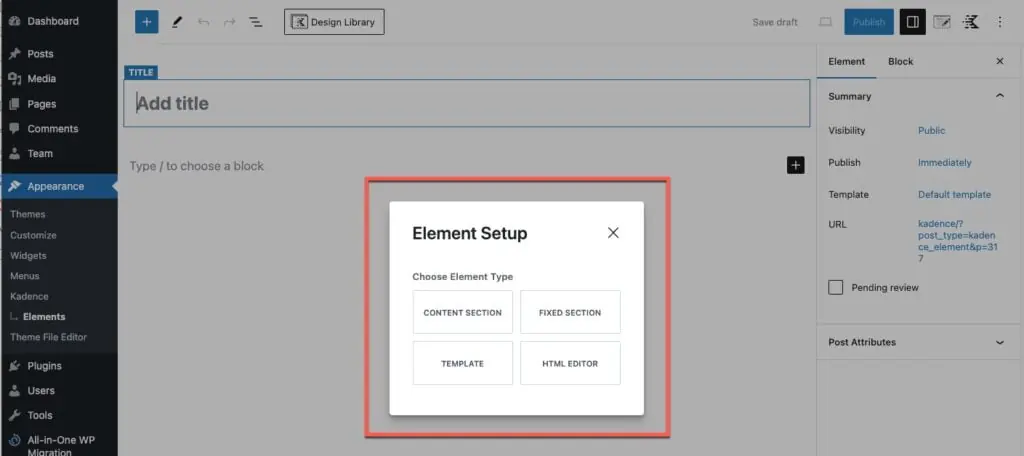
So there are sections, fixed items, html code, and templates. And we want to use a template. So I’m going to click add new template. We’ll give it a title single member template. The name doesn’t usually show so that’s fine. Then here what we need to do is we need to set how we want it to show. Display settings for all single, for single posts, single pages, single team. Here we go. And we don’t need that. We don’t need exclude settings. We’ll We’ll have it visible to all users and we don’t need expire settings. And we want it to replace the single post content.
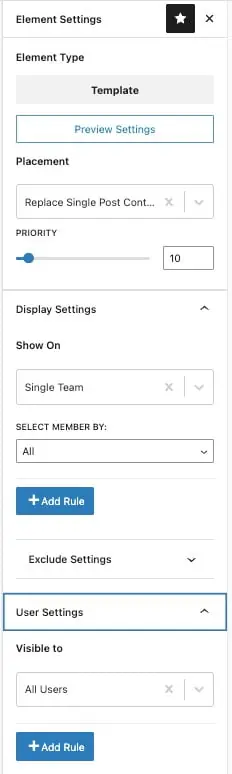
Then for preview, just to make our life easier, we’re going to set for team and we’ll pick a post. We’re doing Petra Young.
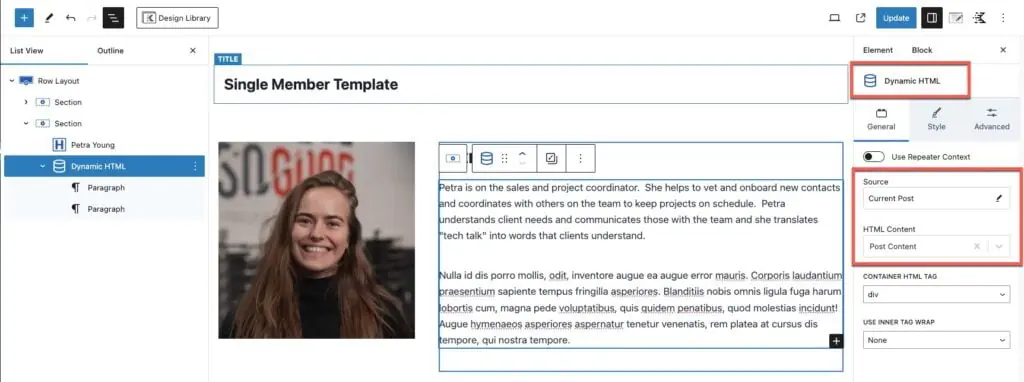
So now let’s add a row layout. We’ll take this one and here we’ll add image. So we’ll go to the block settings, click on the database icon and we’ll set this for the featured image. Now over here we’ll add the advanced text and we’ll go database icon and we’ll have it be the post title. Then we want to show the post content. And so here’s where we run into a problem. If we go post content, the block isn’t available. As I said, if we were using a block based theme, then we would see it in the Site Editor. I found is that we can use the dynamic HTML block from Kadence. In the pro version of Kadence blocks, we’ll go to source and under HTML content, then we’ll say post content. And there is our post content field. So let’s publish that.
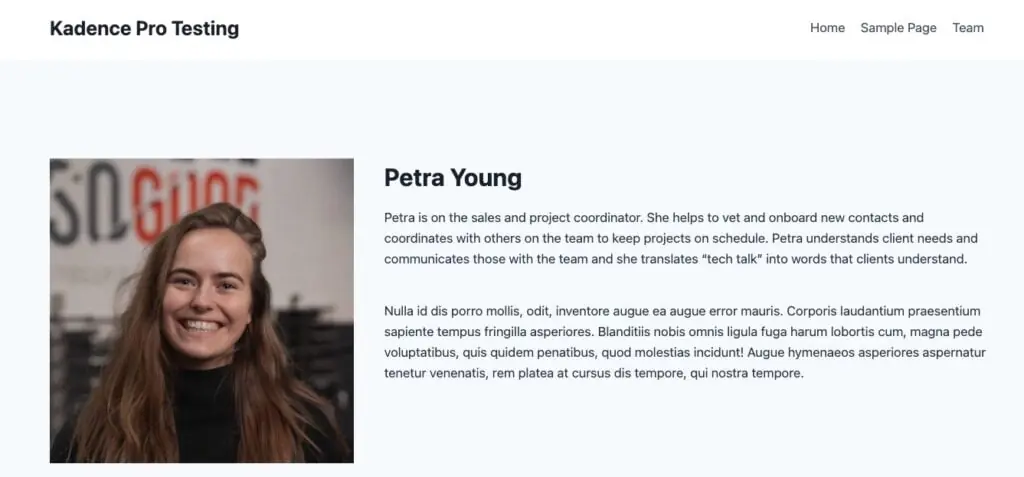
Let’s go to the front of the site and look. There we go. In the past, you might have used the post content field. and that’s not available now and so this is the way to get the job done.
If you hadn’t already figured out how to do that I hope the video was useful for you. If you like the video please give it a thumbs up and please subscribe to the channel it makes a big difference.
Peftect, exactly what I was looking for. This isn’t as intuitive in the template builder as you’d expect. Thank you.