
Table of Contents
Fluent Snippets is a plugin for managing your PHP, JavaScript, CSS, and HTML code snippets. It’s from the WP Managed Ninja team, the same people who make Fluent forms and other well-respected plugins.
Video Version
In this video I do a walkthrough to show how it works and take a look at some of its special features.
Background
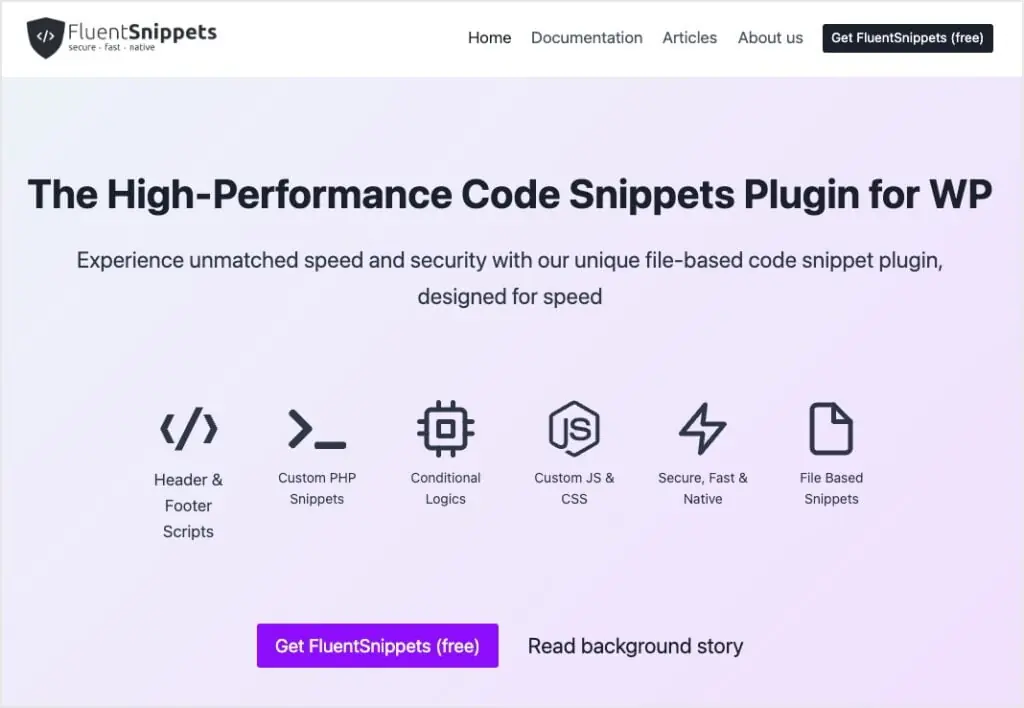
This is the Fluent Snippets website. There’s some information about the plugin here, but there’s not too much documentation yet because it’s just launched. Now, one thing you will notice though is that Fluent Snippets is free and it’s available in the WordPress plugin directory.
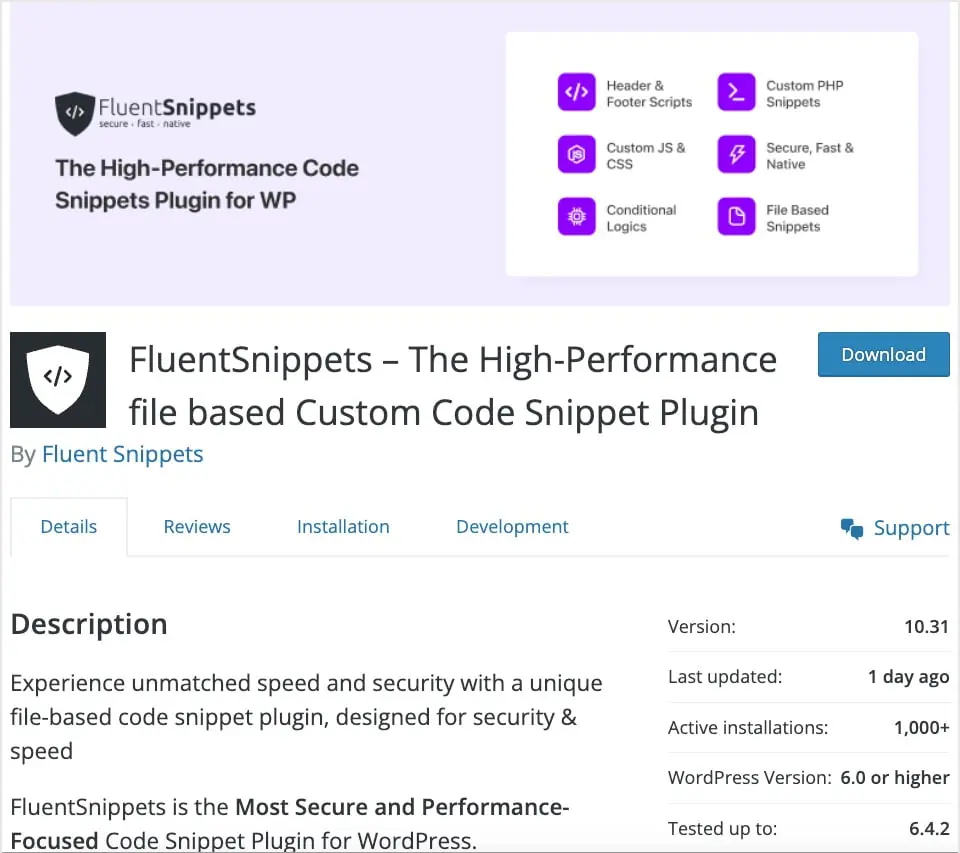
Given that it’s new, it may seem odd that it’s already on version 10.2 and has more than a thousand active installs. That’s because if you look at the slug of the plugin, it says “Easy Code Manager.” This was a Snippets plugin that was created many years ago and was not kept up to date, and the WP Managed Ninja team took it over. And if we look at the development log, we’ll see that they totally rewrote the plugin and gave it a new user interface and workflow.
Main Features
Settings Page
On the plugins settings page you can activate Snippets as the default action. If you don’t do this, then after you create a Snippet, you’ll have to go to the extra step and activate it.
There’s the option which is to automatically disable scripts on a fatal error. So if you made a mistake in your script, it would get disabled so you could get back in and fix it.
Also, then there’s the option to remove all data when you delete the plugin (that’s coming soon).
Sometimes with code snippets, you can accidentally disable your site. You can have a bug in the snippet that gives you a white screen or something like that. And so they give you two ways that you can get back into the admin if that happens. One is that there is a special Safe Mode URL. And the other is that you can define Safe Mode in your WP config file.
The last setting here is that there’s a standalone mode. And this is one of the unique features of Fluent Snippets.
Snippets List Page
On the Snippet page you have the option whether you want to create a PHP, a PHP and HTML, a CSS or a JavaScript snippet. You give your snippet a name, description, a group, a run priority, and a tag.
You can run a snippet everywhere. That’s front end and admin. Admin only or front end only. And then there’s some conditional logic options. We can click for conditional logic and here you can add multiple conditions. By default, they’re going to be “and” conditions. For conditions you have the option for user, whether they’re logged in or user role. You have the option for page, the type of page, the post type, the taxonomy page, term page, URL, or a single post page or custom post type. And then there’s a date option, time option, and day of week option.
Now let’s take a look at what makes Fluent Snippets different. Fluent Snippets is saving your snippets to the file system. Most snippets programs save the snippets to the database. There are a couple of advantages for saving to the file system. One of them is that the file system is much faster. Now there are another couple of advantages also. Let’s go check those out. If we go to the settings menu here, there is this standalone mode. When we enable that and go and look at the installed plugins, we see that we now have a must use plugin. And a must use plugin is one that you can’t disable and delete from within the admin like you normally do with plugins. It’s going to be loaded every time WordPress loads a page. So this adds an extra bit of security here because if a user gets access to your admin, they won’t be able to delete this must use plugin.
If we go back to the installed plugins, deactivate Fluent Snippets, and delete it. Normally we would think at this point we’ve removed our snippets. They’re no longer there because we’ve deactivated and deleted the plugin. However, the must use plugin is still there and our code snippets still work. This is another advantage of Fluent Snippets is that it’s created this must use plugin and it’s loading the snippets from the file system. So if some other user of your website or a hacker gains access, they can’t easily disable your code snippets. And sometimes it happens that there is a database breach. Maybe there is a SQL injection or something like that and hacker can manipulate your WordPress database. Even then, they won’t be able to disable your code snippets and they won’t be able to add a rogue code snippet.
Going back to look at the file system, you see that there’s now this folder, MU Plugins. And here is the must use plugin that Fluent Snippets created. And it’s still loading your snippets from the file system. If later you decide you don’t want to have code snippets, you can go to the file system and you can delete this must use plugin. Or since Fluent Snippets is free, you can reinstall the Fluent Snippets plugin and you can add or modify your snippets using the user interface.
Discussion
OK, so that’s the walkthrough and look at how Fluent Snippets works. There are just a couple of comments that I’d like to share. There are a number of good snippets plugins available and they all have different features. So choose the one that works best for you and that has the features you need.
As we’ve seen, Fluent Snippets has a few really nice features that makes it an option to consider:
- First, it’s free.
- Second, it has a nice user interface and it’s easy to use.
- Third, it saves the code snippets to the file system.
- And fourth, you have the option to create a custom must use plugin and you’re able to actually remove Fluent Snippets from the website and you don’t even need to have it installed anymore.
All of which means that when you’re using code snippets with the Fluent Snippets plugin, things are a little bit faster and more secure.
So Fluent Snippets offers a nice feature set and for that reason, I think it’s going to catch on and will be a popular choice for site builders. It’s another free plugin from the WP Managed Ninja team. They have a few really nice ones that are go-to solutions for people such as Fluent SMTP.