
Table of Contents
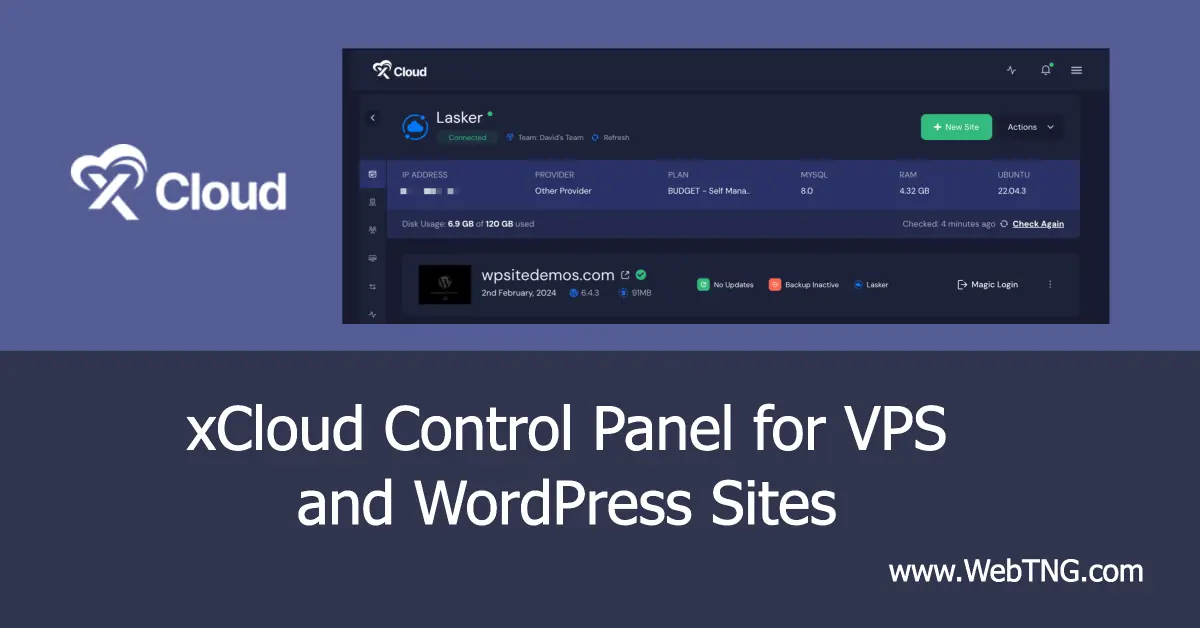
xCloud is a new control panel for managing virtual private servers (VPS) and WordPress websites. It’s been developed by the WP Developer Team, and the founder of WP Managed Ninja is also a partner. They’ve just launched the service, and in this video I do an overview and walkthrough. In the walkthrough, I want to add a VPS to Xcloud, and then I want to add a WordPress website. So I think this will give people an idea of what the control panel looks like and the kind of features it has.
Video Version
Requirements
To use Xcloud, this control panel, you’re going to need a virtual private server. They have automated installs for Vulture, Google Cloud Platform, and Digital Ocean. You can also bring your own virtual private server from some other provider, and then they have a script you can run. So it’s a little bit of a manual option, and that’s actually what I do in the video. However, if you want to use one of those three, then that would probably be a little bit easier to set up. They plan to add automated installs for additional platforms going forward.
When you setup your VPS, you need to make sure it has a recent version of Ubuntu LTS. Check the x Cloud documentation for updates, but at the moment it looks like Ubuntu 22.04. It needs to be a clean install and and you need to use an AMD or Intel CPU for your VPS. You will need the root username and either an SSH key or root password.
Another option, rather than getting a VPS yourself, is that you can sign-up for their managed service. In that case they will provide a VPS as part of your plan. Obviously, the price would be higher as they will do the management for you.
Some Highlights of the Service
Here are some of the highlights of their service.
- You have full access. Some services, like Cloudways, don’t give you access to the VPS.
- It comes with Redis caching built in, which is an advanced server-side caching solution.
- The xCloud stack, their install and script is installing Linux, IngenX, PHP, and MySQL and Redis. They’re going to keep those up to date for you.
- A cool thing is that you can have a team associated with your account. So that’s nice. I think that’s a higher tier feature over at RunCloud. You can give team members access to a VPS server or just a single site. The permission options are pretty flexible.
- They have good documentation for being so new.
- They have their own site migration tools, but I see most people have good luck using the MigrateGuru plugin.
- They have live chat and ticket support.
- A VPS doesn’t come with email, like shared hosting, but they give you 100 emails a month free or your can purchase a thousand emails a month for $1 a month, and they have higher plans also. Of course, you can also use other email services.
- The control panel has an integration with Cloudflare. Even the free version of Cloudflare provides enhanced security.
- And many more …
Conclusions
The setup process for the server and the sites went well. There were a couple of rough spots, but no showstoppers. Note that currently it is Nginx only as a web server. Nginx is well respected, but some people like Open Lite Speed or Apache, and those aren’t options yet.
Comparing prices with RunCloud, which is more mature and has more features … so just basic pricing, the lower tier xCloud plans (LTD and annual) look like a good deal. I got the 2nd tier, 7 server plan. The higher plans it looks like RunCloud may be a better value as their higher plans include unlimited sites, and xCloud plans are based on number of sites.
xCloud is new and they are rapidly fixing bugs and improving the service. I like that they launched it full featured, as that inspires confidence. My sense it is that it will be a good option in the future, especially if they can build up a track record of great support.
Note, there are a few days left on their launch LTD pricing.