
Table of Contents
In this tutorial I’m looking at a relatively new plugin called Dynamic Shortcodes. I think I found an incredible match, a really fantastic use of Dynamic Shortcodes, and that is with Core Blocks in the Site Editor. And that’s what I’m gonna demo.
Video Version
Dynamic.ooo Website and Dynamic Shortcodes
Dynamic Shortcodes is from Dynamic.OOO. They are the creator of Dynamic Content for Elementor. I’ve been using Dynamic Content for Elementor on Elementor sites for a number of years. I’ve made a lot of videos about it. It is an incredible plugin, especially when it comes to working with dynamic data. And Dynamic Shortcodes, what they did is they kind of took all the knowledge and power of Dynamic Content for Elementor in terms of working with dynamic data, and they created their own super shortcode syntax where you can access, I think, pretty much all of the different types of dynamic data that are available in a WordPress website.
Dynamic Shortcodes works here with ACF, Jet Engine, Metabox, Pods, and Toolset. Great support for different custom field options in WordPress, and as far as I can tell, it has really deep support for each of these, at least for ACF and Metabox, and I believe for the others as well. It works with Breakdance, Bricks, the Classic Editor, Elementor, Full Site Editing, Gutenberg, and Oxygen. If you already own Dynamic Content for Elementor, there’s a special version of Dynamic Shortcodes that’s included if you own Dynamic Content for Elementor, so you’re already taken care of in terms of using Dynamic Shortcodes with Elementor.
In addition to working with custom field suppliers, and different page builders, and showing dynamic data, Dynamic Shortcodes has a couple of other really powerful features. For example here, you can do arithmetic functions, you can use conditions, and they are advanced condition options. You can read and set cookies, there’s a for loop, there’s a loop, you can retrieve media, there are query options. This is really like a power library. Oh, by the way, another feature that came out in version 1.5 is that they now have an API so you can retrieve data from other websites. And so this is just packing a lot of power features in.
If we look at pricing, we can see that there’s yearly pricing for one, three, or 1,000 sites. And then for a time, they have lifetime deals for one site or for 1,000 sites. And I think this is a really attractive price point here. So if you read this video, while they still have the lifetime deal, I’m encouraging people to take a look and see if it’s something you might need, especially after reading this tutorial and seeing how you can use it in the Full Site Editor. I think you might be a little bit excited about this. I am. There is pretty good documentation here and there are lots of examples. And when it comes to examples, there’s kind of a unique help with Dynamic Shortcodes that I’ll show you in just a minute.
Overview of Test Site
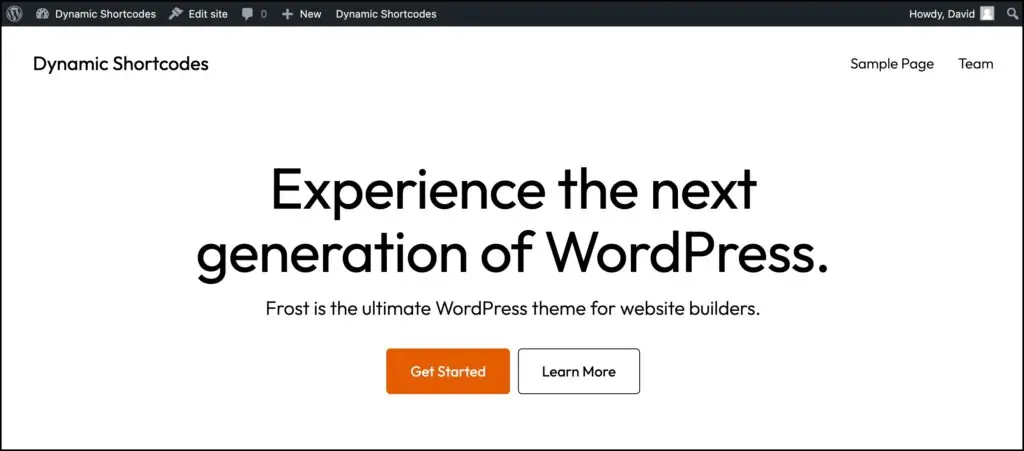
I have a test site here. I’m using the full site editor and I’m using the Frost theme because I wanted a theme that was fairly mature and that wasn’t paired with a block collection because I’m gonna just use core blocks. And I wanted to work with a theme that doesn’t have a pro or extension plugin that goes with it. Okay, so Frost fit that profile.
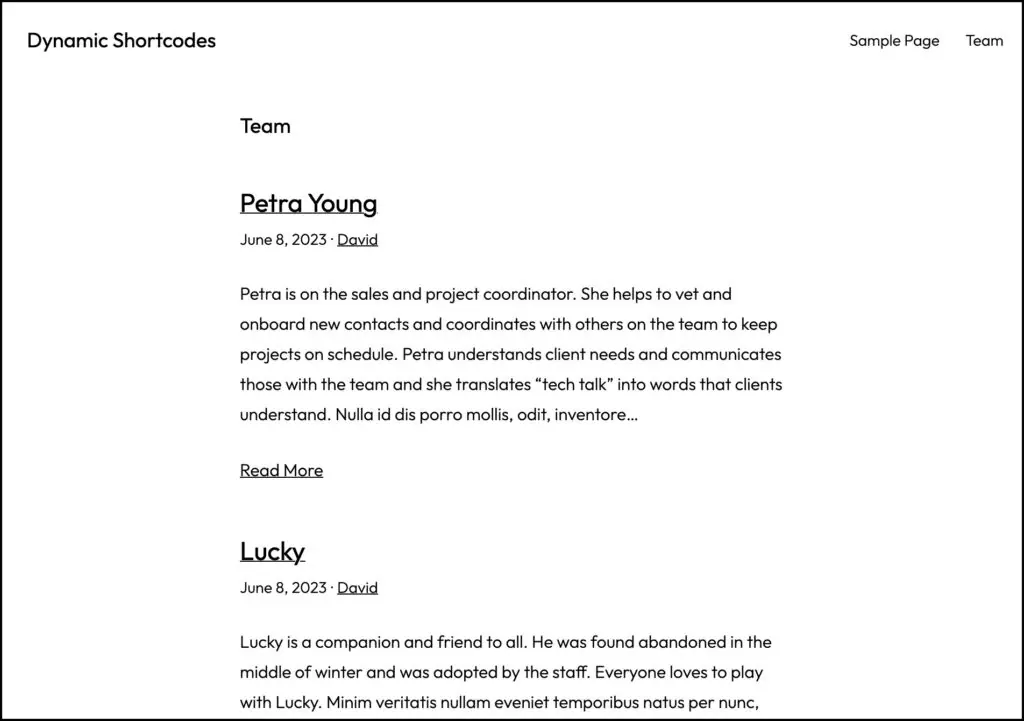
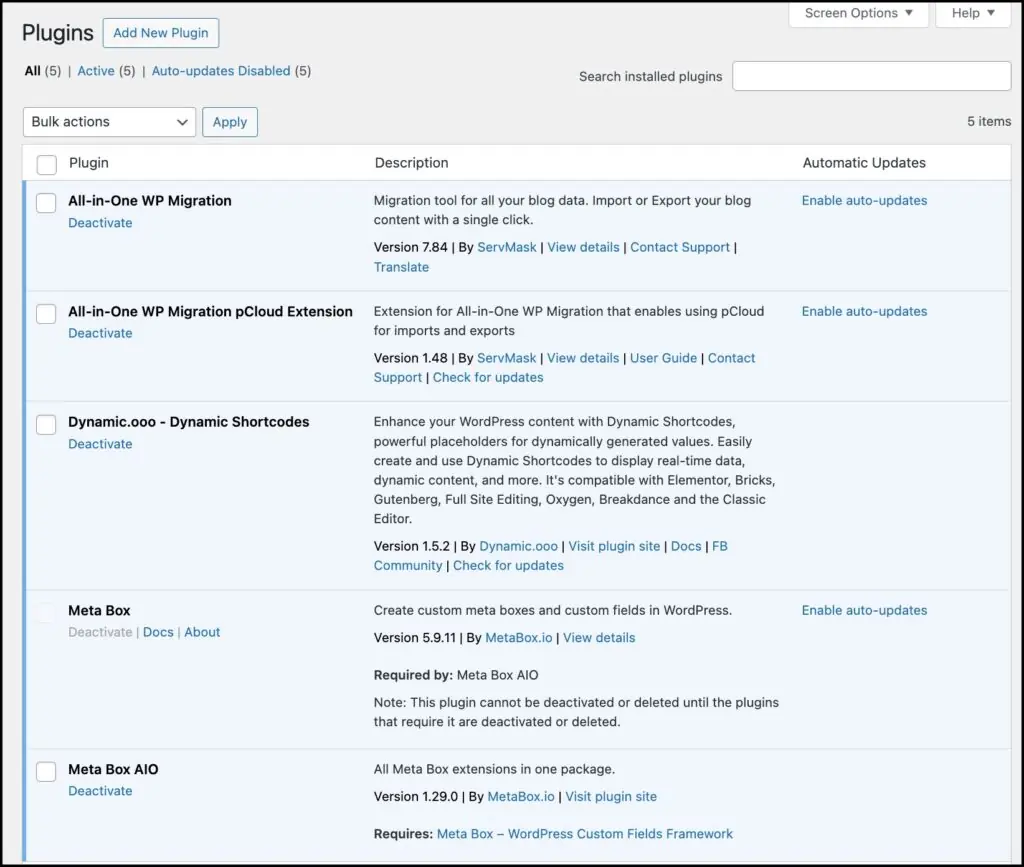
I have a Custom Post Type called Team and this is the default archive that you get with Frost. There’s no featured image here, but you can see, here’s the post title, post date, the author, the excerpt and an option to read more. Okay, so here’s team members. Okay, and if you go to the single, you just have the same information but you have the full content there, the full post content. All right, so let’s go and look though because there’s a lot more to this site that’s not being shown because we haven’t built the templates yet. I have all in one WP migration that I use for backing up the site and resetting it between testing cycles. Then the dynamic short codes plugin. Then I have Metabox and Metabox all in one which is the pro all in one extension.
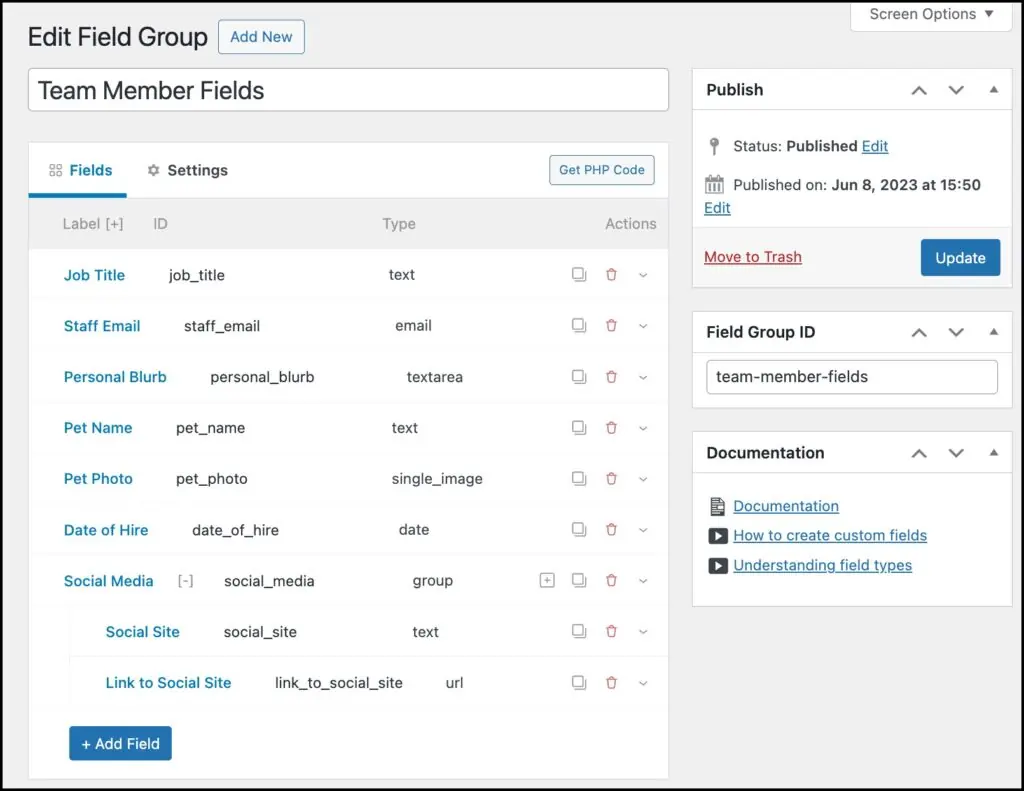
I’ve created the post type called member and I’ve created custom fields here. So we have some simple fields like job title which is a text, staff email which is an email, a personal blurb which is a text area, pet name which is a text field, pet photo which is a single image field, a date hire which is a date field, and then there’s a group field with two fields inside the group, a social site which is like Facebook or X or LinkedIn, and then a link to the social site. So for each team member they can have where to find them on social media. And the group field is the Metabox version of a repeater field. Okay, it works in a similar way.
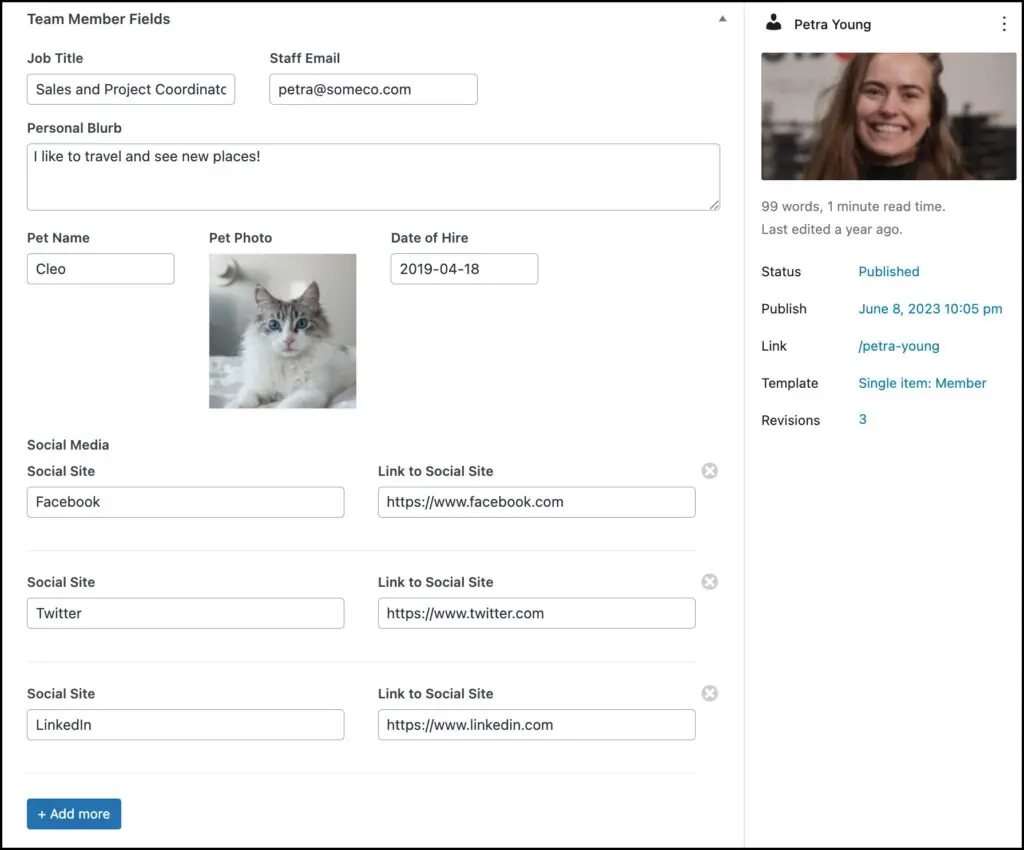
All right, so if we go look at a record here, we have the title, the content, the featured image, we have then the Metabox custom fields, her job title, email, for demo purposes, you know the team members want to share something about themselves so they have their personal blurb and about their pet. Then we have the repeater field, the group field, the social site, and the link to the social site. I just put in the link to the homepage because I don’t really have profiles on each of these services for each member of the team. So this is kind of a placeholder, but it gives you the idea.
When you install and activate dynamic short codes, there’s a settings area here. And so you can pick which areas where you want to use dynamic short codes. So if you have a builder installed, then you would pick that builder also. There’s this thing called power short codes, which is where you can build your own dynamic short codes. You can use their syntax and features to build your own short codes. So that’s pretty cool. Then there’s some help here.
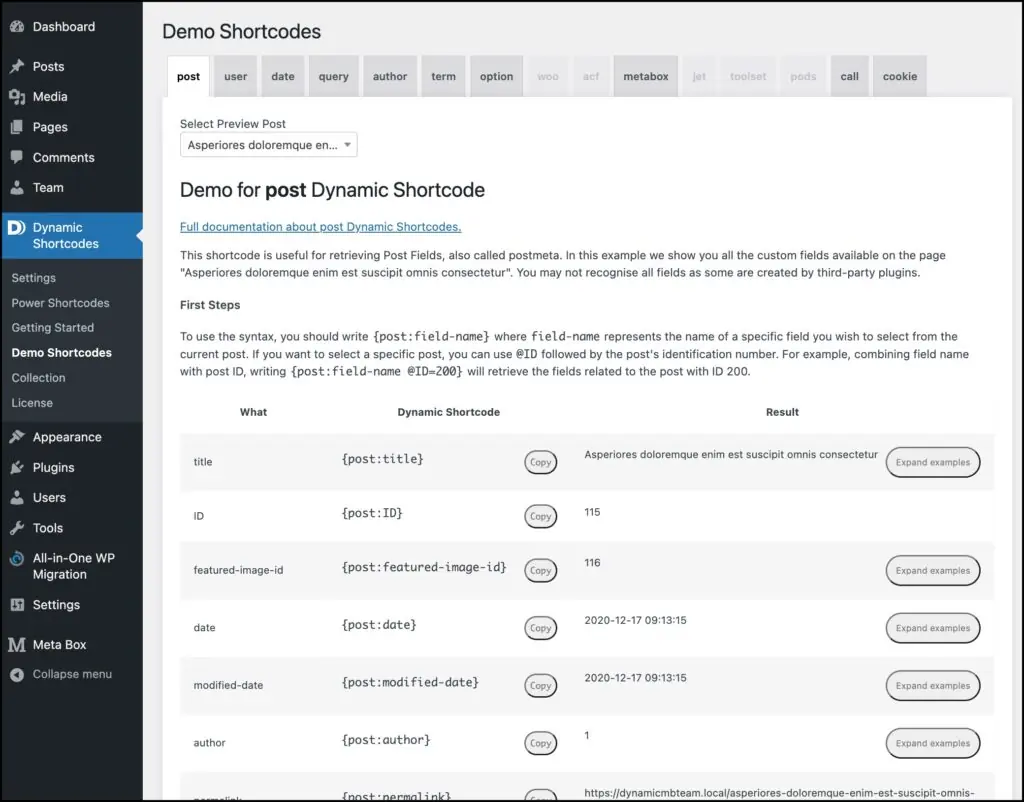
Then there are these demo short codes. And that’s what I was alluding to before where it’s like dynamic documentation. This is the name of one of the posts. I’ve got a bunch of demo posts on here. And this is the name of one of the posts. And so you can come in here and see an example for each of the fields, right? And copy out the example, the dynamic short code. You can see the results there. There are some extra examples also, like here’s some date arithmetic examples. Okay, so we’ll be using these extensively, just coming here and grabbing what we need here.
Then we go into now the Site Editor. Like I said, we’re using the Frost theme. And so what we need is templates. I’m gonna focus here on the single template because that way we can bring in dynamic data, different types of custom fields. There is no template yet for the member single or team single. So we’re gonna need one of those. And so I’m going to click add a new template. And the site editor allows us to then create and pick templates for custom post types. So that’s a nice feature. Here’s the archive for members. And here’s the single item member for the team. Okay, so I want it to be for all team members.
The Site Editor also allows you to pull in a pattern if there is one. And that’s like one of the big features, I guess, of the site editor is the ability to use patterns or pre-designed templates, which they call patterns. There’s only one in this case. So I’m going to select this, but you know that we’ll need to add a lot of fields here. There’s no featured image for the team members picture. And then there are none of the Meta Box custom fields showing either.
The default pattern includes a comments sections and also shows the taxonomy terms. I don’t need either one of those, so I delete those blocks.
The process is that you add a simple paragraph to the place where you want the fields to go, then go to the demo shortcode page, find a good example page that has the data you need, and copy the dynamic shortcode syntax from the example. I do that for the job title, personal blurb, pet image and pet name, and so on, and it is very straightforward.
I ran into two Gutenberg / theme issues. One was that the featured image size I chose was too large and it overflowed the column content area. I ended up picking the thumbnail size example shortcode to fix that. I also went to the doc and found that the media shortcode has optional attributes for height and width, so that would have been another solution.
The other issue was that I added columns below the Content block an this overflowed out of the content area on the frontend. To solve that, I wrapped the columns block in a Group field, with the setting checked to have the blocks use the inner content width.
There were two shortcodes that were a bit tricky. The hire date custom field needed a dynamic shortcode for dates, and to format it correctly I needed to look at the format options in the docs. The second issue was to show the Meta Box group field for the social sites and links to them. I wanted to display these as links. The example shortcodes didn’t work because they showed how to output them as lists. Also, it saw the group field as an array or arrays, and the syntax just didn’t easily work for my use case. I wanted to access the group’s subfields by name. Dynamic Shortcodes support showed me how that was possible.
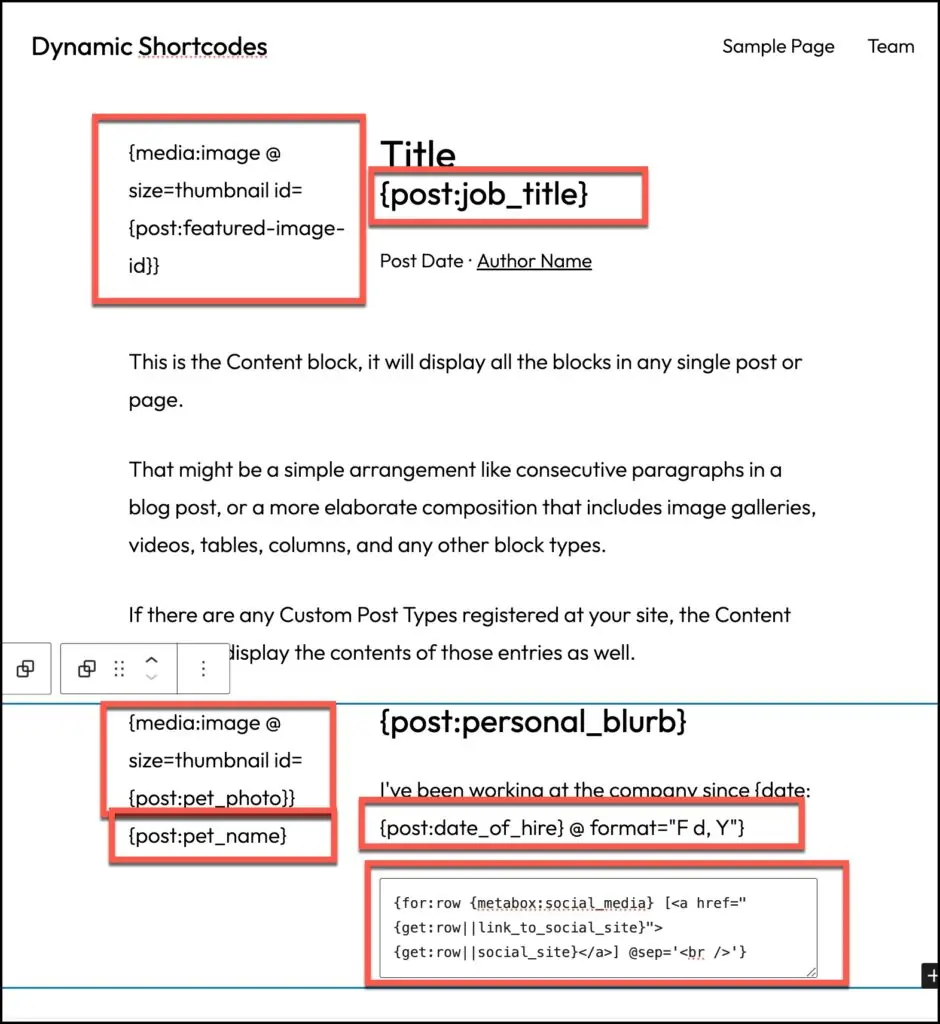
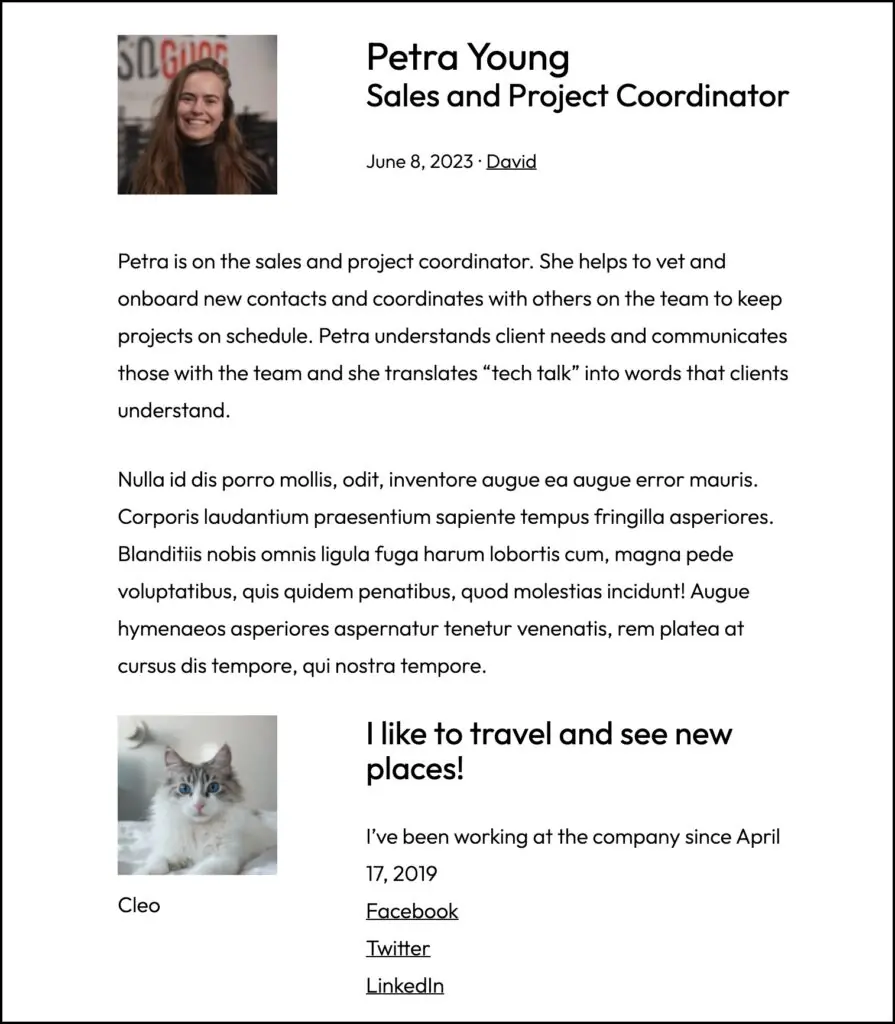
All right, so anyway, that’s what I wanted to show you was making a single page here and outputting several of the different types of custom fields. We have featured image field output with dynamic short codes. We have a text field. We have a single image field. Another text field. We have a text area. We have a date field here that’s used inline and then we have a group field where we output the social media sites and that does work.
Conclusions
One of the things that really caught my attention when testing this is that it works with the Site Editor. It’s working here with core blocks and it’s a very flexible and powerful option and it’s very lightweight. So I think it’s hard to get more lightweight than this without using custom coding. I’m impressed with dynamic short codes. I want to do some more experimentation and diving into the Site Editor and so I’m happy to have this in the toolbox for working with dynamic data. I hope you found this look at dynamic short codes useful and interesting. Thank you for reading.