
Table of Contents
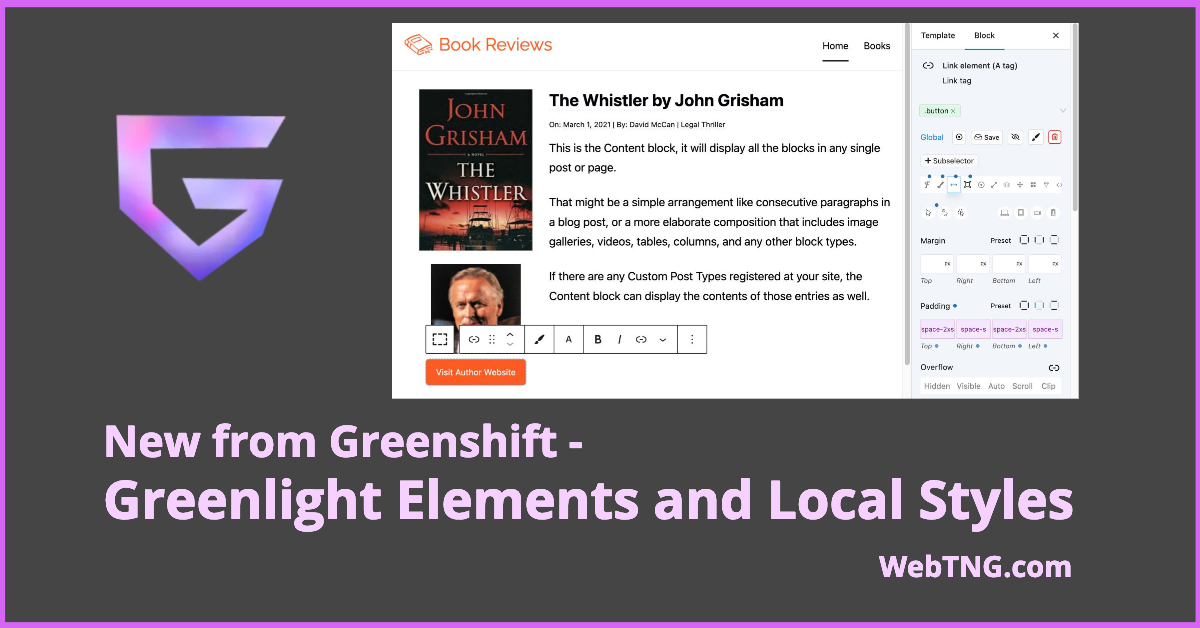
Green Shift is a suite of blocks and a block based theme. And beginning around September or so, they started in on a project called Greenlight. And they’ve created a number of blocks that are very lightweight and are pretty much one block per HTML element. Kind of an interesting concept. And they’ve also added in some ability for more advanced workflows for people who are familiar with HTML and CSS. So I’ve been paying attention to these changes, checking in on them periodically, and it seems like it’s getting to the point where it was worth taking another look. I know a lot of people have been interested in Greenlight.
Video Version
The video has the full walkthrough. This article has an overview and additional information.
Greenshift Overview
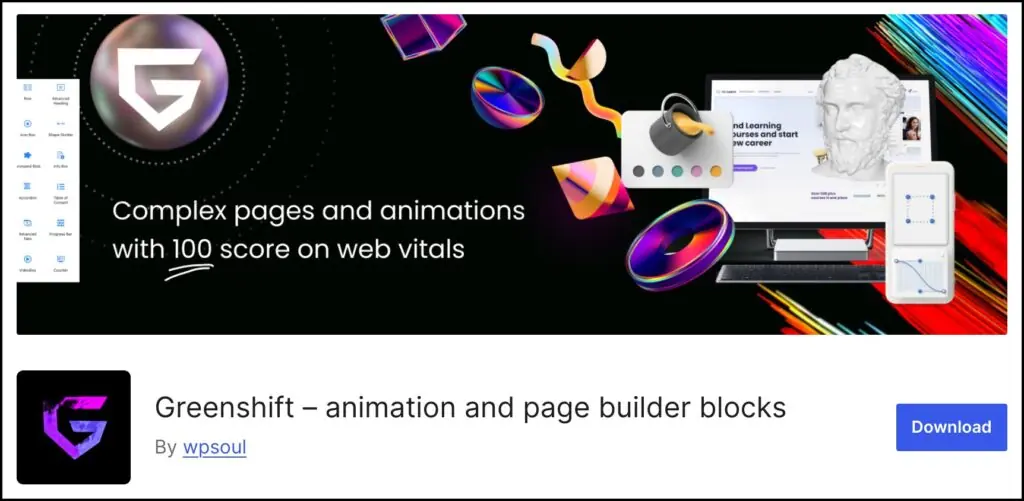
Here is the free Green Shift plugin that’s available in the WordPress plugin directory. This is a base plugin. You have to have it installed even when you install some of the other premium plugins. You can see this one has more than 40,000 active installs. It has a good five-star rating and the team has been helpful with users even in the free version.
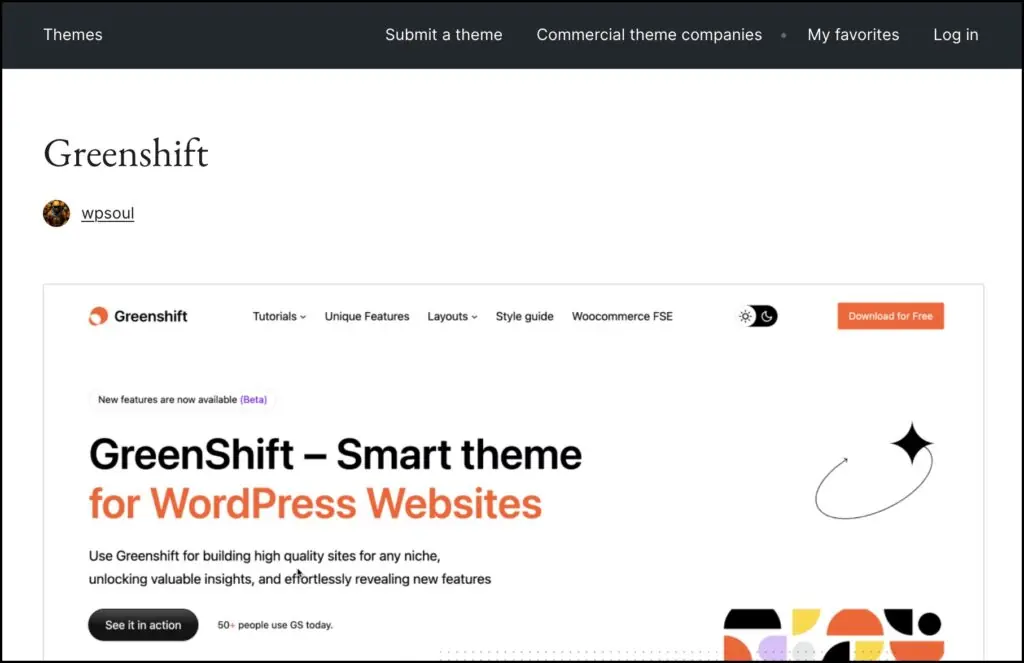
This is the Green Shift theme. Block based theme, more than 3,000 active installs.
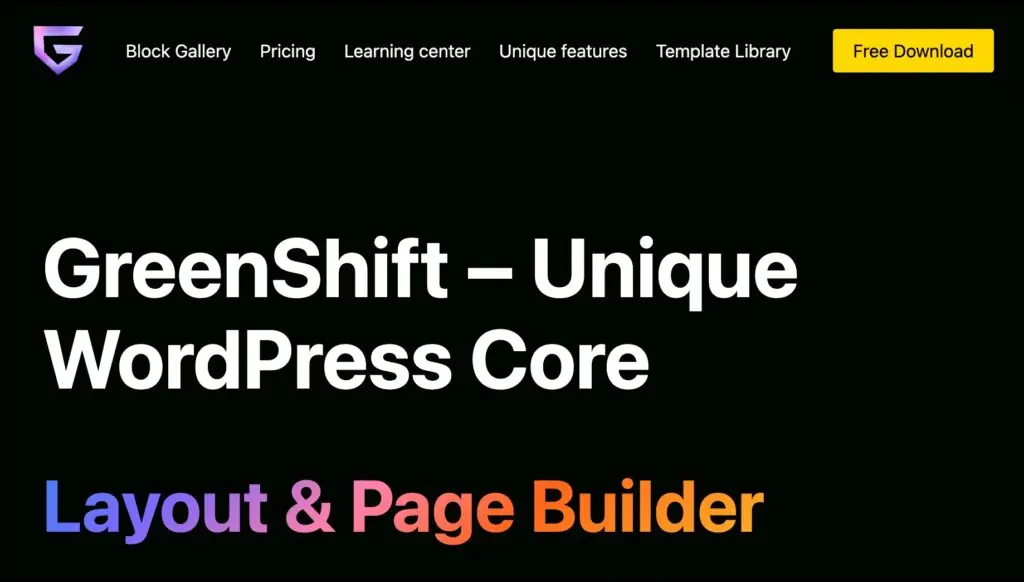
Greenshift Plugins and Blocks
This is the Green Shift website. Greenshift is a suite with several addon plugins and each one adds a number of blocks. Here is some information from the Block Gallery on their website:
- Free Greenshift plugin – 34 blocks, including the Element blocks.
- Animation plugin – 20 blocks
- Marketing and SEO plugin – 14 blocks
- Query Dynamic plugin – 25 blocks
- Chart plugin – 1 block
- WooCommerce plugin – 26 blocks
- AI plugin – 3 blocks
Documentation and Pricing
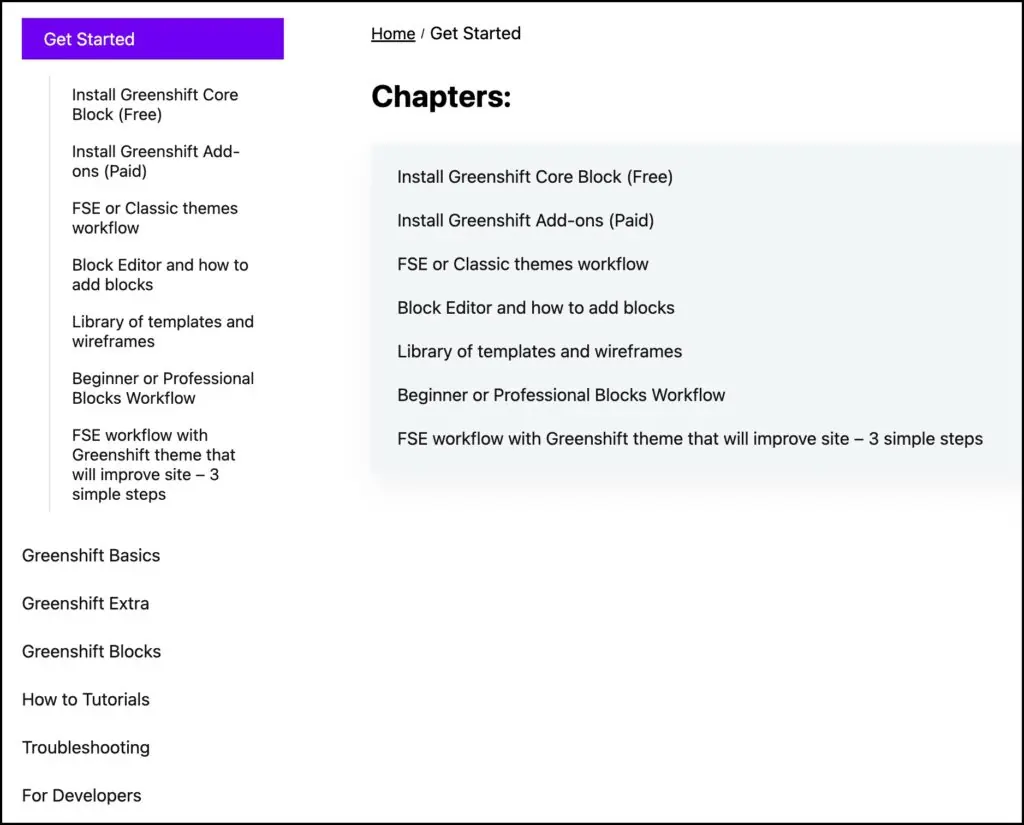
Also on their website of interest there is a learning center here. There are quite a few articles in different categories. So there’s a lot of information here. I think this might be overlooked sometimes.
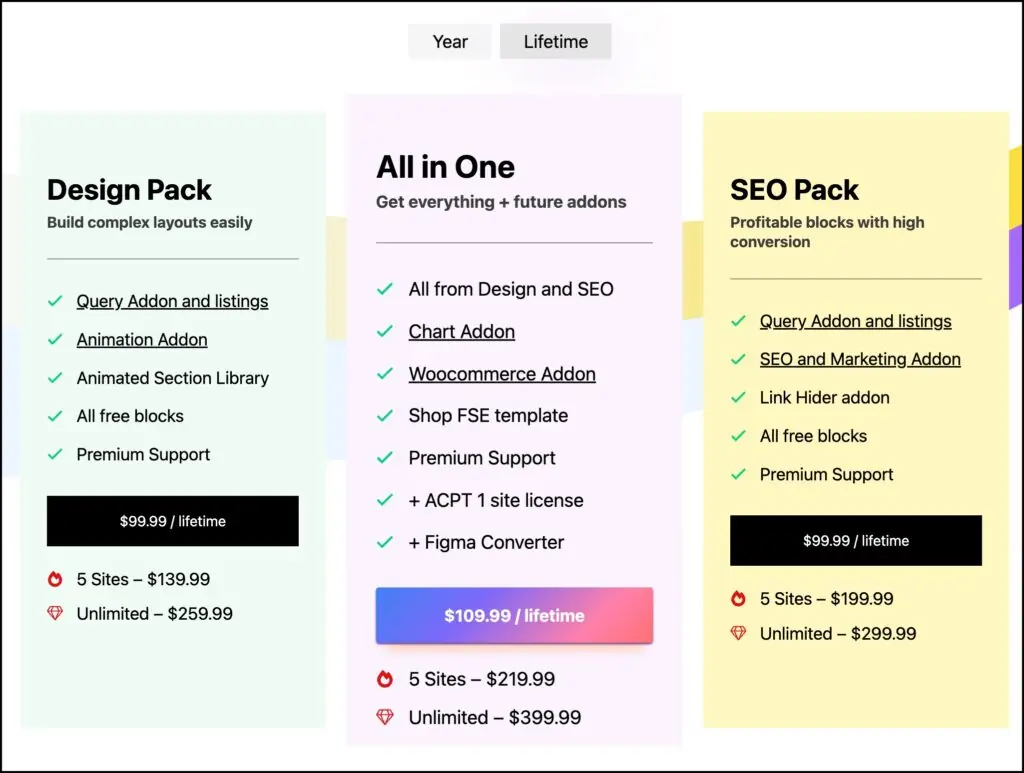
Here’s the pricing February 2025. There’s annual and lifetime pricing. They have three packs. There’s one with query add-on, animation add-on, special library, all free blocks, and premium support. There’s one with all of their plugins, which is the package I purchased. And then there’s one with the query add-on and SEO add-on and some other items there. The unlimited lifetime for all-in-one is $399. Not too bad. And I have a coupon that’ll give you a discount listed at the bottom of the page.
Highlights of the Greenlight Workflow
On the development website I used for testing Greenshift I had the Greenshift theme, free Greenshift plugin, and the Query plugin installed. I had a large number of demo posts and also a Custom Post Type created with ACF that had some records.
Setting Block Type Priority
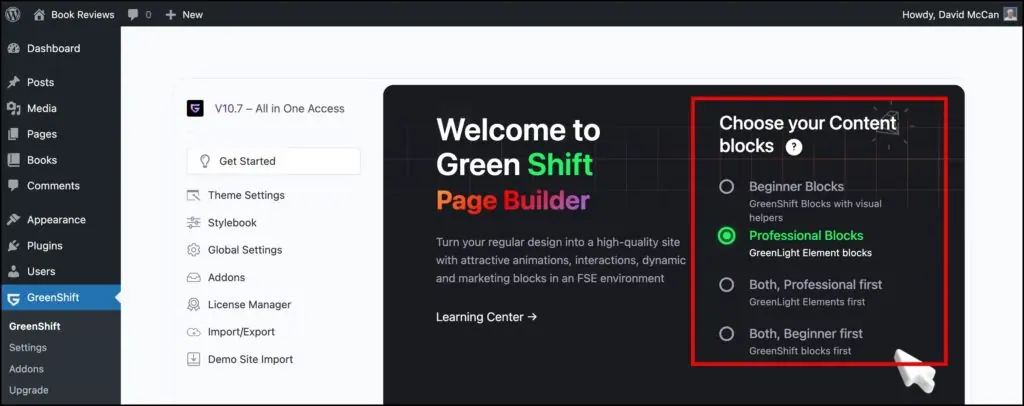
If you want to use the new Greenlight workflow then the first step is to set the block priority to either Professional blocks only or both professional first. You do that on the Greensift Get Started page on the right, or the option is also available on the Interface page in the Global Settings.
Stylebook
The Greenshift Stylebook is a nice innovation on the default Site Editor version. Note the tabs across the top. Treat this like a wizard and check each tab to setup your site defaults. There is a place in the page options too import, export, and make a snapshot of the Stylebook.
Elements tab
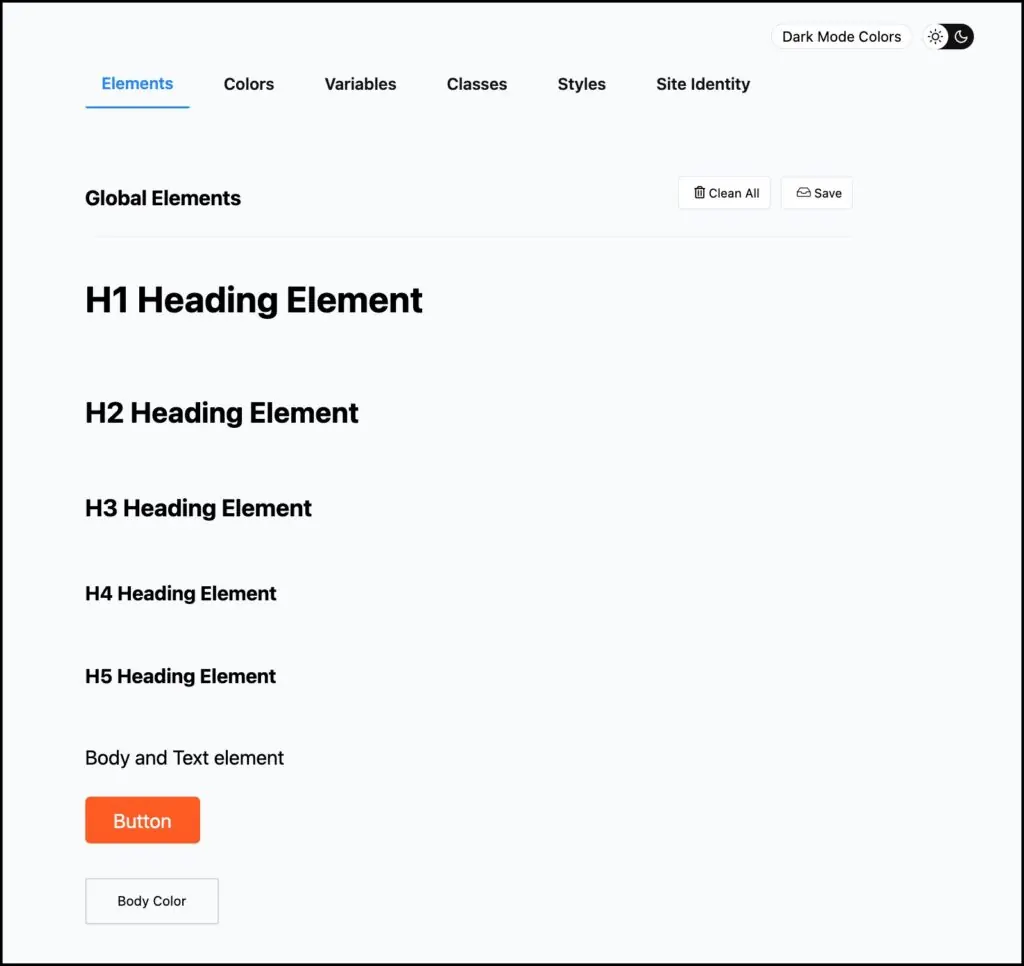
On the Elements tab you can set the typography and color setting for headings, body, and button. You edit an item by clicking on it.
Colors
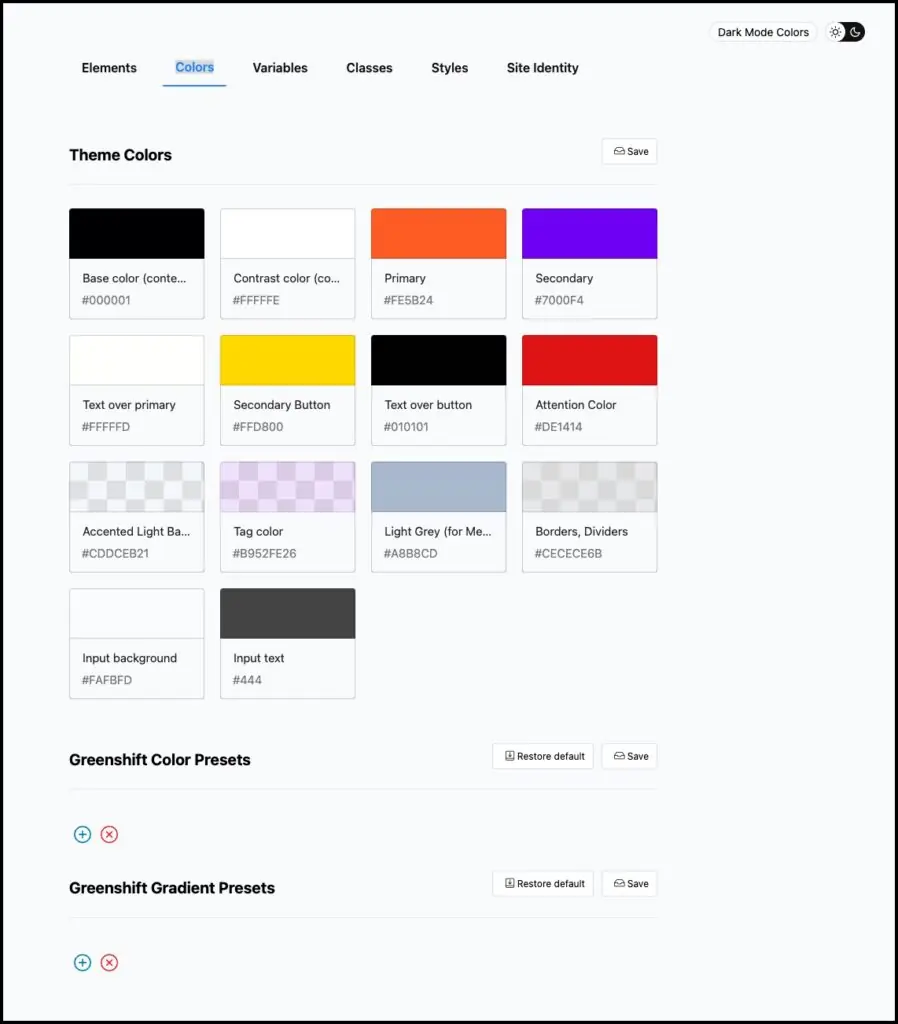
These are the defaults. Of course you can change them, but you see their use specified, so by using that position / use notion, you can change the colors too coherently change the design across the site. These colors show up on the Gutenberg color palette.
Variables
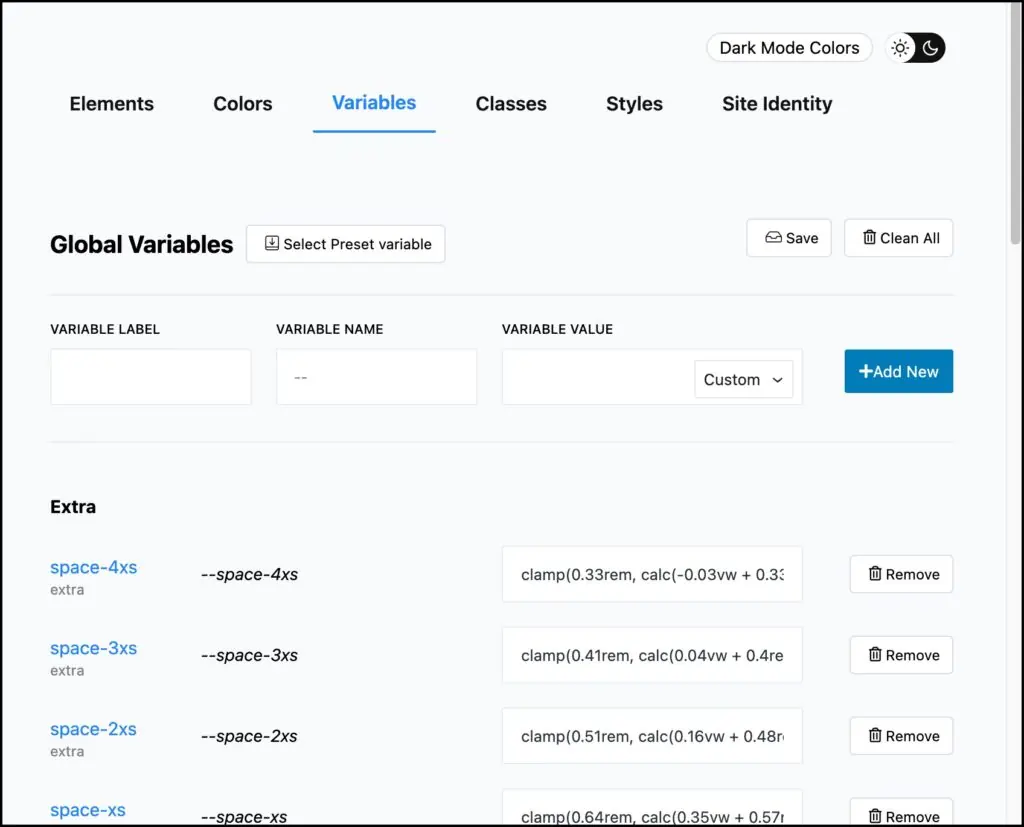
You can manually enter CSS variables or import them in bulk. The input area to import them is at the bottom of the screen (not shown). Note the button there to see an example so that you get the syntax right. Here you can see I’ve imported a bunch from the Core Framework. I show doing that in the video and also show then using them in the Element Blocks.
Classes
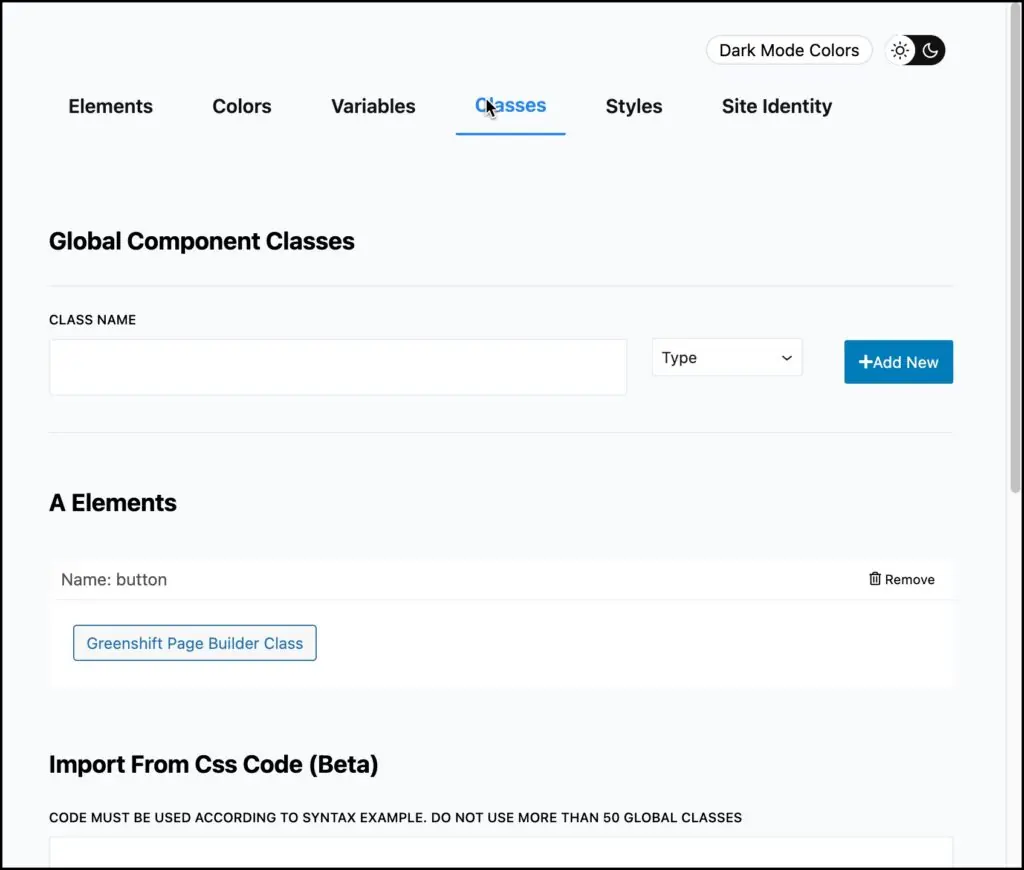
Just like with the variables, you can import and manage classes on this screen. Note the class “button” that I created in the video.
Styles
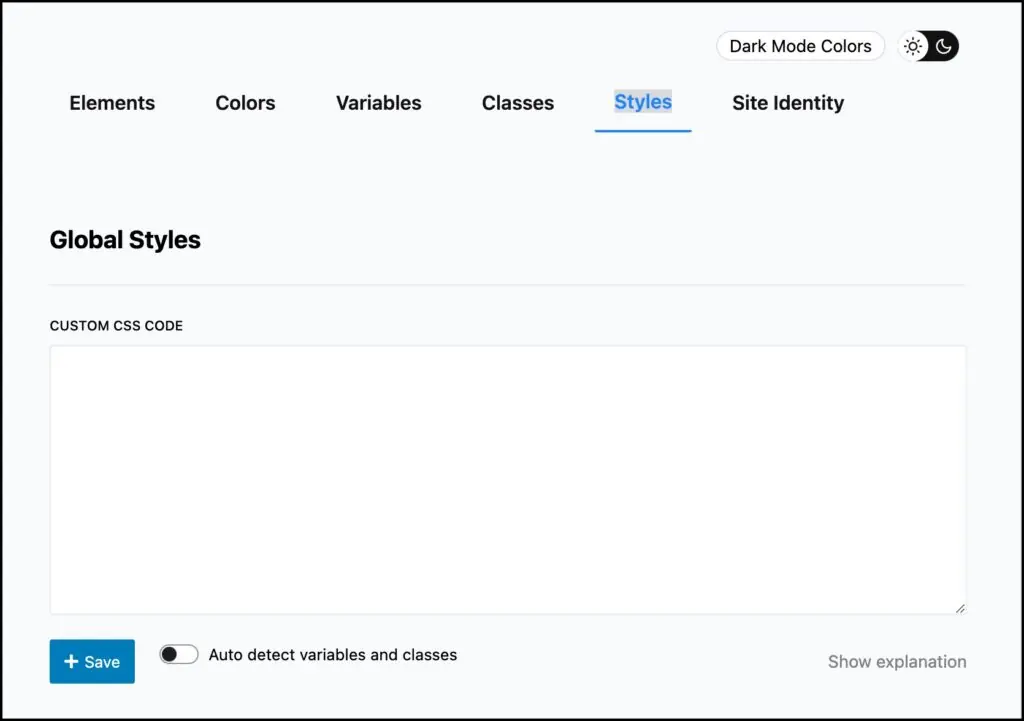
Another place to import your CSS. Note the toggle to auto detect variables and classes and add them to the correct places in the Greenlight block UI. If you are wanting a class-first workflow then you would import your CSS framework here or on the variables and classes screens.
Site Identity
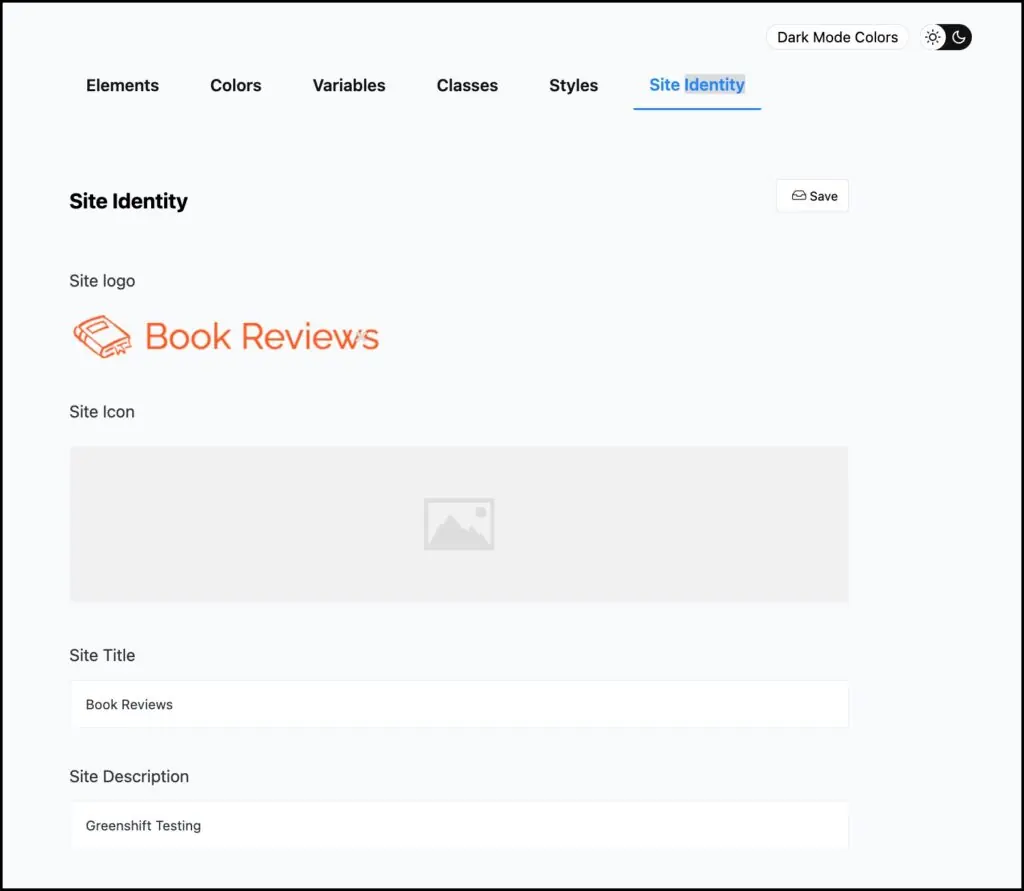
Classic themes had a place in the Customizer and a menu item under Appearance for these inputs, but with block themes they were removed and the settings were scattered across a few places. They are available here for convenience. Note I uploaded a site icon.
Greenlight Element Blocks
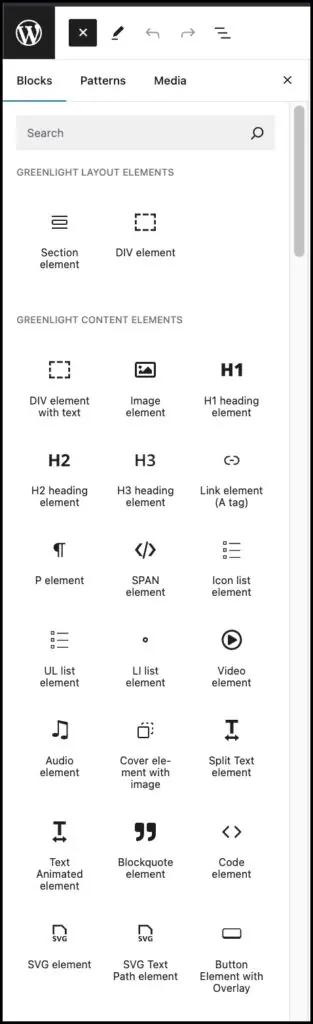
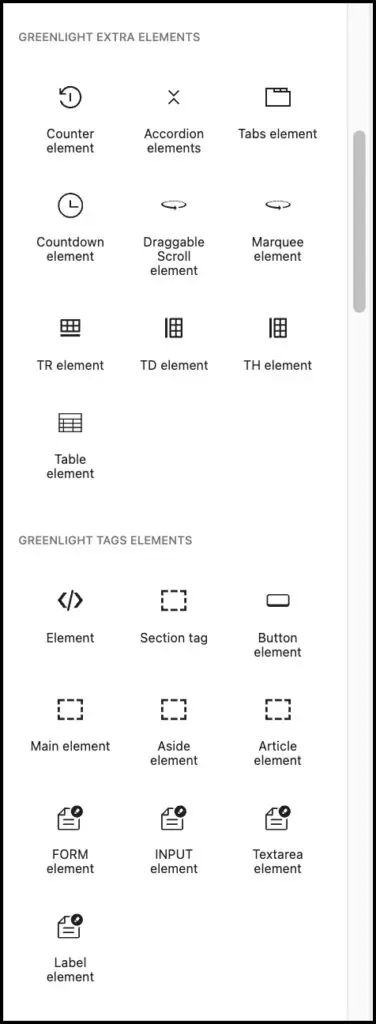
The Element blocks are alternatives to the traditional blocks and each only has one or two HTML elements per blocks and they are not styled, other than what is set in the Stylebook.
Traditional Gutenberg blocks have multiple HTML elements and are heavily styled. For example, an Icon Block might have a DIV, an icon, an image, a heading, a paragraph, and a button, all styled to make an attractive card.
When you select Greenlight blocks only then the “duplicates” are removed, like the traditional Advanced Header block. However, the other blocks such as tabs, sliders, map, table of contents, etc, are still available. This is necessary for backwards compatibility, but also because of their utility. More on these traditional blocks in the Gotchas section below.
A cool feature of the Greenlight Element blocks are that the settings are consistent across all of them. These settings panels are discussed below.
On Page Class Management
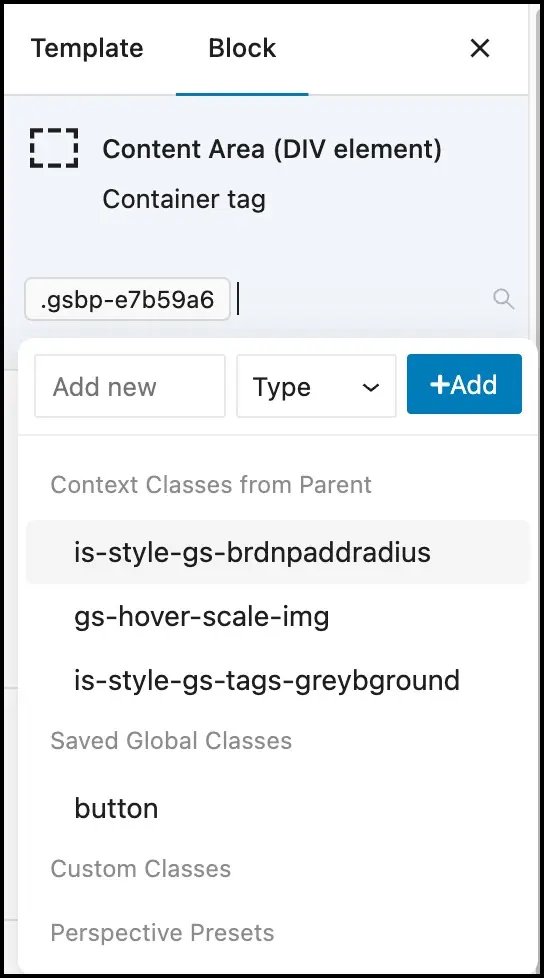
At the top of the options sidebar of element blocks is the class management panel. Here you can create a new class by clicking on the Add new button. You then give it a name, click on it to select it, and apply your CSS settings. Of course you can do this while styling a block, so it is all visual. When done then there is a Save button on the block panel. In the image on the left it shows the available classes and you can click on one to activate it.
Local Styles
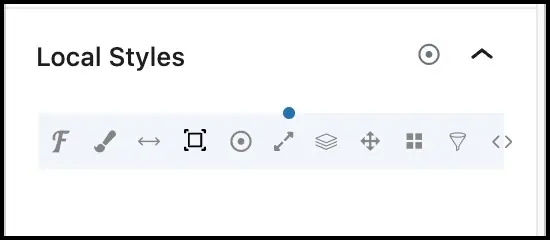
Local styles is my favorite feature of the Element blocks. This icon bar gives access to a number of categories of CSS parameters. Note the blue dot which shows that a style is active. You can click on a blue dot to remove the style.
If you have used modern builders like Bricks or Oxygen they you have seen this type of advanced set of options. Cwicly had something similar also.
The categories are: Typography, Colors, Spacing, Borders, Background, Shadow, Size, CSS Transitions, Position, Layout, Effects, and Responsive.
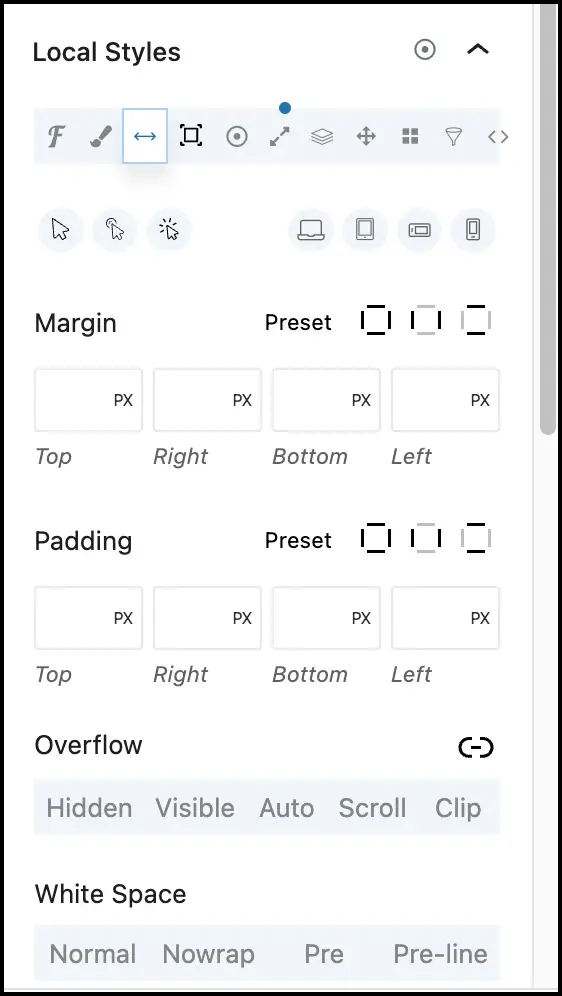
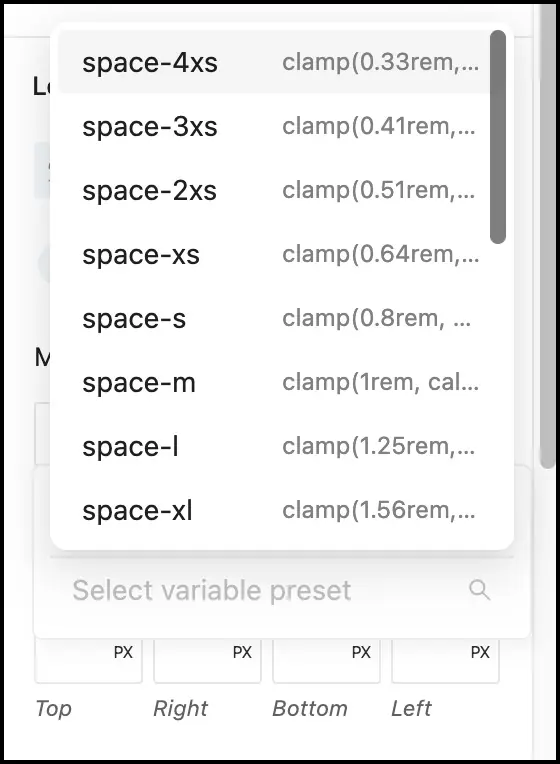
In the image above I’ve clicked on the Spacing icon and the CSS input options show. In the image above on the right I’v clicked a small contextual icon on the input box and a popup showed with the CSS variables I imported via the Stylebook. By clicking on one then it is pasted into the settings input.
Older Greenshift Blocks
It isn’t possible to do everything using only the new Greenlight Element blocks. The blocks in the Query addon, for instance, still use the older Greenshift blocks, like for example the Query Loop Builder. Also, we weren’t able to use the Image Element Block to show an ACF image field when creating a template in the Site Editor. The older blocks still work, but we don’t have full Greenlight coverage.
Discussion and Conclusions
In the video we looked at the Greenlight Element blocks. They are very lean and it is a great idea. I’m not aware of other Gutenberg block collections that have a feature like that. We looked at the Stylebook, another good idea. It is a good way of organizing your styles. We imported some CSS variables from the Core Framework. There was a place where we could have imported classes also. That’s another feature another innovation another example of taking Gutenberg just another step further. And then we also walked through and saw some of the features of the Greenlight Element blocks. For example the on page class creation. Again I’m not aware of other block collections where you can apply and create classes so easily inside the editor without needing to go out of the editor to create and manage those. So another good feature. And then the other characteristic of the element blocks being the local styles. Well organized they worked well and they solved one of the problems that I thought green shift had in the past which was a problem with the inconsistency in the block settings. They were a real pleasure to use.
It was too bad that we couldn’t use the new Greenlight Elements everywhere. The Image Element didn’t work on the single template for showing an ACF custom image field in the Site Editor. And then in the Query Loop Builder we had the older Greenshift blocks that didn’t have the local style options on them or the ability to create a style right there on the page. These things weren’t showstoppers but it just made me appreciate more the convenience of the class creation and the local styles in the Greenlight blocks. It would be nice if there could be Greenlight versions of the other blocks, like we saw in the Query addon.
So in conclusion I like the direction that Greenshift is going. The developer is very creative and it’s really good to see some fresh innovation in the Site Editor. So thumbs up for Greenshift. So that’s my look at the Greenlight Elements and the new features of Greenshift.
Use coupon DYNAMICWP for 33% off