
Table of Contents
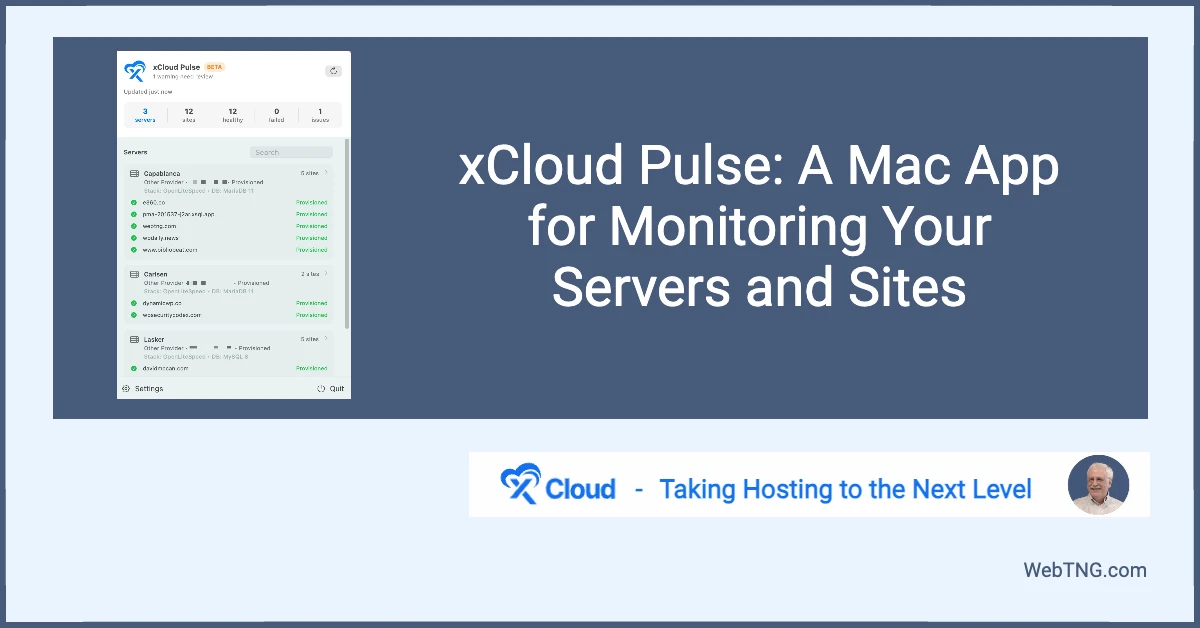
xCloud has released the first beta of xCloud Pulse, a native Mac application that lets you monitor your virtual private servers and sites without ever logging into the xCloud dashboard. It’s the first product to take advantage of the xCloud API, which the team introduced recently to let developers integrate with xCloud hosting accounts and connect them to external services.
Video Version
What Is xCloud?
For those unfamiliar, xCloud is a hosting control panel platform for virtual private servers. It launched a couple of years ago and has been continuously improving since, adding features, expanding the offering, and now opening up an API for third-party developers. The API makes integrations possible: think server alerts posted to a Slack channel, status dashboards, or apps like Pulse. More developer tools are likely to follow.
Installing xCloud Pulse
xCloud Pulse is available on GitHub, with builds for both Apple Silicon and older Intel Macs. Installation follows the standard Mac app flow with one extra step:
- Download the disk image from the GitHub repository.
- Open the disk image and drag the app into your Applications folder.
- Run the provided command in Terminal to authorize the app (a workaround required for now since the app isn’t yet signed through Apple’s standard process).
- Launch the app — it appears in your Mac menu bar.
Connecting to Your xCloud Account
Once the app is running, you need an API token to link it to your xCloud account:
- In xCloud, go to Settings → Developers → API Tokens.
- Create a new token (name it something like “xCloud Pulse”).
- Choose your permissions. You can grant full access or limit it to read-only for servers and sites. Read-only is a reasonable choice for a monitoring app.
- Copy the token and paste it into the xCloud Pulse settings screen.
- Save, allow the firewall connection prompt, and test. It connects immediately.
You can also configure how often the app polls for updates. Every 30 minutes works well for casual monitoring.
What You Get
After connecting, xCloud Pulse shows a live summary of your servers and sites directly from the Mac menu bar. At a glance you can see:
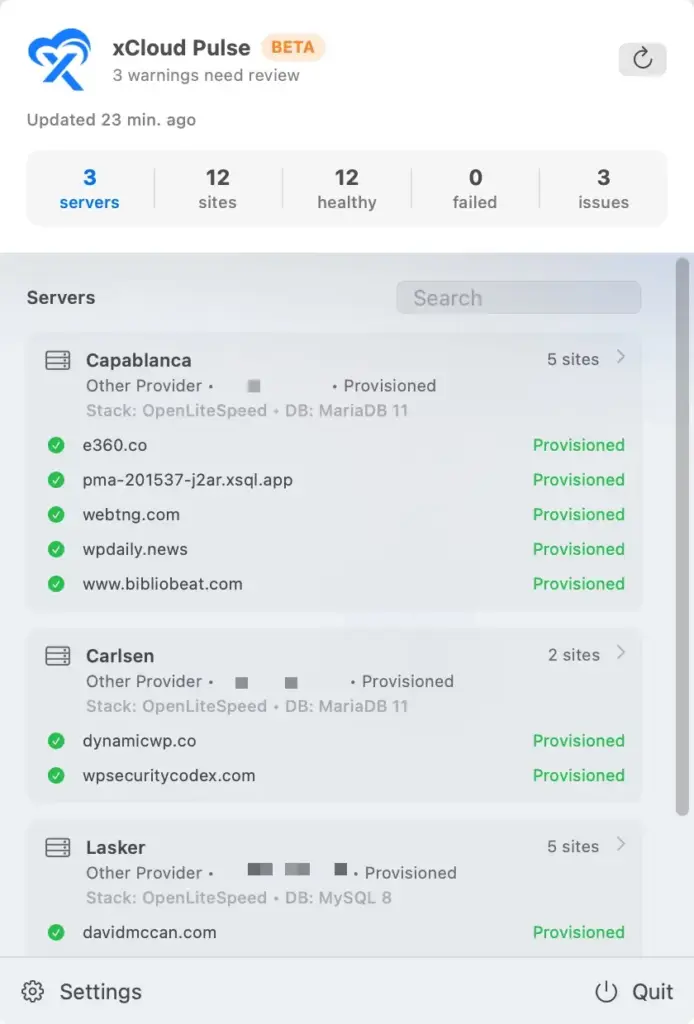
- All servers and their current health status
- All sites and any active issues
- Details for individual sites, including OS version and other configuration info
- A link to open the xCloud control panel for any server or site
During the walkthrough, Pulse flagged an SSL certificate expiring in one week. This is useful information, even if Let’s Encrypt auto-renewal means it may not require action.
Room to Improve
As a first beta, there are a couple of things worth refining. The glass/blur visual effect common on macOS can make some text harder to read, so better color contrast would help. A direct link to each site’s admin dashboard would also be a welcome addition.
Conclusion
xCloud Pulse is a clean, useful companion app for anyone running servers on xCloud. The install process is smooth, the API connection is straightforward, and having server and site health visible from the menu bar without opening a browser is a real convenience.
More broadly, xCloud continues to stand out as one of the best VPS management dashboards available, particularly for WordPress, with solid stability, responsive support, and a team that keeps pushing the platform forward. xCloud Pulse is another step in that direction.