
In this article I’m looking at WP Cron and the free WP Crontrol plugin. Many users don’t even know that WordPress has an event scheduler, how it works, or its limitations. However, this is good information to have, if only for troubleshooting and site maintenance purposes. The WP Crontrol plugin provides a nice interface for managing WP Cron.
Video Version
The Free WP Crontrol Plugin
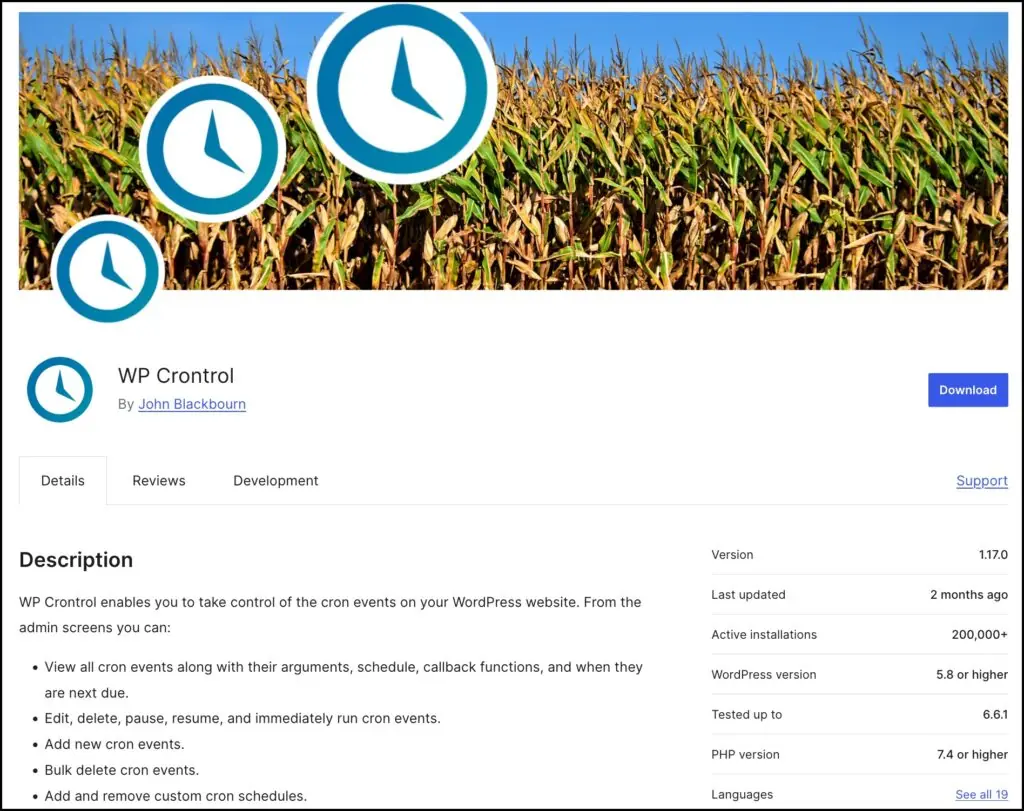
WP CronTrol is a free plugin in the WordPress plugin directory. It’s created by John Blackborne who’s the author of the well respected Query Monitor plugin. You can see that WP CronTrol is regularly updated. It’s got more than 200,000 active installs. It’s got a good number of five-star reviews and the developer is active in the support forum.
There’s a website for WP CronTrol. It’s a hundred percent free plugin so what this website is is really documentation for the plugin. There’s pretty much all the information you would need right here on this website so as you’re using the plugin if you have questions then it’s easy to jump over here and find the answer.
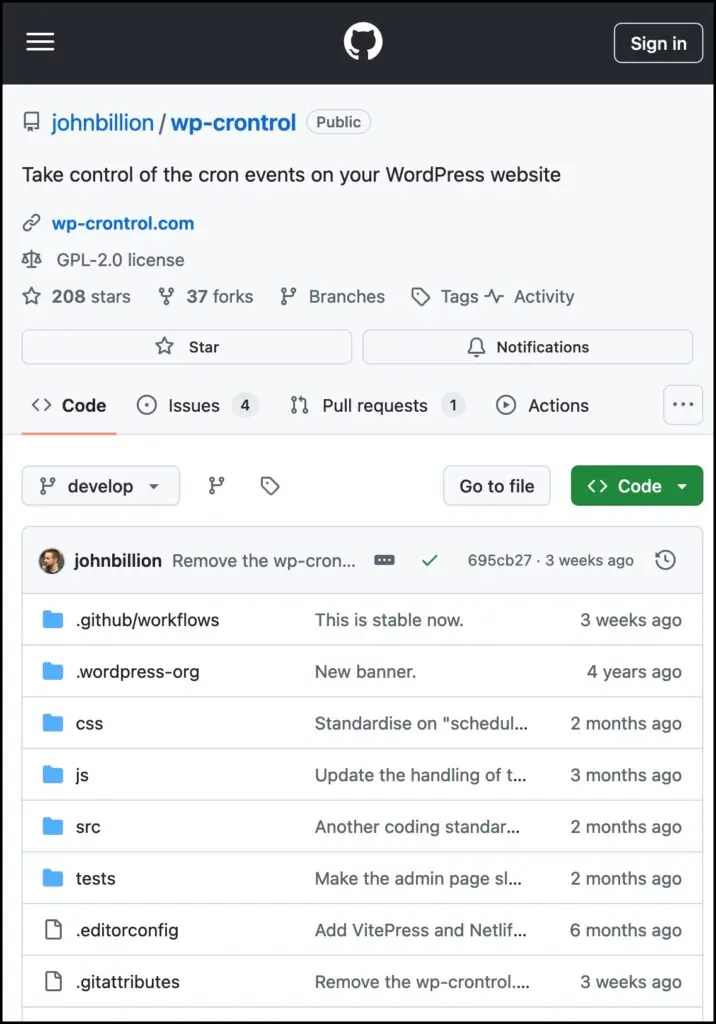
This plugin is developed on GitHub and even though this plugins been around for a while you see that it’s still being actively developed.
About WP Cron
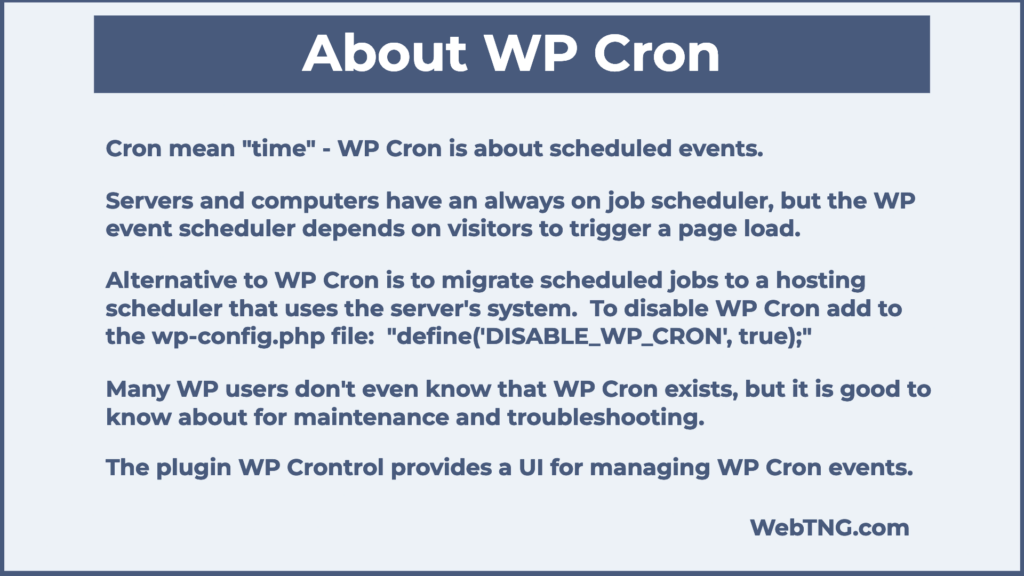
Now let’s talk a little bit about what WP Cron is. Cron the word is from Greek Latin meaning time and so Cron events are scheduled events.
Linux and Unix Windows the servers have a job scheduler as part of their operating system. Even desktop and laptop computers have a scheduler built in. Windows, Mac have a schedule built in and that’s how they know for example when to check for updates. So it’s pretty common for computer systems to have a scheduler so that you can clean up you can check for updates. In the case of WordPress you can validate a software license and so on. We’ll see some of these jobs in just a minute. But a difference between the event schedulers that you have with a computer and ones that you have with WordPress is that a computer assuming that it’s on the scheduler is running and checking periodically all the time. Whereas with WordPress the software only runs when there’s a page load typically when a visitor comes to the website.
This difference between the way a computer has an event scheduler and WordPress does is important for a couple of reasons. Some websites if they’re important or for some reason they don’t get a lot of traffic. Some people will go to their hosting control panel or their VPS control panel and there’s often a utility there where you can schedule WordPress cron jobs to run using the computers event scheduler instead of the WordPress cron event scheduler. Okay so it’s a little more consistent it might be a little bit more performant and there’s a tag you can put in to your WP config file to turn off the WordPress cron and you can replace the you know migrate the WordPress cron events over to the server. That’s not something we’re going to do here that’s more advanced type of thing but something to have in the back of your mind in case one day it’s something you need.
Now you may have built a WordPress website a while ago you may be taking care of WordPress websites and maybe never even realized that there was such a thing as WP cron. I’m mentioning that because most of the time WP cron is just going to run the way it’s supposed to behind the scenes and it’s not something you really need to worry about. However if you’ve been installing and uninstalling a lot of plugins those plugins might register a cron job and so there might be an orphan there and that could potentially slow down your site or maybe there’s a job that’s running and it’s creating a PHP error. So there are times when you might want to check the WP cron as part of maintenance or troubleshooting and that’s when this plugin is really helpful.
So you may be wondering where do these mysterious WP cron events come from? A number of them are added by WordPress core itself and I believe in my experience if you remove a core WordPress cron event WordPress will add it back automatically. But other cron events are added by plugins and themes I think when you activate them.
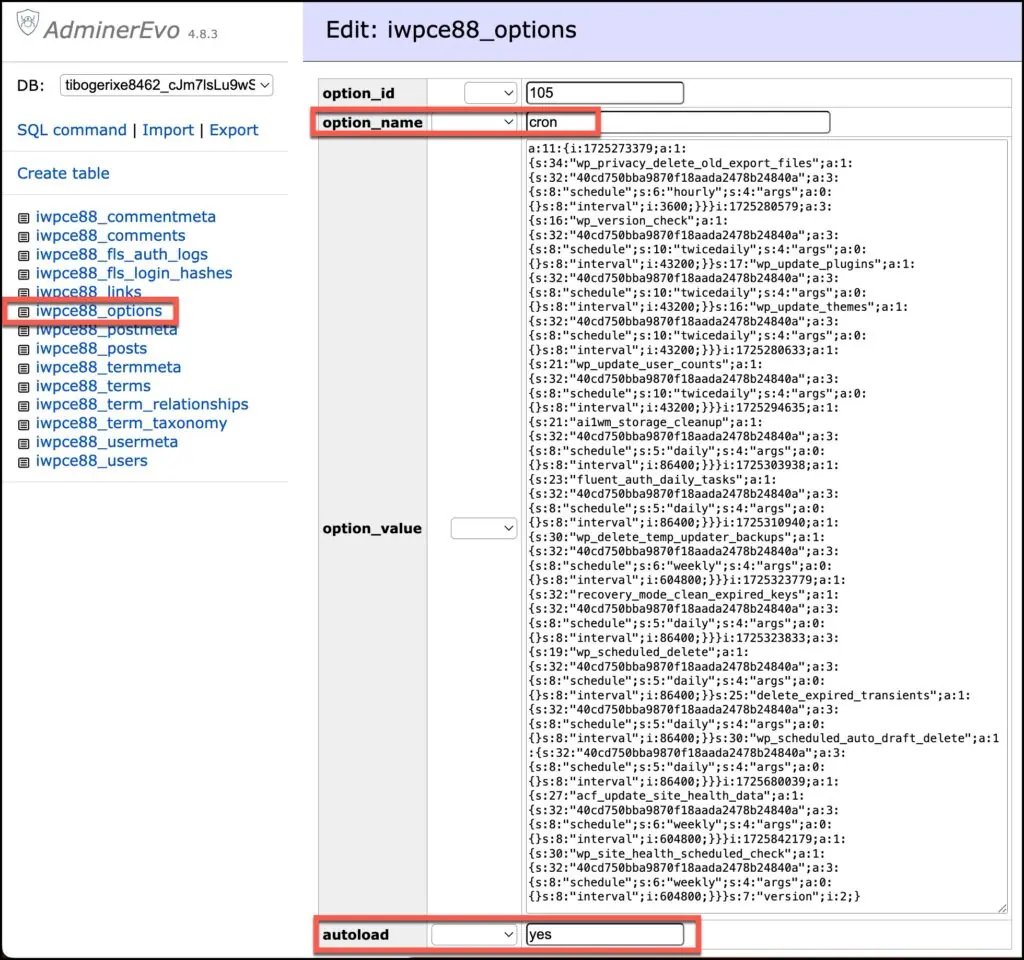
Now the WP cron events are stored in the options table. Okay it’s a single row in the options table. We’re going to be looking in just a minute at a test website. This is the record from the website we’re going to be looking at of the cron option here. It’s the options table and this is the cron option. You see all of the jobs are listed here in this one row and it’s an auto load option which means when a visitor comes to the website and the lifecycle of a page request is initiated WordPress loads the options that are auto load that have this auto load yes into memory. So the schedule is there and one of the things that happens in that lifecycle event is that cron jobs that are pending are kicked off and the schedules get updated. You can see that it’s a big row and you really don’t want to have orphans or unneeded jobs lingering here. And just looking at this row it looks kind of like a array syntax gobbledygook and it’s another good reason for the plug-in WP cron control because as we’ll see it gives us a friendly user interface for working with this data.
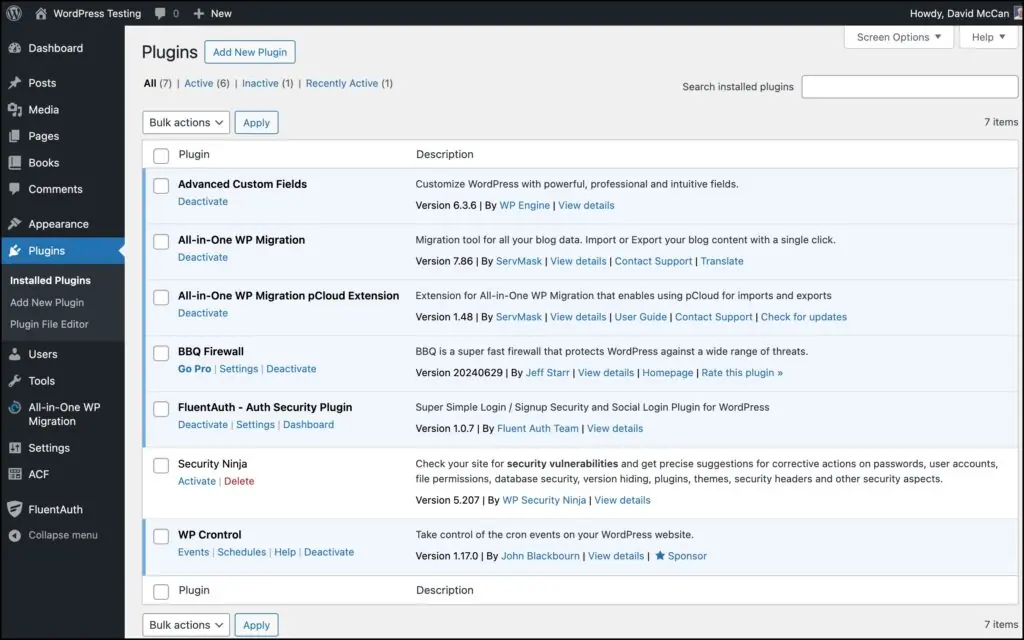
I think you’ll get a better idea of what WordPress cron jobs are and how they work if we go and look at some. So I have here a test site it has the free Blocky theme on it. If we go to plugins you’ll see that I have advanced custom fields here which gives us this custom post type books and adds custom fields to it. We have all-in-one WP migration for backing up the site and freshing the site during testing cycles. I have the BBQ firewall and fluent auth plugins here for some security. I have security ninja it’s installed and deactivated and I did that for a reason which we’ll see in just a minute.
The WP cron control plug-in itself is also installed. WP Crontrol has several menu items:
- Help takes us back to the website.
- Then there is the Schedules menu item.
- There is also an Events menu item.
So Schedules are actually under Settings okay and Events are actually under Tools. I don’t know why the author split it up like that doesn’t really matter because when we go into the admin menu there are both options both are there as tabs in the admin menu.
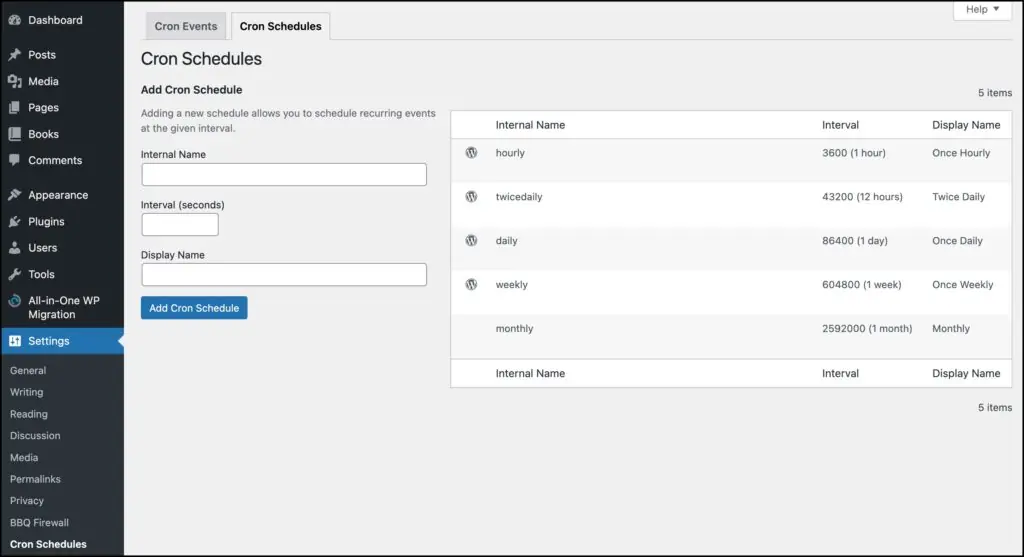
So let’s go and take a look here. Schedules what this is these are the times when you can choose for WordPress cron event to kick off. Okay and you’ll see that WordPress itself has defined an hour 12 hours one day and one week as times for cron events and then a plug-in has added a monthly cron event. Okay and you can add your own like let’s say you needed something to run every other day you know then you could you know add it here you would give it an internal name double the daily number of seconds and give it a display name and add it.
Now one thing to keep in mind when you add a cron schedule this way it’s dependent on the plug-in on this plug-in and so if you’re developing your own plug-in and you want to have cron schedules running you can use this for testing to test out your cron events but you’d want to move that into code in your plug-in because if you disable or remove this plug-in then the schedule that you created with it will be removed also.
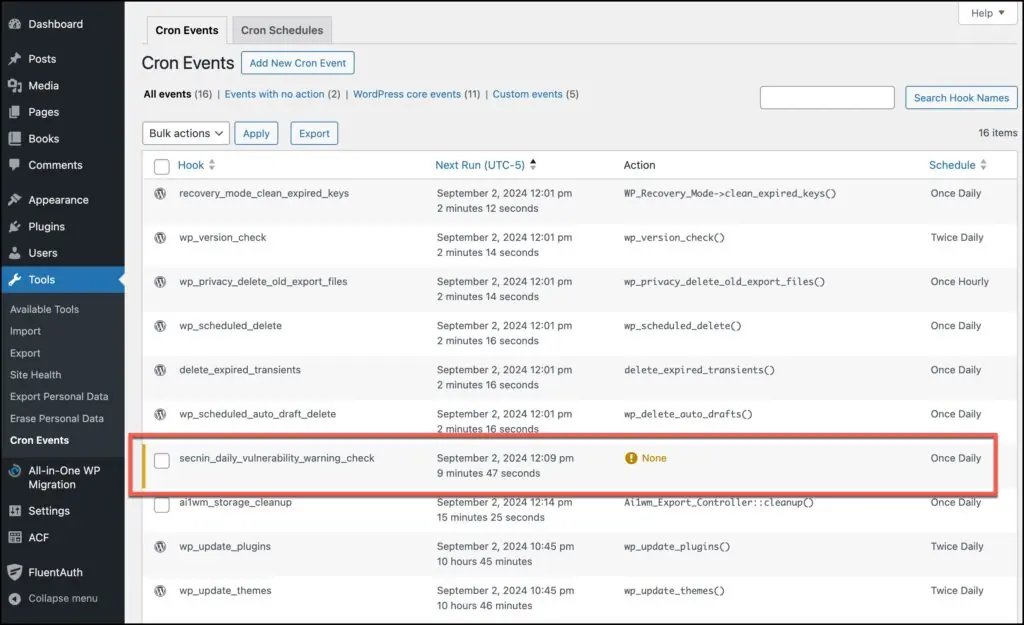
Now we go over and look at cron events these with the little WordPress icon there these have been added by WordPress core it has the action here is update user count, clean expired keys, you know check the WordPress version for you know an update option, delete old expired privacy export files, scheduled delete, we have delete expired transients, delete auto drafts, and then we have all-in-one WordPress migration export cleanup, we have a fluent auth daily task, we have update check for plugins and themes, we have a health check, a delete temp updater backups, and ACF health check.

Then we have two jobs here that have no action and these are from that Security Ninja plug-in. I wanted to show you how sometimes you can get orphaned jobs so I disabled that plug-in but the jobs are left in here. So what we can do if we look at the options here we have edit job, we have run the job now, which doesn’t change the scheduled events if there are some we have, delete the job but note that you can only delete cron events that have been added by a plug-in or theme or that you add yourself, you can’t delete WordPress core cron events the plug-in doesn’t allow that. Then we have pause. OK, so obviously with these orphaned events we want to delete them as there’s no reason to keep them. So we can go down and delete them and they’re gone.
The pause this hook is a feature that the plug-in developer has added because a lot of times if you delete an event, like a core event or even a plug-in or theme event, it may get added back, like if the plug-in gets you know reactivated or something. What pause this hook does is the job will still exist here in the list but the action won’t trigger, it won’t actually fire so nothing will happen. That’s a way to do it if you needed to put a job on hold.
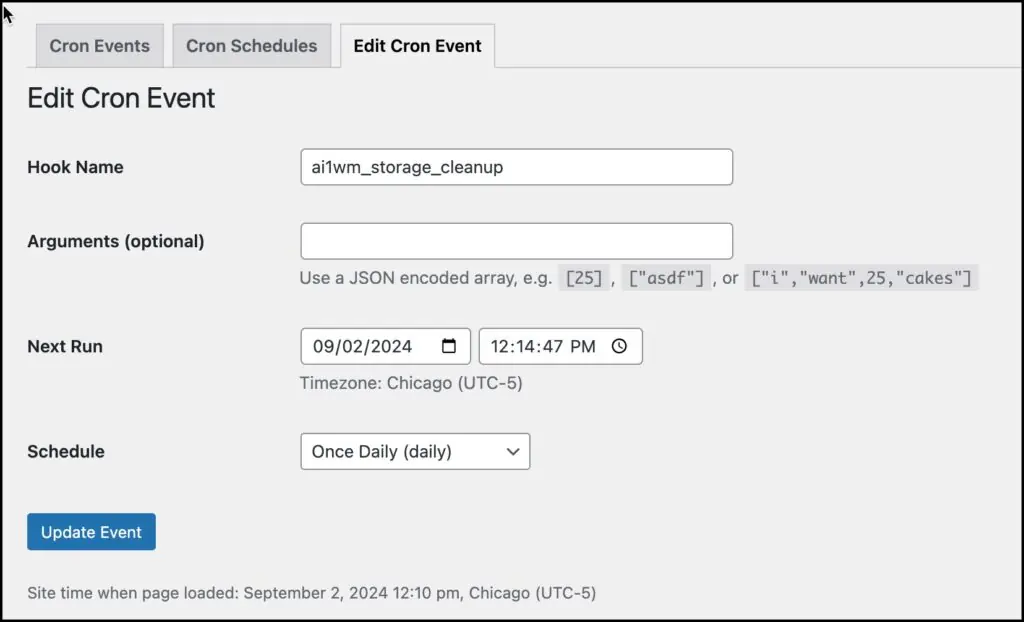
if we go and we look at one of these events by editing it you see that we have the hook name which uses the lowercase and underscores you can add arguments to pass into the action if the action accepts arguments then you have the date and time and you pick one of the defined schedules.
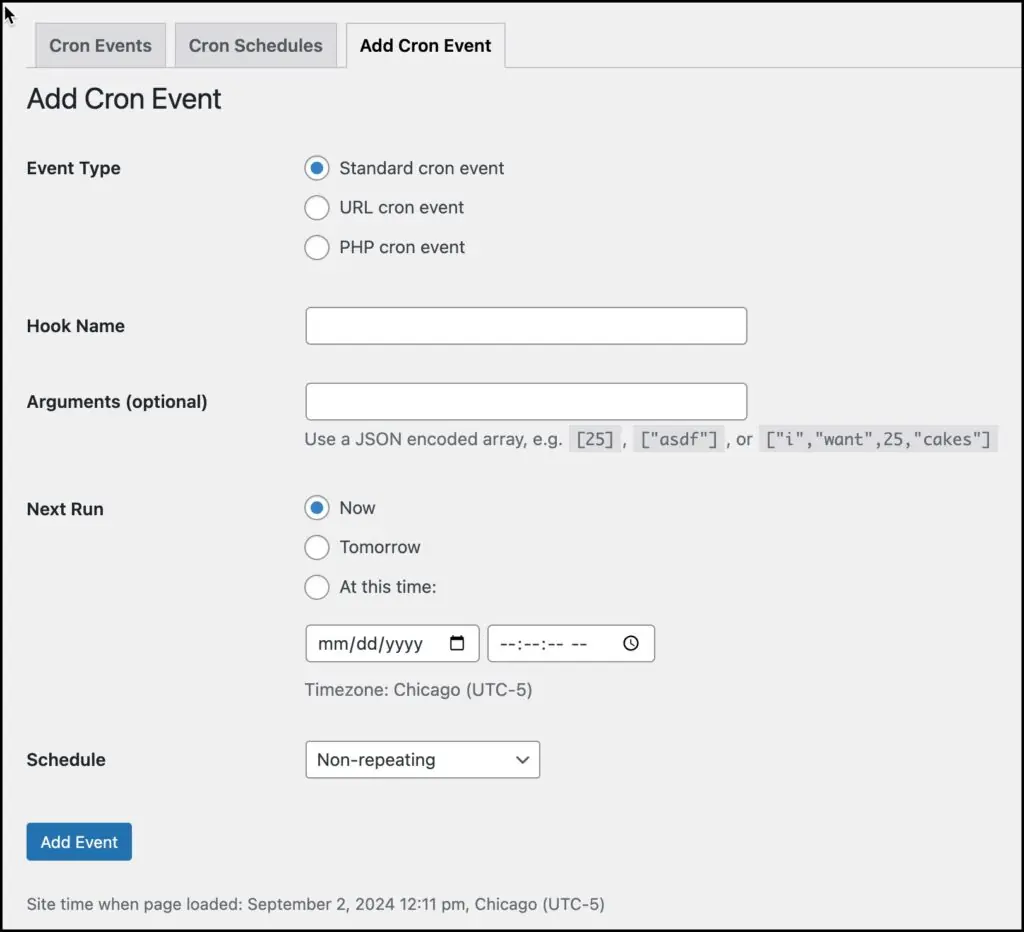
There’s another thing that I wanted to show you and that is that the plug-in gives you an interface for adding cron events you can have a standard cron event where you’re calling a hook and so you might define a hook like in your custom plug-in or in functions PHP in your theme and you put that hook name there and any arguments and then the schedule that you want to have.
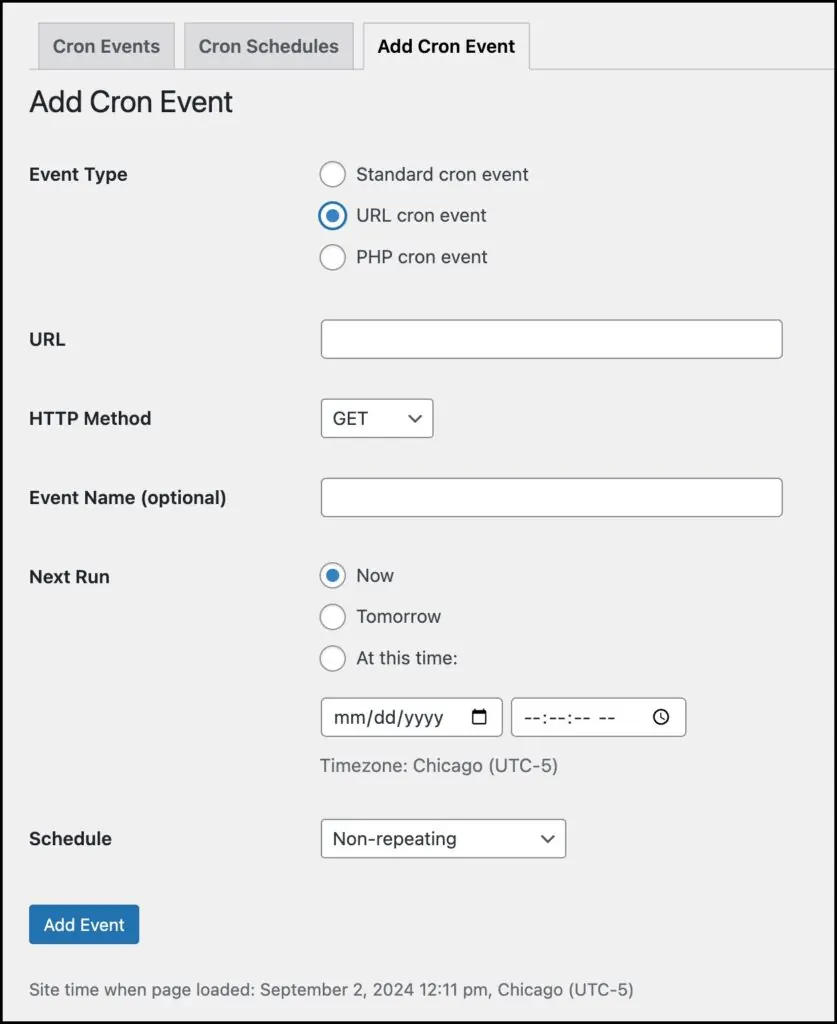
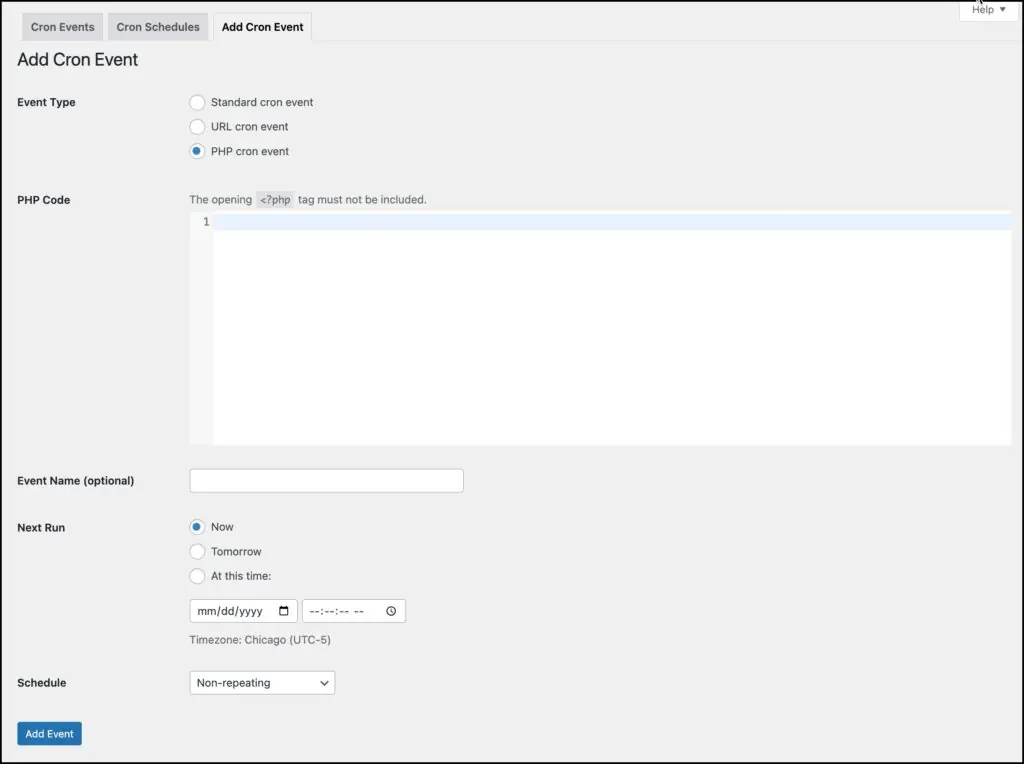
The plug-in also adds an option for PHP cron event where you can put custom PHP code in and a URL cron event where you can hit a URL to have something happen these are two types of special cron events that the plug-in adds.
If you’re curious about these events and you’re wondering about the security for those because they are allowing so the one is allowing you to enter your own PHP it gives information about this and how you can lock these cron events so they can’t be edited okay so if for example hacker gets access to your WordPress dashboard you can limit their ability to edit these cron events to run their own malware type things so these are some things that you may want to add.
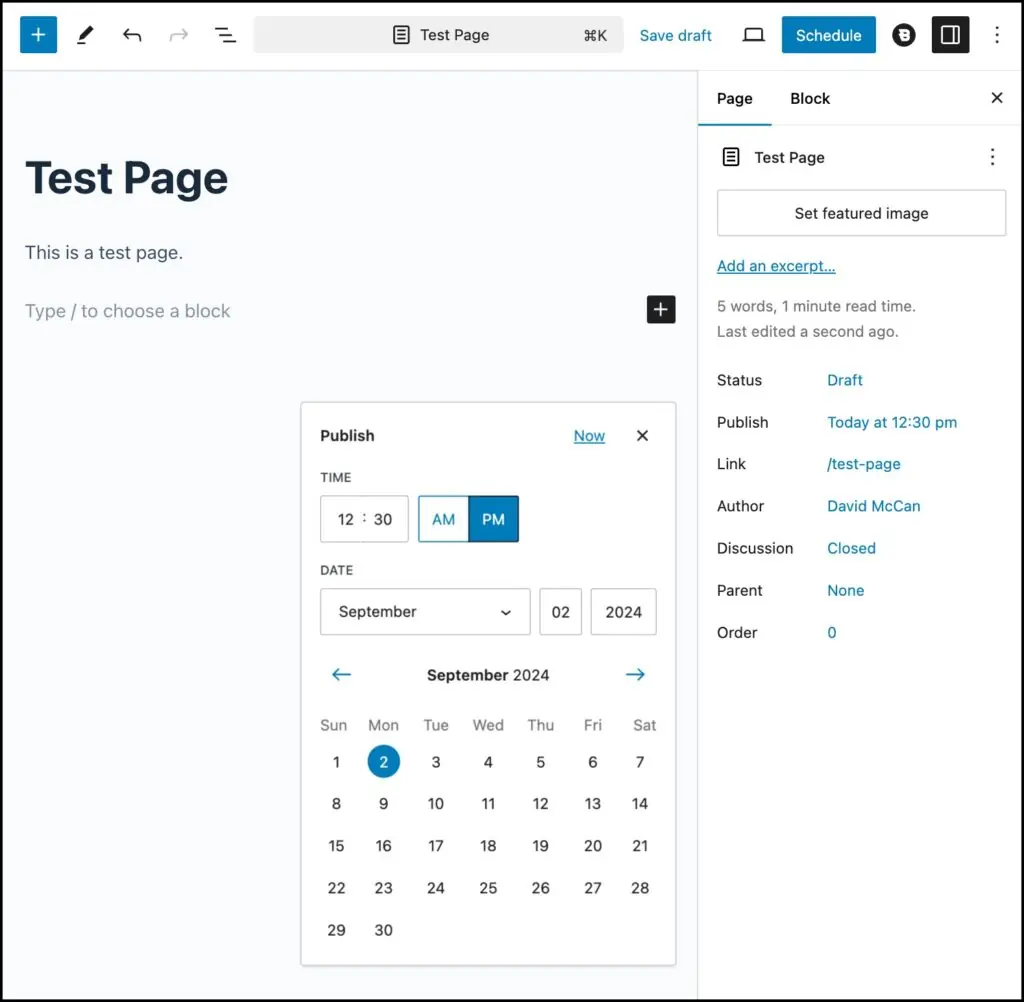
Now we’ve all seen when we create a post how when you go to the publish option you can actually schedule a post to be published in the future so on this computer it’s 12:17 right now, so let’s change it to the post to be published at 12:30.
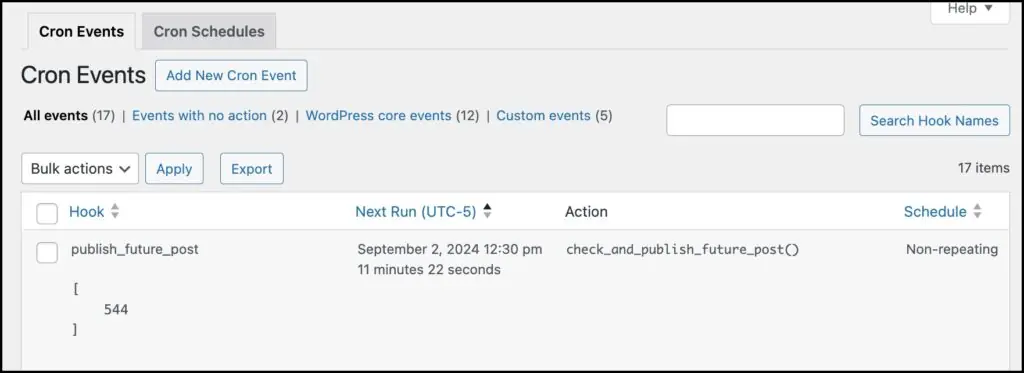
Now we will schedule it and now if we go back and look at our cron events and whoa look here’s the scheduled post and this is the post ID it’s been passed in as a parameter an example of WordPress using the WP cron feature.
So that’s the look at the WP Crontrol plug-in. It’s a totally free plug-in. There’s no pro version upsell. It’s a community plug-in. It’s not something you would need to use all the time and you might just install it and do your maintenance and then uninstall it, but it’s useful for when you need it. I hope you found this look at WP Cron and at the plug-in WP Crontrol useful and interesting.