


Table of Contents
ThriveDesk is a stand-alone custom support platform that has a good number of WordPress integrations. I’ve heard about it now for a couple of years and wanted to take a look at it. They just released version 2.0 of their WordPress integration plugin and the founder reached out to me and asked if I wanted to take a look and give feedback. I was given an account but there was no expectation of a review. ThriveDesk works with a number of platforms, including Wix, SquareSpace, Shopify and others, but here I’m considering ThriveDesk from a WordPress perspective. What I found was that ThriveDesk has several strong features, but probably makes the most sense for several types of organizations.
Testing Setup
The WordPress Site
I created a test site using InstaWP. ThriveDesk has a deep WooCommerce integration, but I don’t use Woo, so I decided to test it out using SureCart and SureMembers. The idea was a membership site where people paid for access. In this case we’d want to have a support system for pre-sale, sales, and after-sale / usage support questions.
The site was pretty minimal, I had a single page that I titled “Member Content” which was protected by a SureMember role.
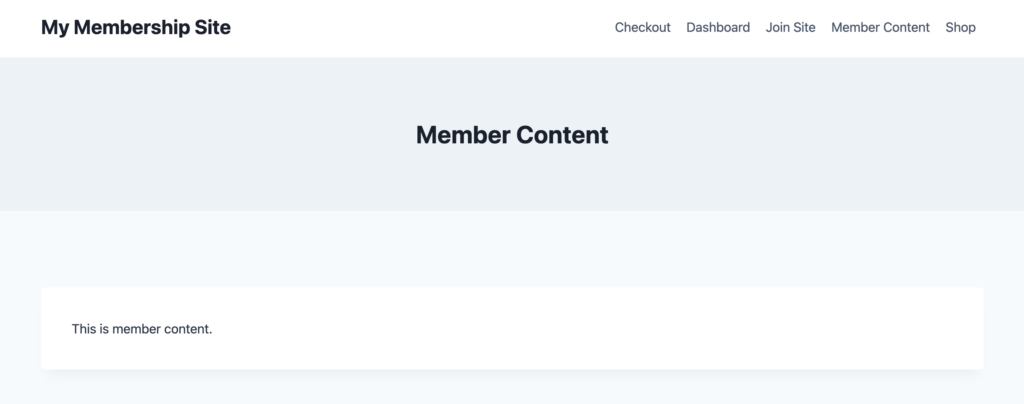
Here is what someone without access sees if they click the Member Content nav link.

I used the SureCart integration with SureMembers so when someone placed an order to join they would automatically have a user created on the site with the proper user role to see the member only content. ThriveDesk has an integration with SureCart, so it seems like a good match.
ThriveDesk
Overview
ThriveDesk offers 4 main features:
- A customizable live chat widget for on-site communication
- A shared inbox for email communication
- A knowledge base for offering help and FAQs
- Reporting on customer interactions
ThriveDesk also has 4 assist features:
- Automations to make some repeated tasks easier
- Canned responses so you don’t have to write the same replies over and over
- Tags to organize and group conversations
- Private notes so all members of the team can stay in the loop and so you can keep track of internal information
ThriveDesk also has a number of third party integrations:
What you see from looking at all of the integrations below is that there are a large number of non-WordPress platforms and tools supported, but also the major WordPress e-commerce options are available.
For online platforms:
- WordPress Basic Integration
- WordPress Portal Integration
- Wix
- Squarespace
- Webflow
- Weebly
- Joomla!
- Kajabi
- Dorik
For CRM and other:
- FunnelKit
- FluentCRM
- Slack
- JavaScript (API & Webhooks)
- Google Tag Manager
- Apps for Android and iOS
For e-commerce options:
- Shopify
- Magento
- PrestaShop
- Evanto
- WooCommerce
- SureCart
- Easy Digital Downloads
- Freemius
Automations:
- Zapier
- Pabbly Connect
- SureTriggers
- FlowMattic
Pricing
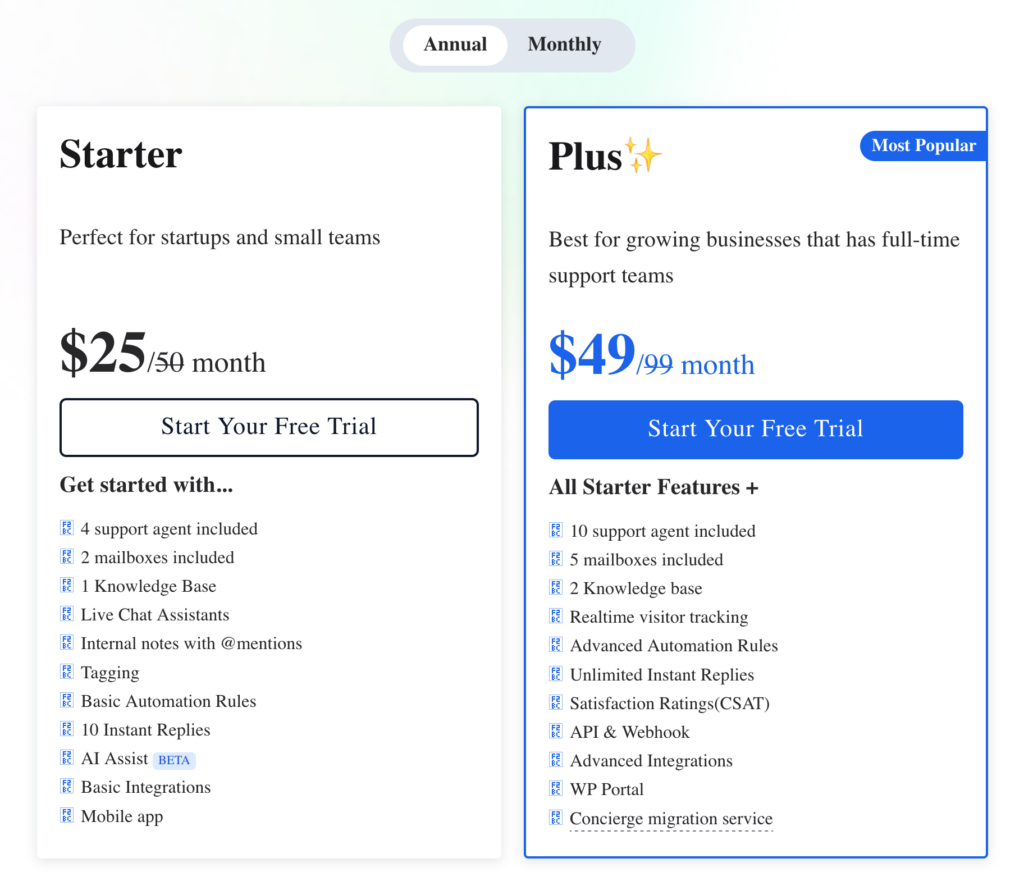
Looking at pricing, ThriveDesk has two subscription tiers: Starter and Plus. One thing that jumped out at me about this pricing is that it is not agent based. Most help desk systems charge by the number of agents, so this would be less expensive, assuming you have a small team. Of course they offer additional agent slots for those who need them. Take a look at ThriveDesk pricing.
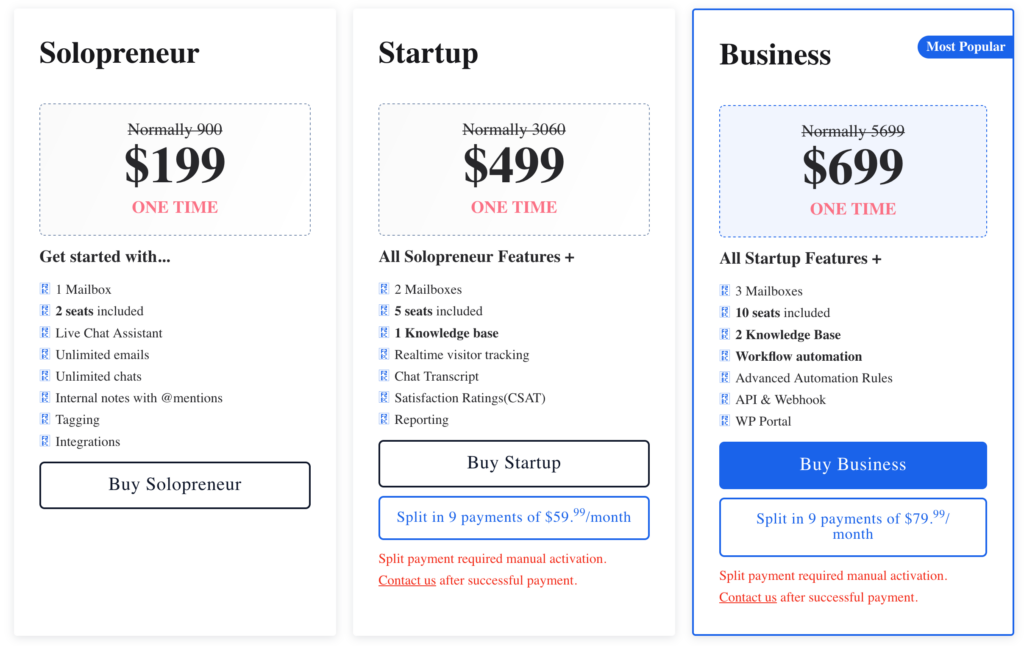
ThriveDesk also has lifetime packages. The tiers step-up adding more seats, mailboxes, and additional features. Check out the ThriveDesk LTD.
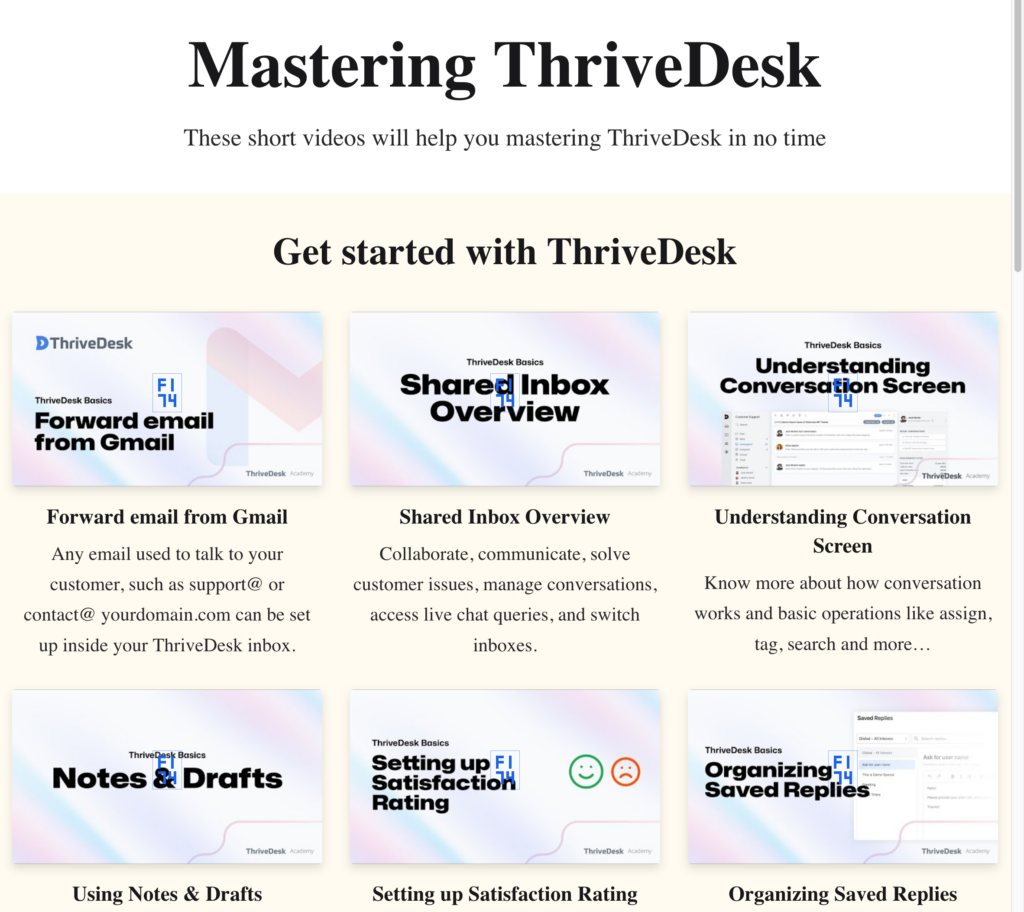
There are a number of videos available on the ThriveDesk YouTube channel. They also have an extensive documentation area called ThriveDesk Academy.
In the ThriveDesk Dashboard

You get around in the dashboard using the navigation bar on the left side of the screen. These are the main features. Note at the bottom of the screen there are a few other buttons for account, search, etc.
The Inbox and chat are going to be the main work-horses. Inbox is for offsite communication and chat would be for onsite messaging.
Unified Inbox
When you configure your inbox you would normally set up a CNAME DNS record and a “help” email account, so that you can send and receive from your own domain with your own branding, which is why we see the red message to connect the domain. For example, something like “help.webtng.com” and “help @ webtng.com”. For the test I didn’t do that. There is a ThriveDesk email address and a ThriveDesk subdomain based on your business name, that is available for testing and I used those to send in some emails, as you can see below.
Note that the side navigation continues, with a sub-menu of options next to the nav bar. You can set up teammates, as per your plan, and they can share in handling emails. You can also setup tags so that you can organize messages by topic for easier searching, and so you can activate workflow automations based on them.
On the right side are the new incoming messages which you can open to reply, tag, or assign.
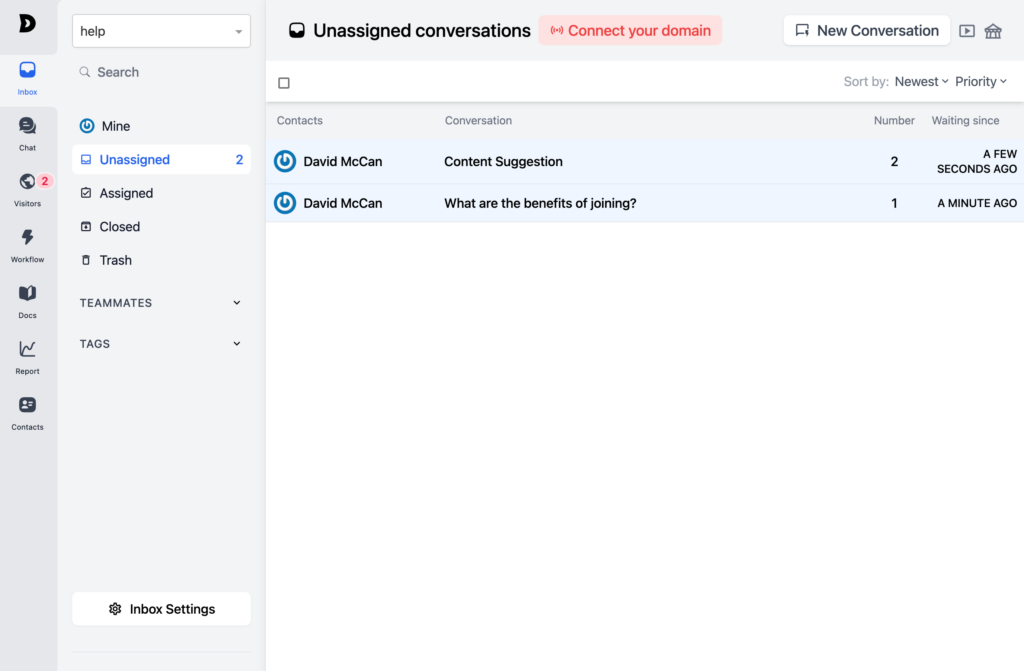
If we go into settings, the first screen is for configuring the inbox itself. You can give it a name, you can set the email address, and you can set the email settings such as default agent, return email, etc.
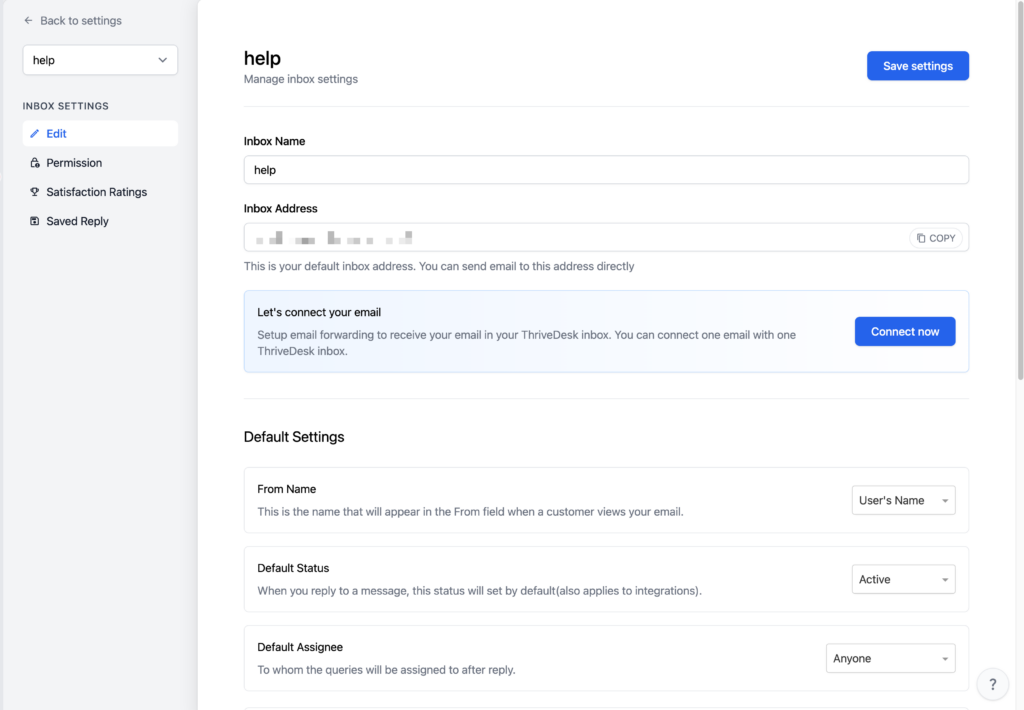
You can set the team permissions to add team members to the inbox on the next screen.
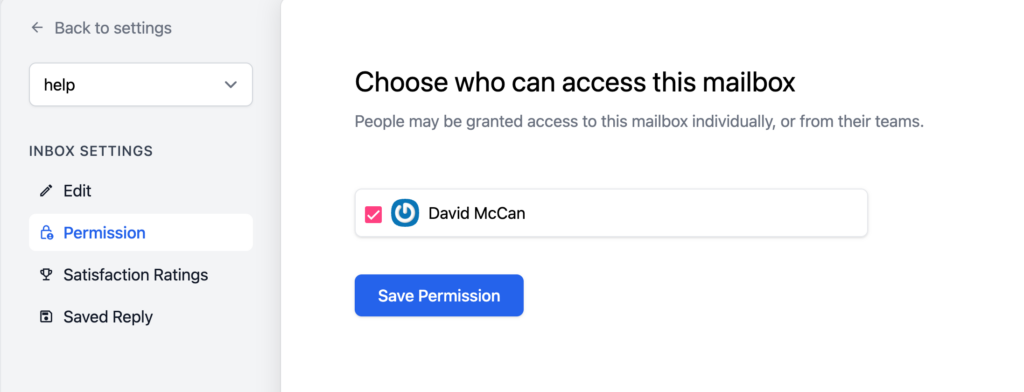
ThriveDesk has a system for getting feedback from users. This is called the “Satisfaction Survey”. This adds a small section to your email and you can also setup a landing page for it.
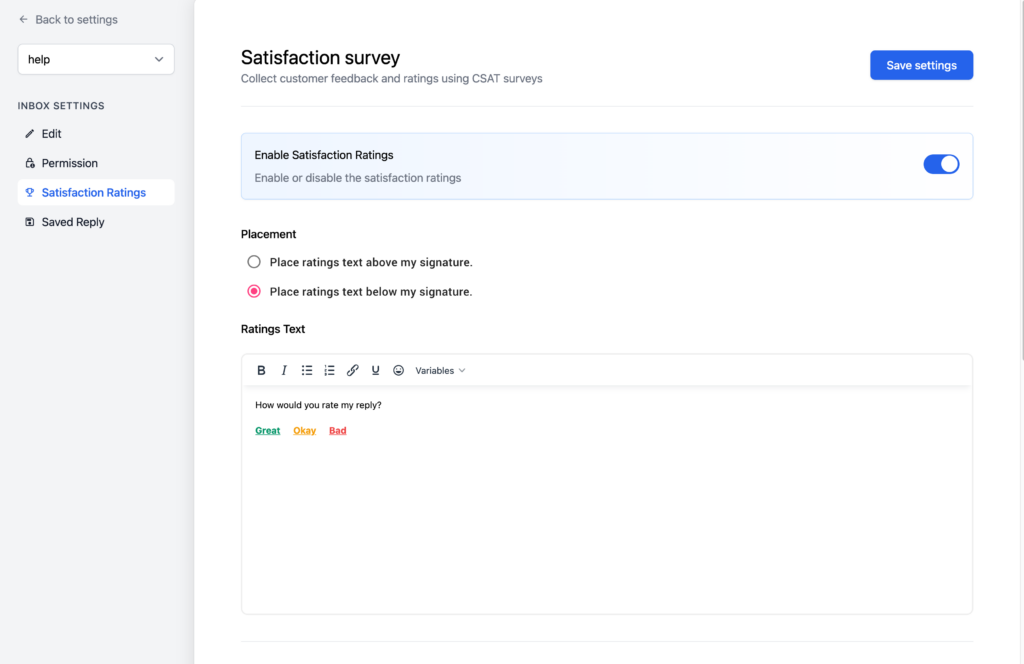
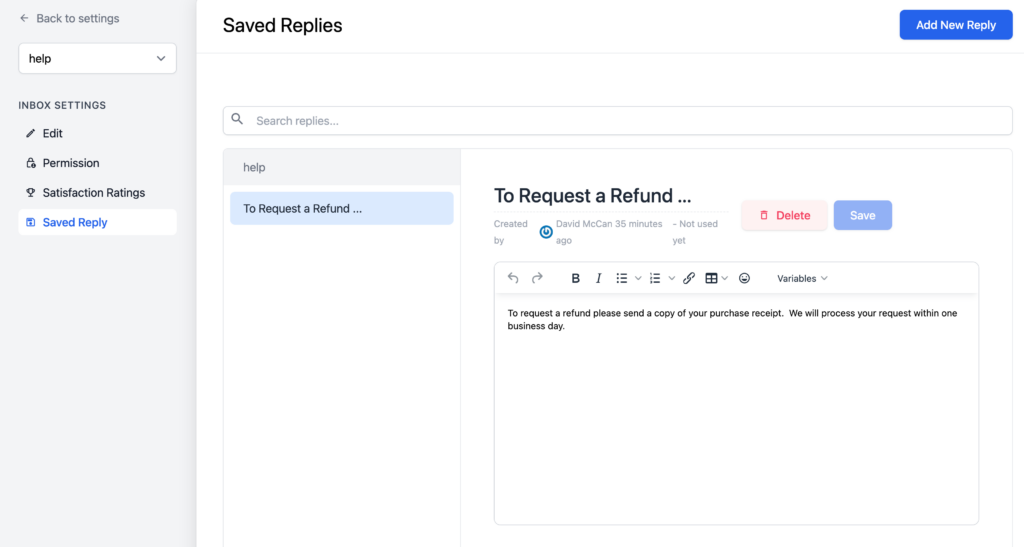
The last section is for canned replies. This is a timesaver as anyone who has done support knows that you often get questions that have been asked before.
Chat
When you go into the chat settings you have several options. I already setup a chat bot, called Membership Help, which you see as the top setting.
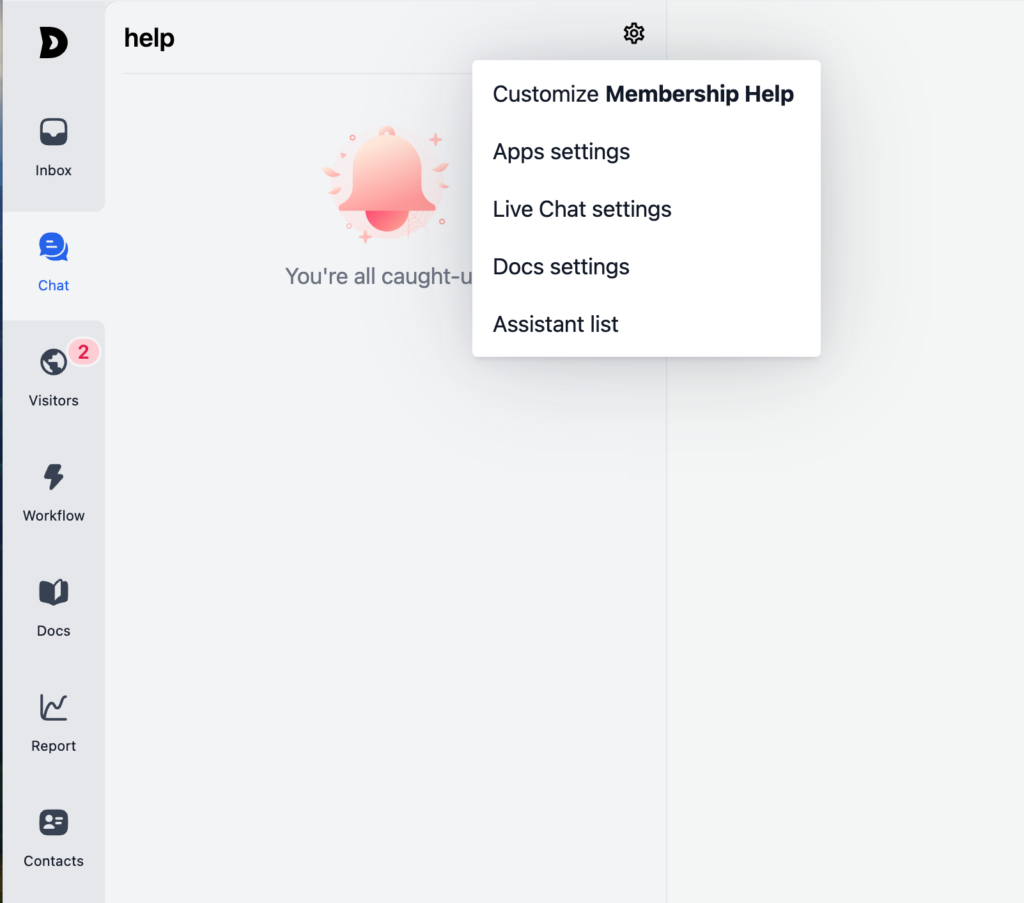
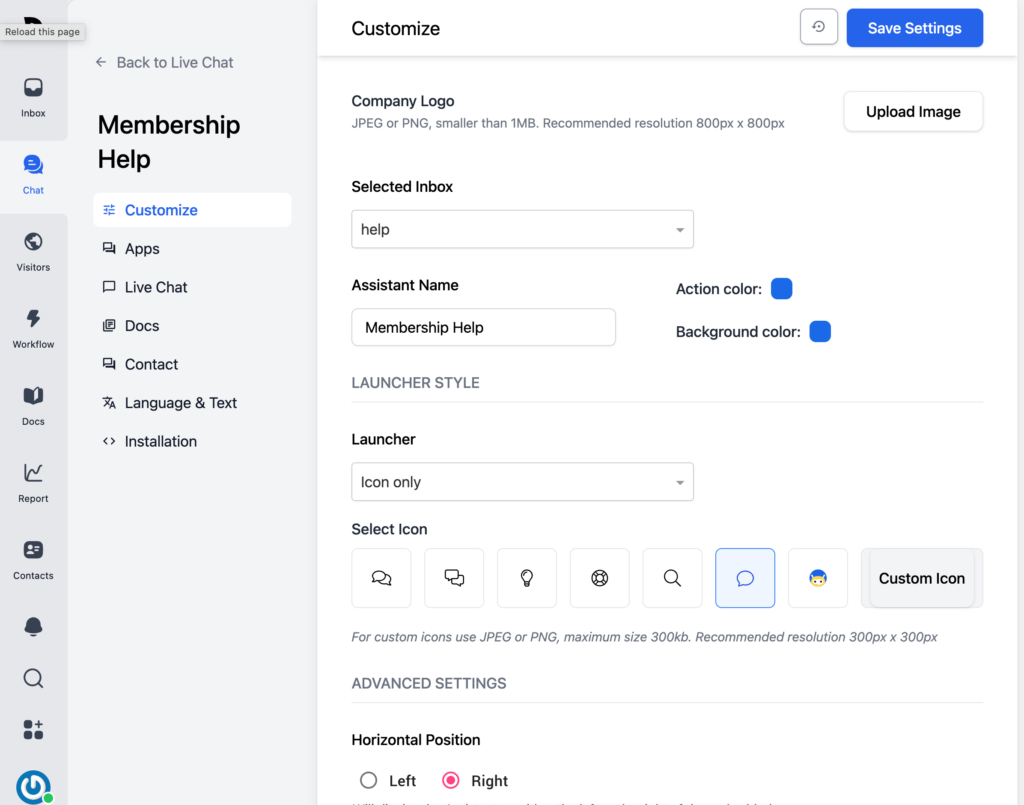
The first set of options is for customizing the chat bot itself. You can set branding by adding an icon and colors. You can set the position it will show on the screen.
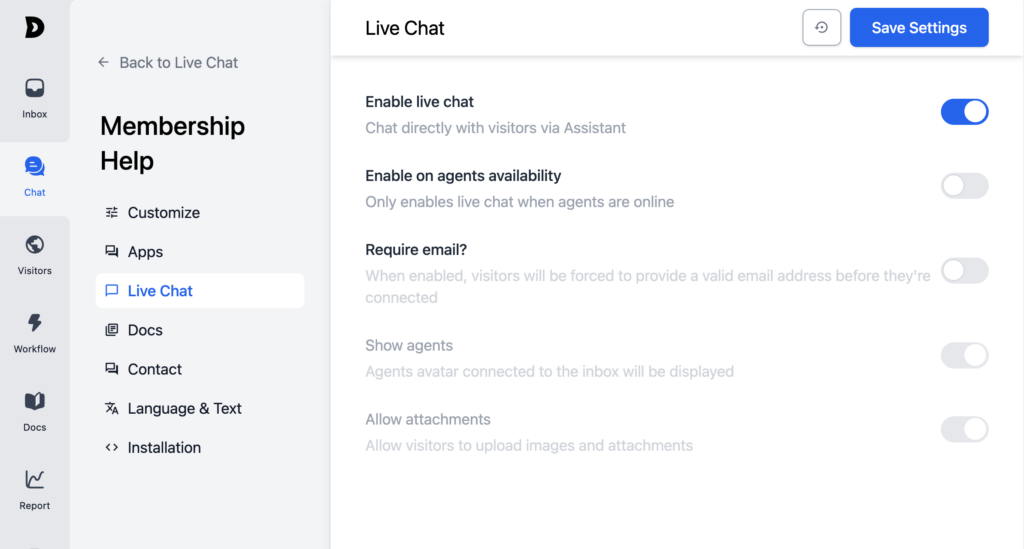
There are options for when to show the chat bot, such as only show it when there is an agent available, show the agent avatars, allow attachments, etc.
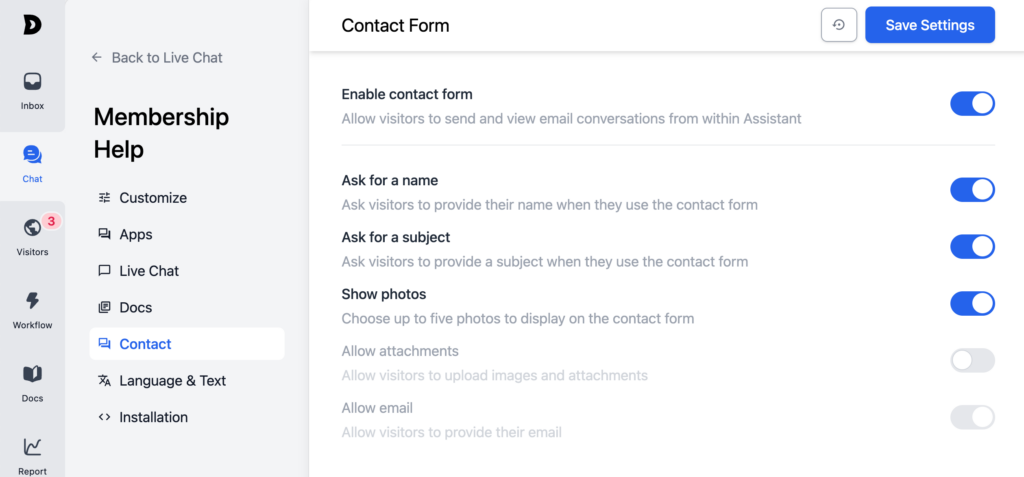
Often an agent isn’t available and so you can basically add a contact form to the chat window, use the online chat for a contact form, and this screen allows you to set those options.
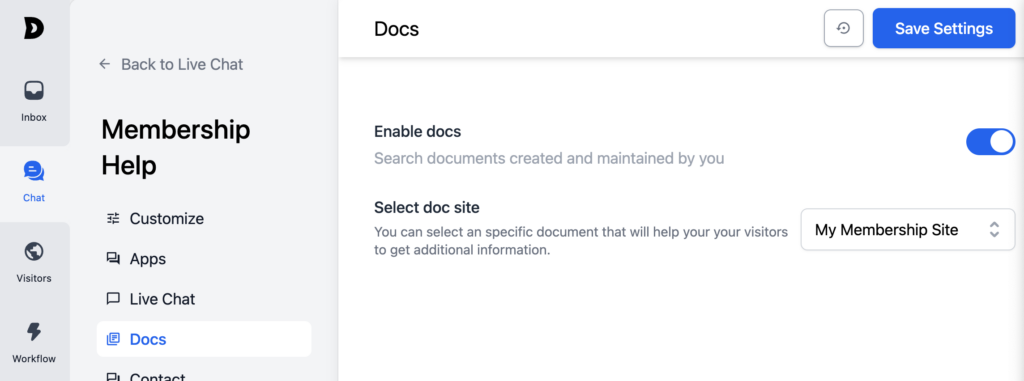
Remember, another big feature of ThriveDesk is a Knowledge Base, or document library. You have the option to include that in the chat for easy access and search for site users.
There is also the ability to get a code snippet to embed the chat bot on any platform. That is not needed for WordPress since the WordPress plugin (see below) takes care of that.
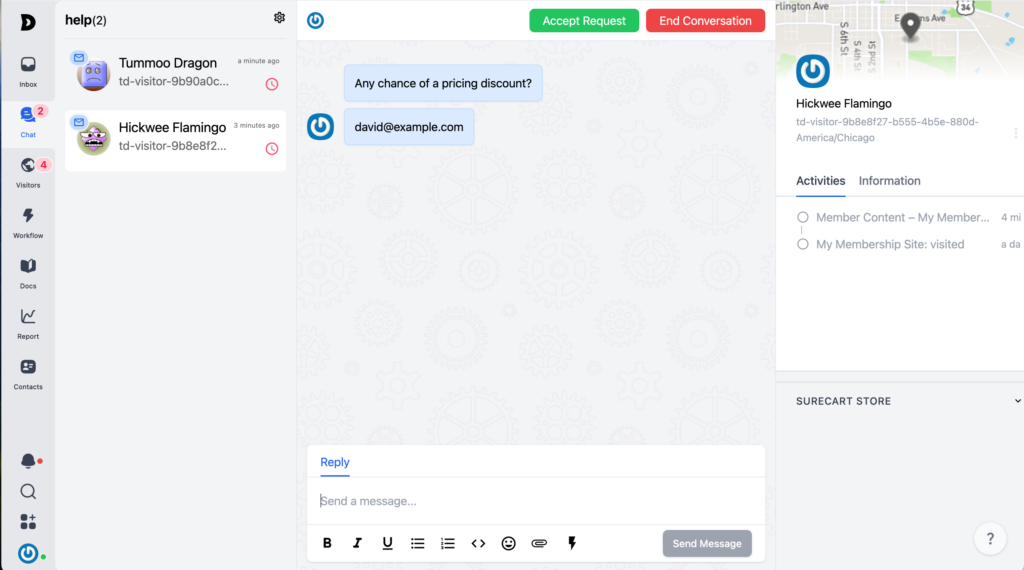
When chats come in you see them on the main chat screen. The interface is informative and easy to use. You see the chats on the left and you can then reply using the inputs on the bottom of the screen. On the right side it shows you the user’s activities on the site and a map of their general location. Also, if there is order information for the user it shows in the area on the bottom right (example below).
Visitors
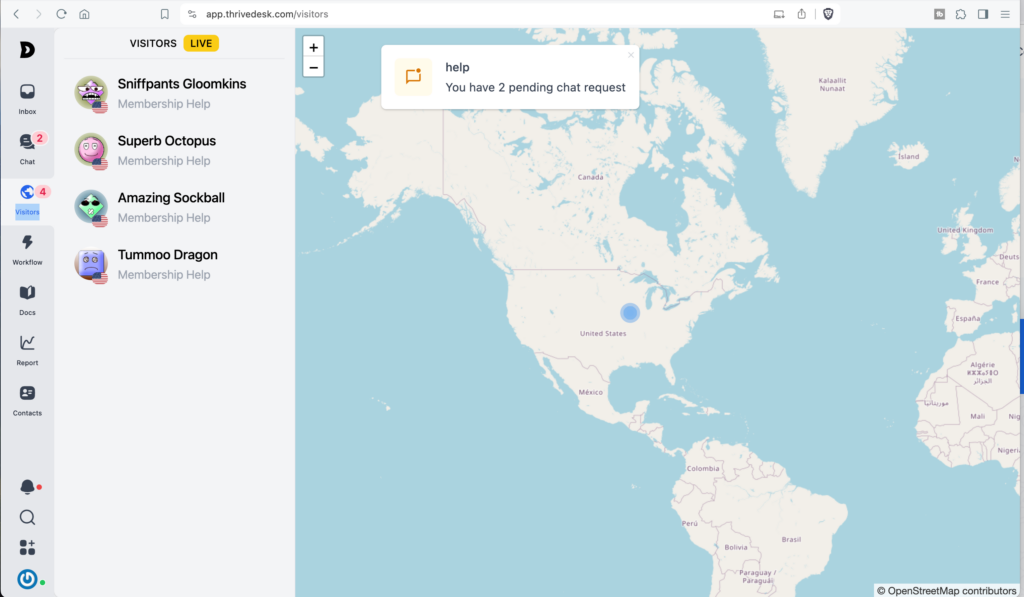
A cool feature is the ability to see a realtime view of your traffic, including where in the world they are located and what page on your site they are on.
Workflow
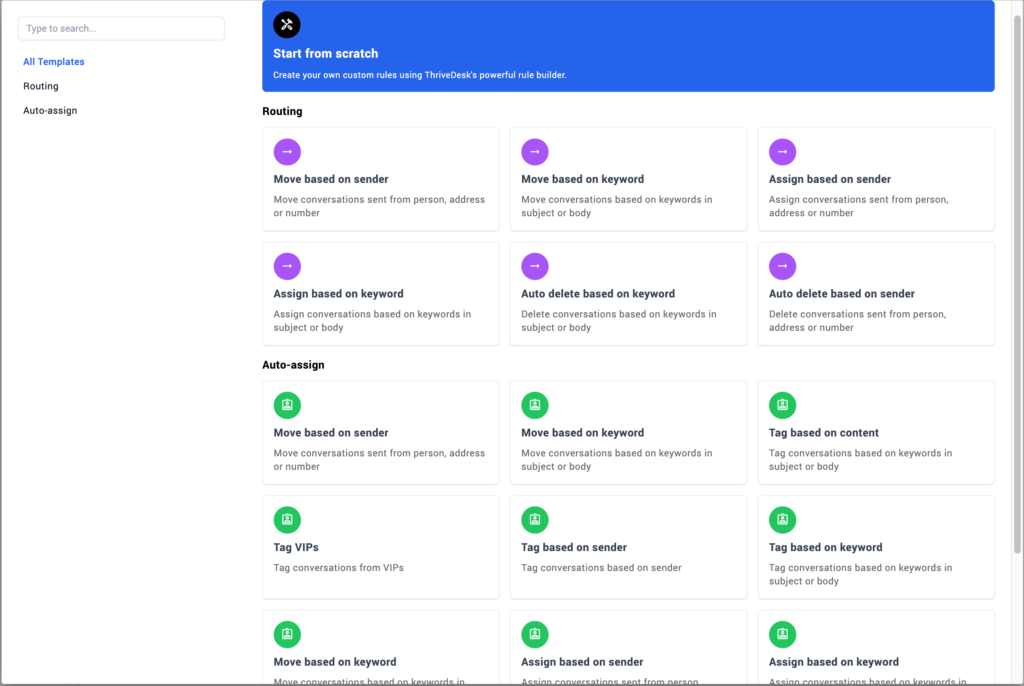
The Workflow area is where you can setup automations. When you go in you see the ones you’ve already created or selected. If you click to add a new one there is a popup with a bunch of pre-made ones available. These are for routing or for auto-assigning based on the sender, tag, keyword, word in content, etc.
Docs
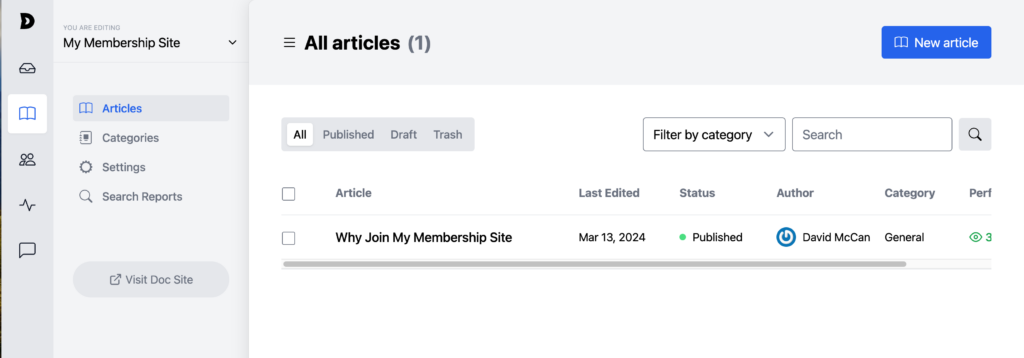
The “Docs” area is where you setup your knowledge base. When you first go in you see the docs you have already created. You can create articles, create categories, and assign articles to categories.
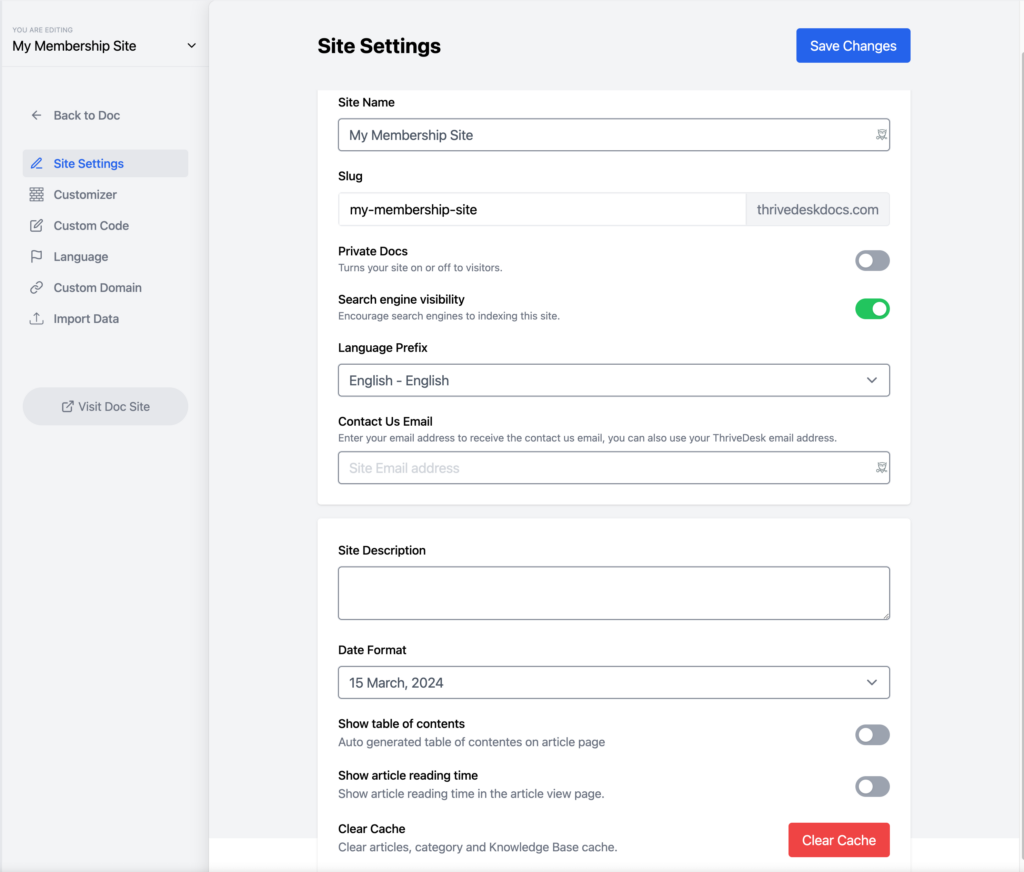
You can customize your KB look to match your brand, and even add JavaScript and CSS. You can use a ThriveDesk subdomain or assign your own custom domain. You can also import from WordPress.
Reports
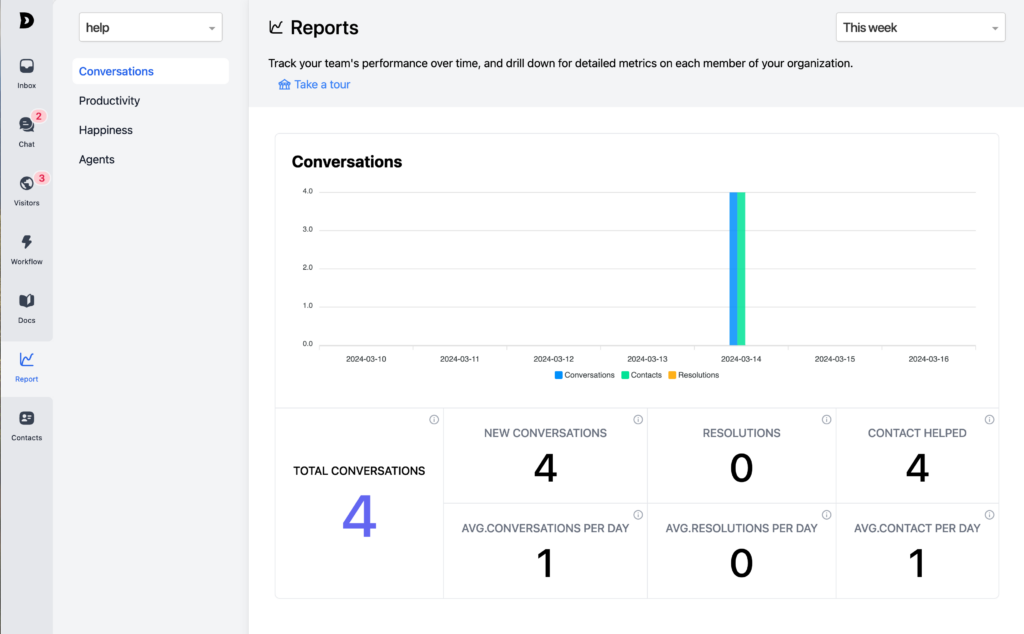
This is where you go for stats. You can filter by time period and you can have overall stats on conversations and their status. You can also look at time metrics, agents, and reports from customers who click on the “Happiness” polls.
Contacts
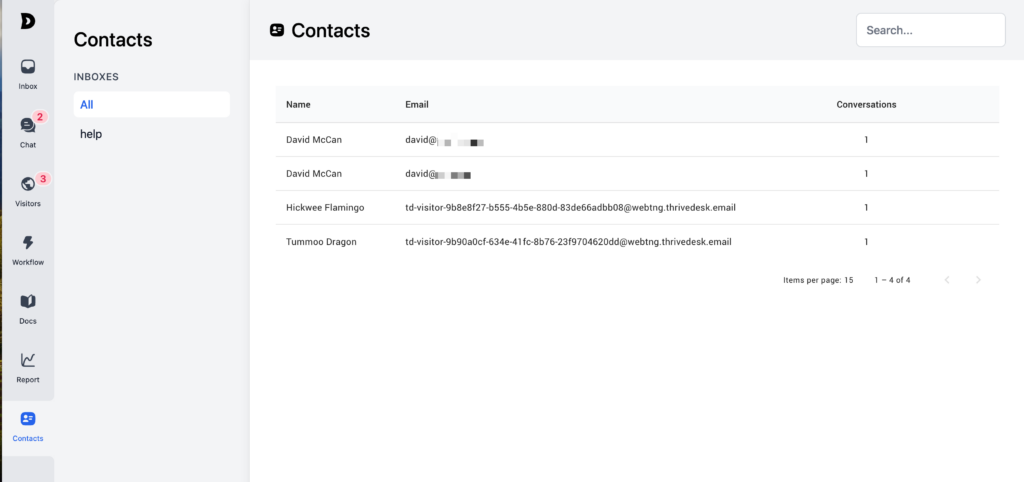
The last area is where the contact info for the people you’ve communicated with is accumulated.
On the WordPress Site
The ThriveDesk plugin for WordPress is available in the plugin directory. I was surprised that it only has between 100 and 200 active installs. I expected more.
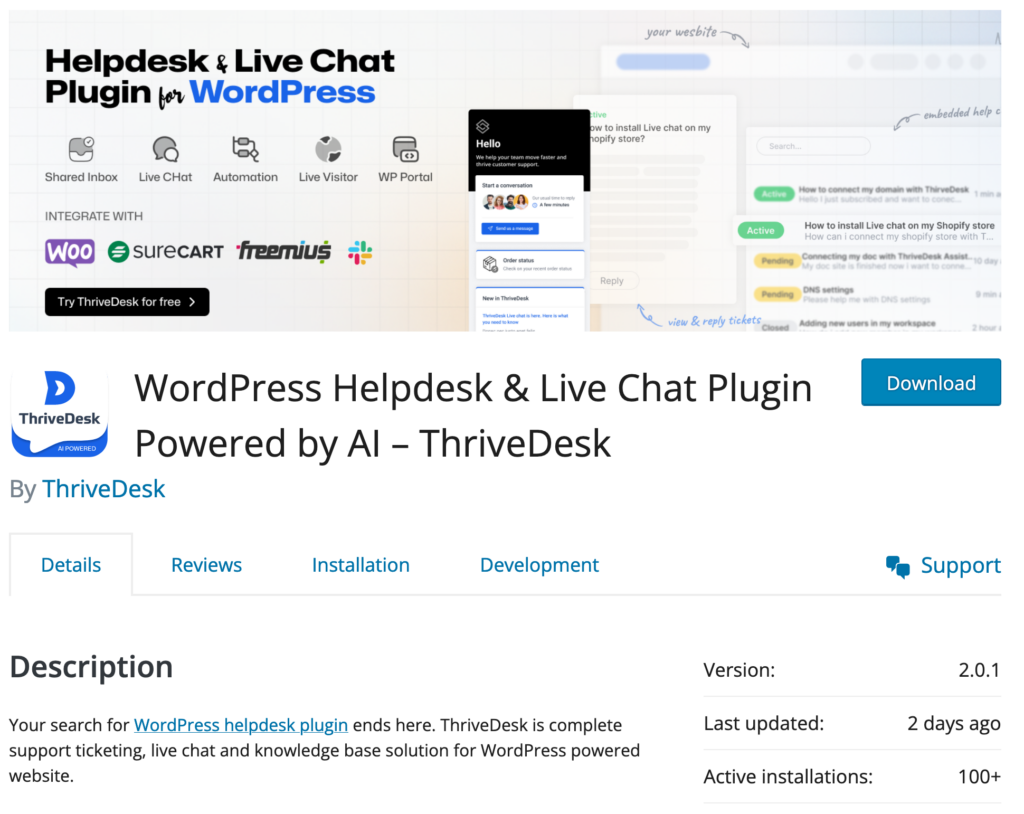
It installs in your site’s admin just like any other plugin. When you activate it you are prompted to log into your ThriveDesk dashboard to make the connection. You get an API key and when you return to your WordPress site is auto populated – you can just click to add it, so installing it is very easy.
Once installed, you can see the integrations listed at the top. When you click the “Connect” button for one of them it downloads a plugin and activates it. When I connected SureCart, after downloading the plugin it gave me instructions on how to get the API key from my account on the SureCart website. This too was very easy.
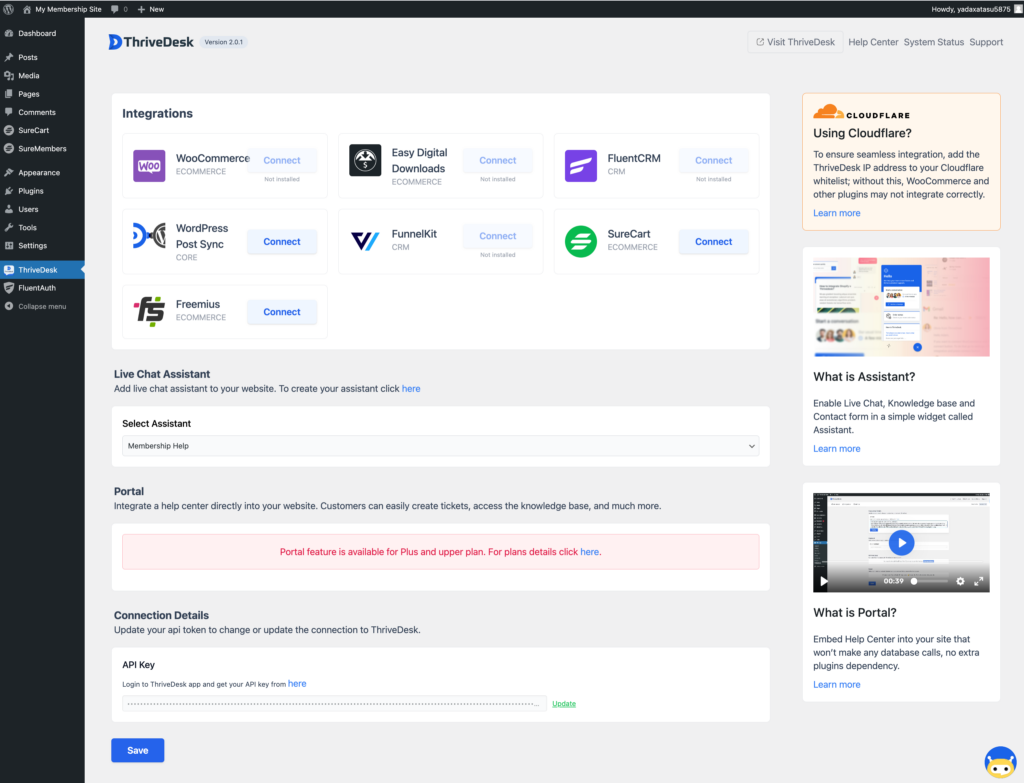
Below the integrations, there is a dropdown where you can pick the chat bot you want for this site. There is also a place to activate the ThriveDesk WordPress portal, which is a deep integration that brings some customer service features into your site. I don’t have a plan with that feature, so I wasn’t able to preview it. Finally, there is the place for your ThriveDesk API key.
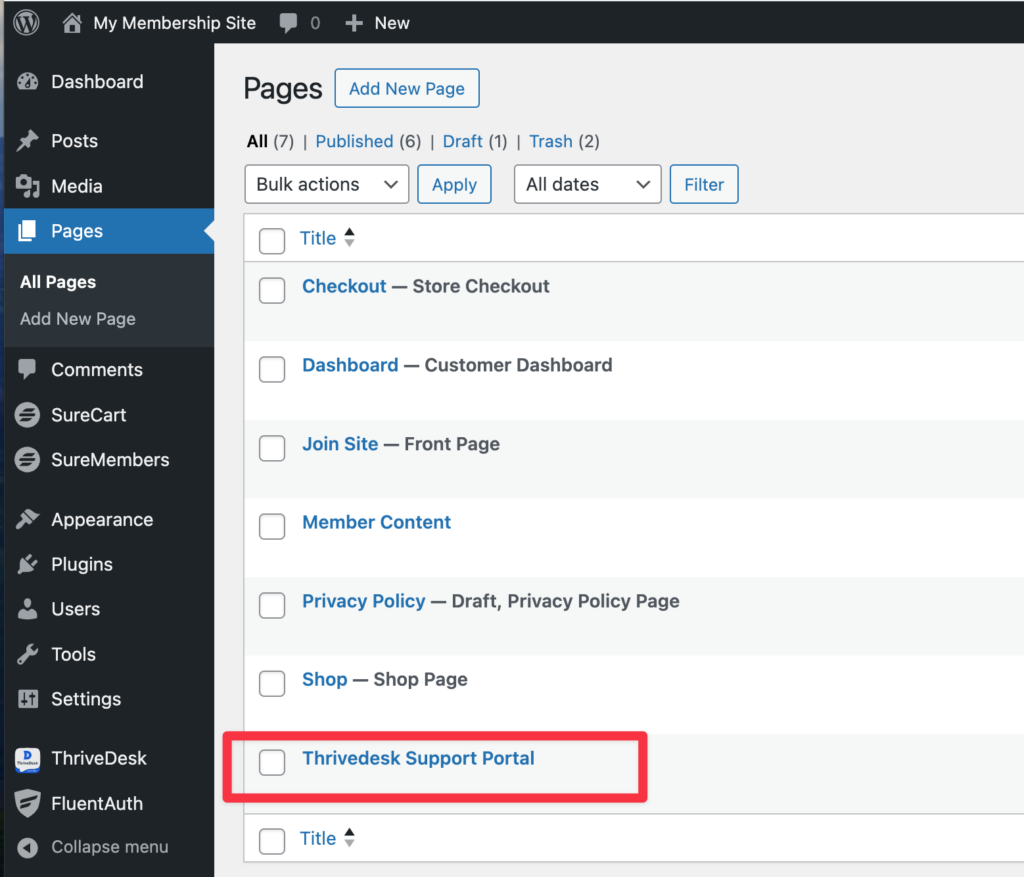
Having a placeholder for the Portal feature makes sense in the admin as a reminder / advertisement. I was surprised, however, that the install also created a page for the Portal when my plan didn’t support it.
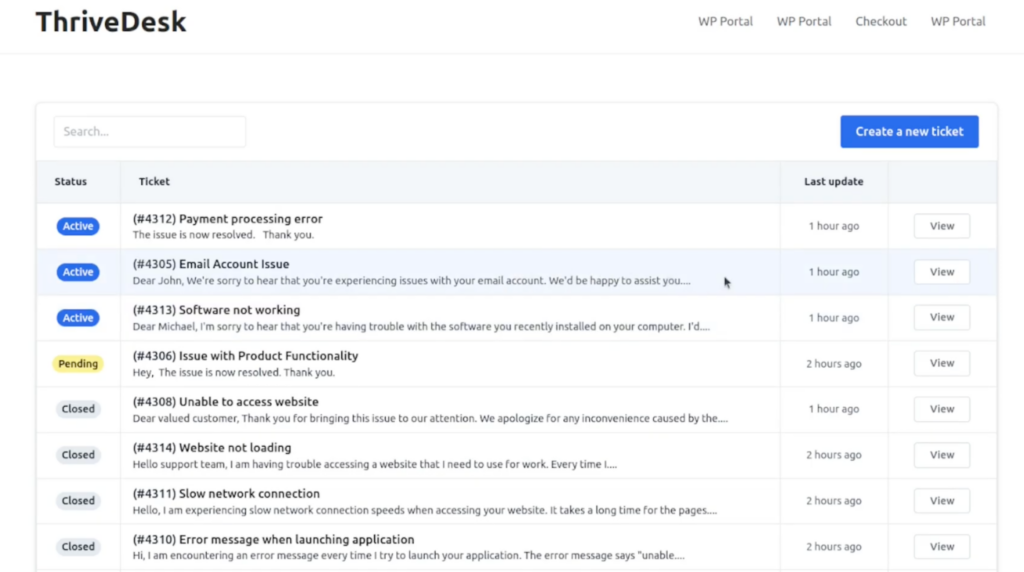
If your plan includes the WP Portal feature, then you have a ticketing area inside of WordPress where customers can communicate with the site customer service team. Here is a screenshot taken from the video about the feature.
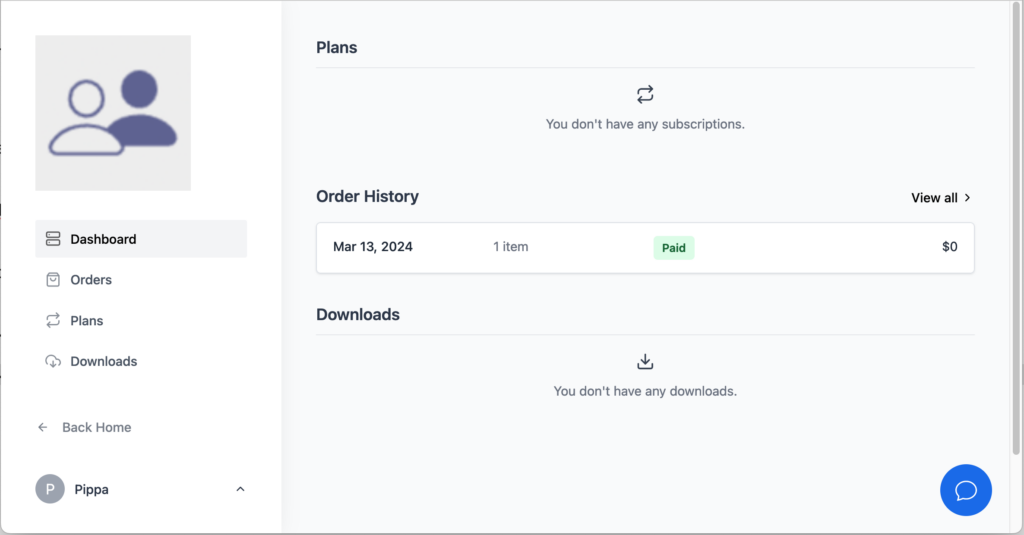
The chat bot shows on your WordPress site, in this case in the lower righthand corner. As mentioned above, we can customize the look and features it offers. For example, here I am on the SureCart customer dashboard page. The chat bot option allows the customer to ask about their order. If an agent is not available then you can enter your email to get a response that way.
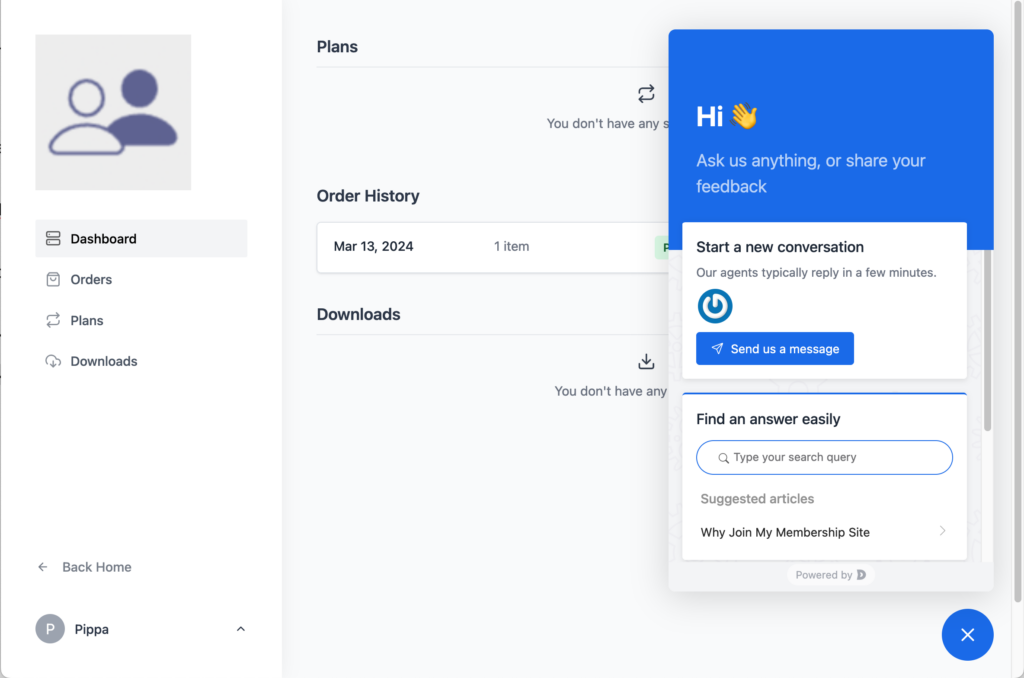
When you click to open the chat window, you see the options you have enabled. Here I’ve allowed that you can send a message or search the document library.
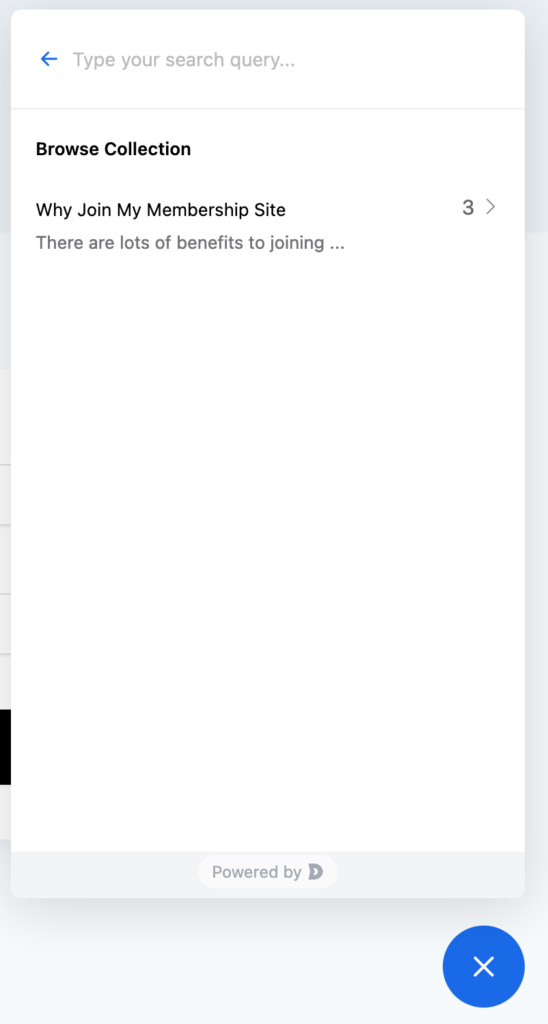
Here you see I’ve created an article in the document library that the user can view in the chat bot.
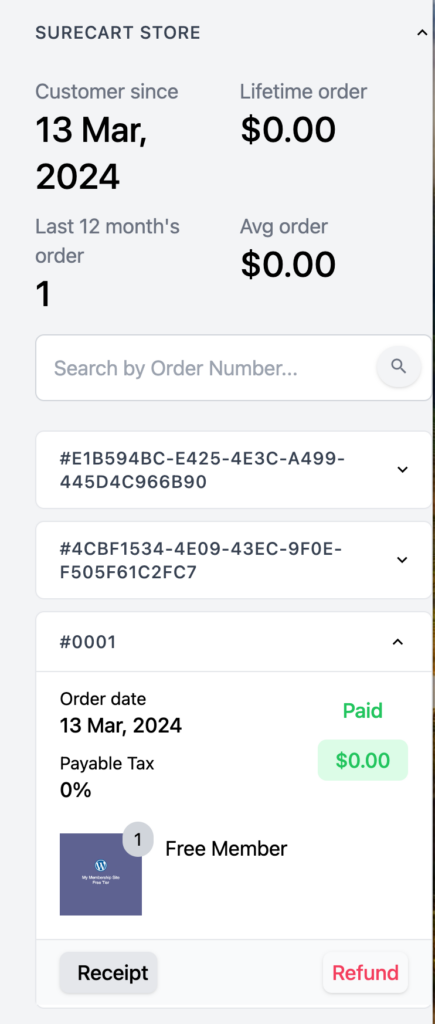
Here is a chat message where the user has a SureCart order, so you can see the integration. The agent chatting is able to see the order information in the chat interface.
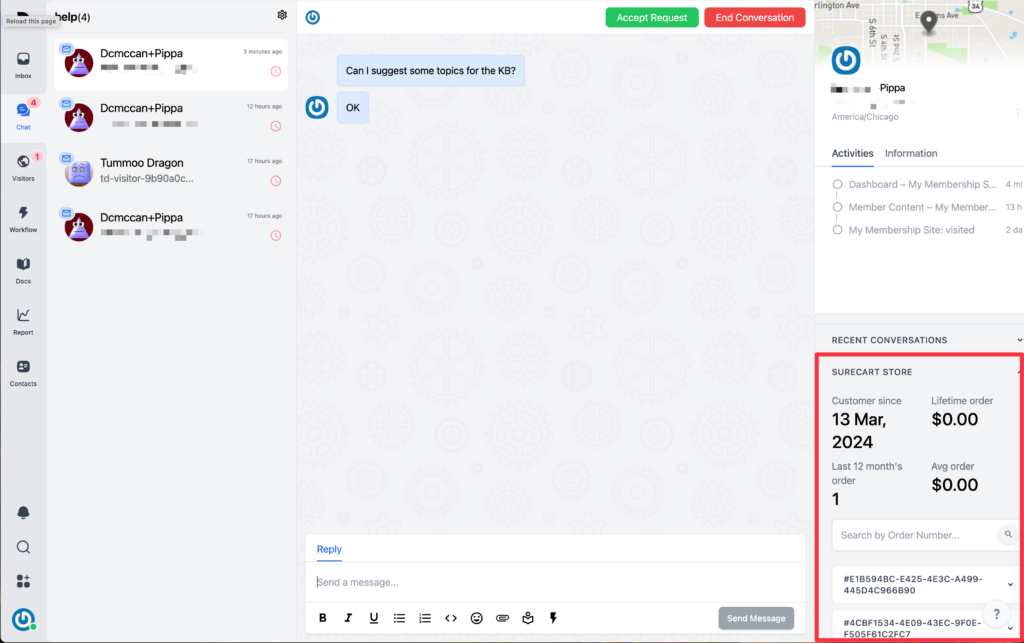
To zoom in on the SureCart store info, you can see the payment details, the package ordered, click to see the receipt, or initial a refund from within the ThriveDesk dashboard. Note that the refund order was a special permission option I allowed earlier when setting up the integration.
Discussion and Conclusions
Features
ThriveDesk has a good mix of features. It seems like the goal is to remain light-weight while providing functionality. Other than the chat bot, most of the functionality is off-site, though there is a portal option in the top pricing tier. The email messaging and the chat bot features looked good. The canned messages, tagging, and automations are good organizational features.
One thing I noticed is that a “ticketing system” is only available with the WP Portal feature. With the onsite portal, customers can see their conversation threads. This feature is only available in the higher package tiers. Without the portal I’m not sure how easy it would be to track messages over time and across message channels.
The KB / documents area is nice. If you are just using WordPress you could host that on your own site, but this way you can offer them via the chat bot. I really liked the Visitor’s view, which is available in the ThriveDesk dashboard. It is cool to see your site visitors in realtime plotted on a map. The stats area for tracking performance supplies stats in an easily accessible format.
Who Is ThriveDesk For
There are several good help desk plugins for WordPress, so why use ThriveDesk instead of a plugin?
- There are plenty of times when you don’t want to host a service on your own site. For example, maybe you have an LMS and you don’t want the extra server load. You don’t have to worry about backing up your help desk data or being offline during updates.
- Perhaps you are not using WordPress and you are on a platform like Wix or Squarespace that doesn’t have a native help desk option. ThriveDesk is a solution you can use anywhere.
- Also, these days it is not uncommon for organizations to use several platforms, for example both a CMS and an e-commerce shop hosted separately. In this case ThriveDesk could be integrated with both, but customer help would be conveniently centralized.
Final Comments
Installing and configuring ThriveDesk was very easy. There is a lot of documentation available. Setting up the integration plugins was also very straightforward. You don’t need to have advanced technical skills to get a help desk up and running. ThriveDesk is a good choice if you have a small to medium sized team, you need customer support features, and you don’t want to self-host. If you need a full ticketing system then you will likely want a plan that includes the onsite WordPress portal feature.