
Table of Contents
Unblock is a new Gutenberg-based page builder for WordPress. It comes from the same developer as WP Grid Builder, a well-respected and widely used plugin, and so it caught my attention and I wanted to take a closer look. In this article I’ll walk through the Unblock feature set, the user interface, and share some thoughts and conclusions at the end.
Video Version
What Unblock Offers
The Unblock feature list is impressive for a new product. It includes a visual panel and CSS inspector that stay in sync with each other, solid support for dynamic data, an AI assistant that works with your own API key, and built-in editors for HTML, CSS, and JavaScript. There is a flexible query loop option, 13 blocks (more on that in a moment), conditional display options, full responsive design support, custom fields support (currently ACF), some built-in form building capability, and hooks for developer extensibility. The plugin is performant.
One point worth clarifying: the feature list mentions 13 blocks, but elsewhere it says “one block.” What this means is that all of the HTML element blocks are built on the same foundation, with attributes and features layered on top to customize each element type.
Pricing
At the time of writing, Unblock offers a lifetime license for $349 covering up to 1,000 sites, which includes all features. That price is currently discounted 30%, dropping to a 15% discount on June 10th, and rising to $499 on July 15th. Annual plans are also available: $69 for one site, $149 for ten sites, and $299 for 100 sites.
Documentation
The docs for Unblock are good, which is unusual for a brand new builder. One thing worth knowing is that Unblock uses Twig syntax for dynamic data, conditions, and expressions. Twig is widely used and easy to learn, with plenty of documentation available online, so this is a reasonable choice that gives users a lot of power and flexibility.
Setting Up Unblock
I tested Unblock on a site running WordPress 7 with the 2025 theme. After installing the plugin and adding the license key, one immediately noticeable thing is that Unblock does not add an admin menu to the WordPress dashboard. Instead, you access your license settings and other configuration options from inside the Gutenberg editor.
Unblock recommends using its own theme, which is essentially a blank theme. The documentation notes that other themes will “probably” work, but that phrasing usually signals limited testing. The Unblock theme removes all default styling. The idea is that you bring the styles yourself. The default header and footer templates are empty, and there is very little styling out of the box.
The User Interface and Blocks
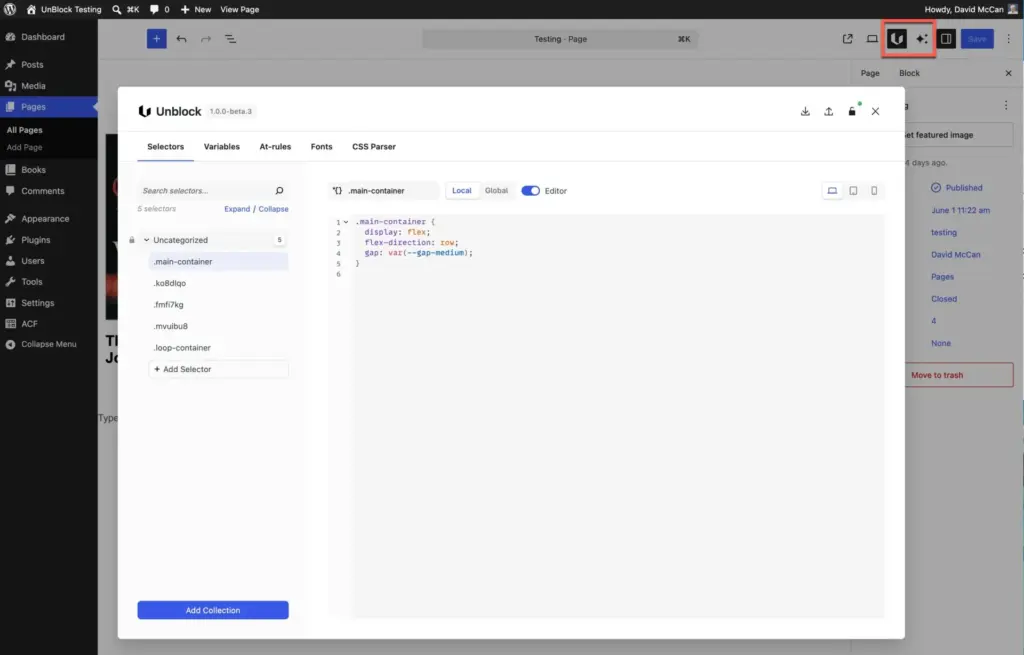
The main Unblock UI area, accessed inside Gutenberg, is where you handle import/export, license entry, CSS selectors, CSS variables, responsive @rules, font options (Google Fonts or upload your own), and a CSS parser. The CSS parser is a particularly nice feature — you can paste in your own set of selectors and variables and Unblock will parse and import them into the framework.
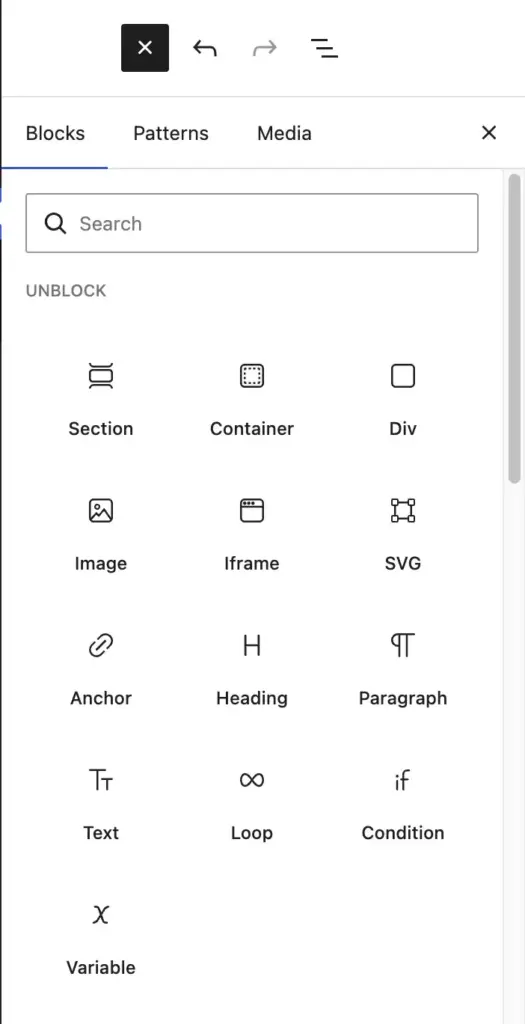
The blocks that come with Unblock are: Section (full-width, with a constrained container inside), Container, Div, Image, IFrame, SVG (for code-based SVGs), Anchor, Heading, Paragraph, Text, Loop, Condition, and Variable. The Section and Container blocks follow a common pattern for page builders, and the others cover the fundamentals.
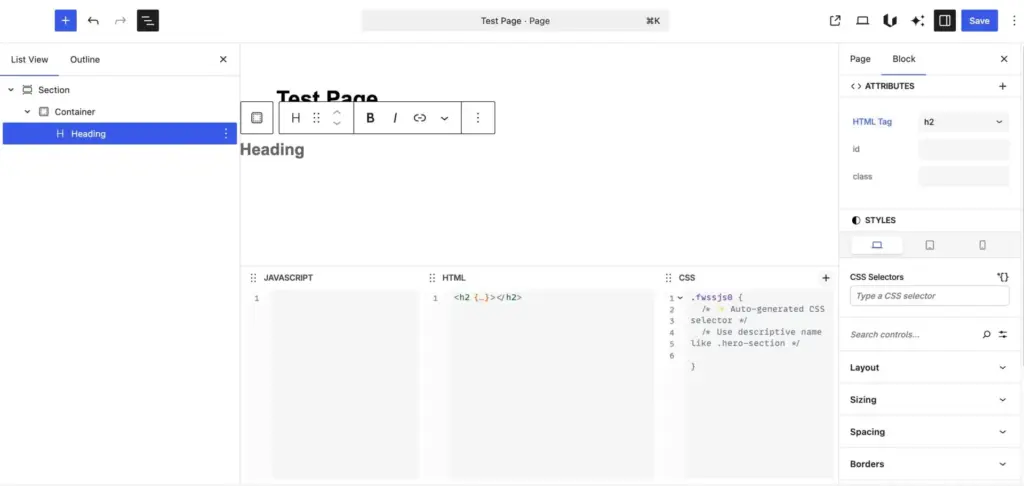
When you add a block, the editor shows HTML, CSS, and JavaScript editors below the canvas. The CSS editor automatically generates a style class that you can rename, and the HTML editor shows exactly what will be rendered, so there is no extra markup, which contributes to the plugin’s performance. Most users will probably use the HTML and CSS editors far more than the JavaScript editor. There is currently no way to hide the JavaScript editor, though I understand that is planned. You can minimize it and rearrange the panels in the meantime.
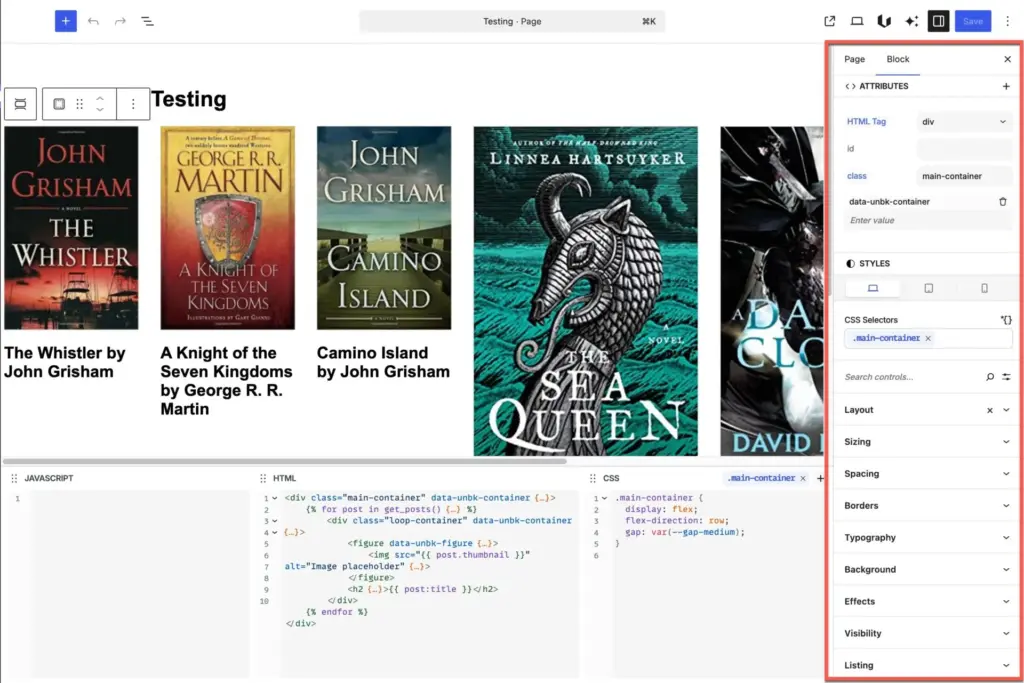
The block options panel lets you change the HTML tag, set an ID or class, apply styles for desktop, tablet, and mobile, and add your own CSS selector. A search field lets you find controls quickly, and you can toggle between advanced and classic settings views. One genuinely nice touch is the two-way sync between the visual panel and the CSS editor. If you type a color value in the CSS editor it shows up in the visual panel, and changes in the panel write back to the CSS. You can work from either direction.
Variables
Unblock has a variable system where you define collections of variables . For example, I created a “spacing” collection containing a gap-medium variable set to 2rem. When you’re in a color input, Unblock shows your color-type variables; when you’re in a size or string field, it shows the appropriate types. This context-aware variable picker is a clean implementation. One small friction point: saving a new variable requires clicking an “Add” button that isn’t immediately obvious.
Dynamic Data
Dynamic data uses Twig-style syntax. For example, to output a page title in a paragraph block you would use {{ post.title }}. The loop block works similarly — you set a query, give it an alias (like post or book), and then reference that alias when pulling in fields like {{ post.title }} or the post thumbnail. The query loop is flexible and well thought out, pulling from custom post types as easily as from standard posts.
Conditional and Variable Blocks
The Condition block (the “if” block) works like a container — whatever you place inside it is displayed when the condition evaluates as true. Rather than picking from a preset list of conditions, you write a Twig expression directly. This is significantly more powerful and flexible than the conditional display options found in most other block collections, though it does require knowing or looking up the correct Twig syntax.
The Variable block lets you name a query or expression, save it, and reference it elsewhere in your layout — useful for avoiding repetition in complex templates.
Deactivation and Content Lock-in
One important thing to be aware of: when you deactivate the Unblock plugin, all content built with Unblock blocks disappears from the front end. Only core WordPress blocks remain visible. This is a meaningful consideration. The general best practice with page builders is to use the builder for templates and layouts while using core Gutenberg blocks for content, since core blocks will always be supported. Unblock’s blocks currently look very similar to core blocks in the block picker. There’s no distinct color or icon to differentiate them, which makes it easy to accidentally use an Unblock block for content you’d prefer to keep portable.
Conclusions
It is remarkable how developed Unblock already is given that it was only announced a month ago. It is still in beta, and some small glitches and inconsistencies showed up during testing, such as things occasionally resetting or rendering shifting unexpectedly. Those are expected at the beta stage and should be addressed by the developer.
Pros: Unblock is tightly integrated with the Gutenberg site editor and block editor in a way that feels natural rather than bolted on. The variable system is well-designed and context-aware. The two-way sync between the visual panel and the code editors is genuinely useful. It is very performant. Dynamic data support is solid, and the Twig-based condition system is more powerful than what most builders offer.
Cons: The block set is currently limited. The foundation is good but users will need more options over time. There is no pattern library, no starter theme with header and footer layouts, so getting started requires building everything from scratch. The similarity between Unblock blocks and core blocks in the block picker is a usability issue. And the content lock-in when deactivating the plugin is worth keeping in mind.
Two other observations worth mentioning: first, the name “Unblock” is difficult to search for on YouTube, since results are dominated by videos about unblocking email addresses and locked-out users. Second, the pricing strategy, staging price increases over a few weeks, feels a bit aggressive given that the product is still in beta. Raising prices too quickly on a new tool risks slowing adoption before it has a chance to build momentum.
Overall, Unblock is a promising builder that has moved the needle further than many alternatives in several meaningful ways. If you’re building sites with Gutenberg and want tighter integration with the block editor rather than a separate builder experience, Unblock is worth evaluating to see if it fits your workflow.