
Table of Contents
I’m looking at a cool new plugin called SleekPixel. What this plugin does is it allows you to create templates that you can use to automatically create featured images and automatically create open graph images for sites like Facebook and X and LinkedIn, ones that use the Open Graph metadata. In the video I provide an overview of the plugin and a walkthrough of using it to create featured images for custom post type and to create some open graph images for Facebook. The blog post is a summary of some of the main points.
Video Version
Background Information
SleekPixel is created by Dennis Yosek. He is the creator, the author of the BlockStudio plugin for creating custom blocks. And he has a brand now called SleekWP. He’s got three plugins under that brand. He’s got SleekPixel, which is what we’re going to look at. SleekAI, which is a pretty cool plugin for creating chatbots and using AI on your website. And then SleekMotion, which is for adding animation type effects to your website.
On the website it just kind of reiterates what I said about creating your Open Graph and featured images. We’re going to do it inside the WordPress admin. You have kind of a limited image editor in there, and we’ll see how that works. It does have the option, as we’ll see, for some dynamic content, which makes your templates a lot more flexible. And it has some options for design. You can have images and text and so on.
One thing to mention before we get started though is this requirement is important to keep in mind. You need to have the ImageMagic extension installed on the website. If you’re using shared hosting, I think a lot of them, probably most of them have it installed. If you’re using a VPS, you might have to go in and enable it. I found the option, if it wasn’t already enabled, by going into the PHP extension options and enable it. But that’s something to keep in mind and look at to check out before you buy.
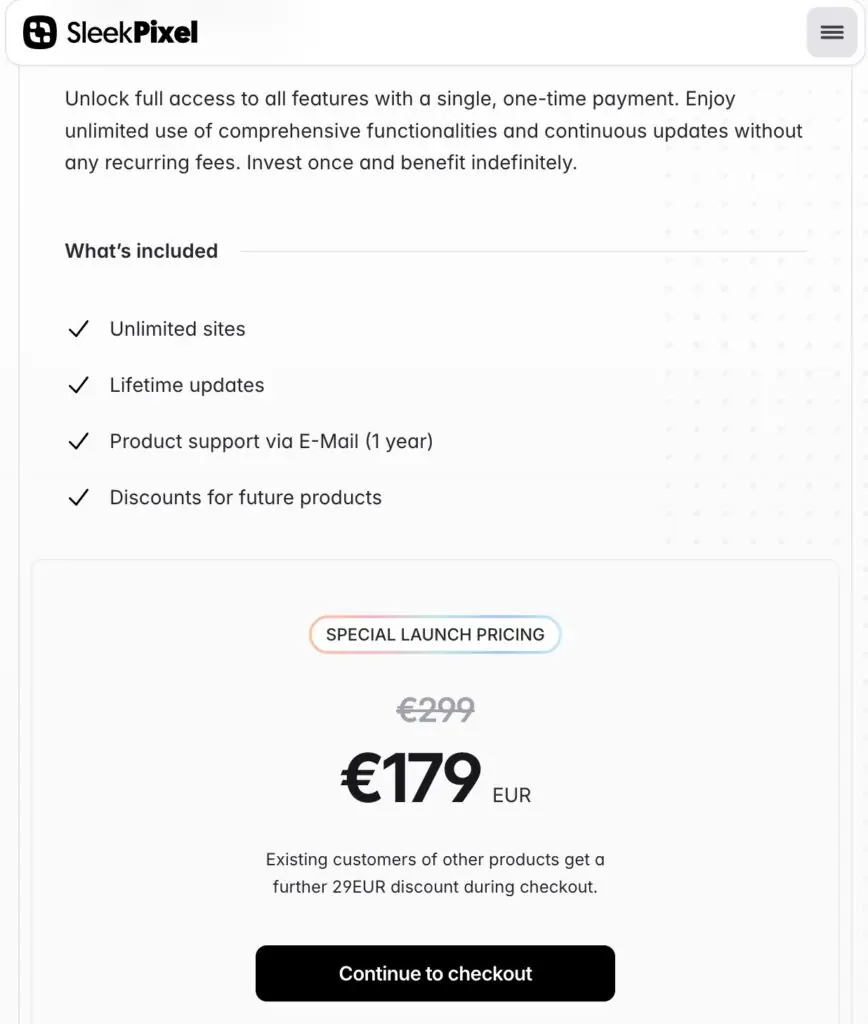
There is special launch pricing, and that pricing is 179 euros. That gives you unlimited sites, lifetime updates, discount for future products. Like on the site where you see there’s a 29 euro discount if you’ve purchased one of those other products. But there’s only one year of email support. So that’s something to take into account.
Test Site
I have a test site. I’m using the free Blocksy theme. I’ve got a bunch of demo data, a bunch of posts with some featured images and a book Custom Post Type. Note that the featured image for books, the book cover, is portrait style. Most featured images are usually horizontal. You may have noticed that a lot of the post blocks and post widgets and things like that assume you’re going to have a horizontal featured image. And so this is actually going to help to create a featured image that works better with regular layouts.
If we look at the plugins, you’ve got All in One WP Migration for backing up and refreshing the site between testing cycles. I’ve got Meta Box installed to create the Custom Post Types.
SleekPixel Walkthrough Summary
I’ve installed and activated SleekPixel. I already entered in the license key. When you activate this, you get the admin item at the bottom. At the bottom of the screen is a settings cog and when you click it then a popup opens where you can set your file types. PNG, JPEG and WebP are supported. But note that I don’t think that maybe Facebook and maybe some of the others support WebP yet. So that’s something to keep in mind. There’s a place for an API key for Google Fonts and then the place where you enter your license. You can also set it to light or dark mode here.
On the left is a panel where the images, the kind of templates that you’ve created, are going to show up in a list. When you want to create a new image, you click on the cog at the top of that panel and you’ll get a button to create a new image.
You can set for preview by choosing a record for working in the canvas. So this is a big convenience here. So let’s take a book record here, Camino Island.
The process I use for creating the featured image is first to add a section to the canvas and set it to the full size. Then I place an image element, which is a placeholder. I use the dynamic data option to pick that this image should be the post featured image. You can also just paste in a URL to an image in the media library, if you don’t need a dynamic image.
In the list for dynamic data options there are currently the dynamic data: post ID, title, content, type, link, date, modified date, time, comment count, excerpt, and featured image. Then you have author, bio, email, website, archive URL or avatar. So that’s the author information. For site, you have title, tagline, URL, icon. So that’s new. So it looks like you can bring in the site logo there. So that’s cool. And for archive, you have title, description, you have query results, count, search term, object, title, and ID. So there are options.
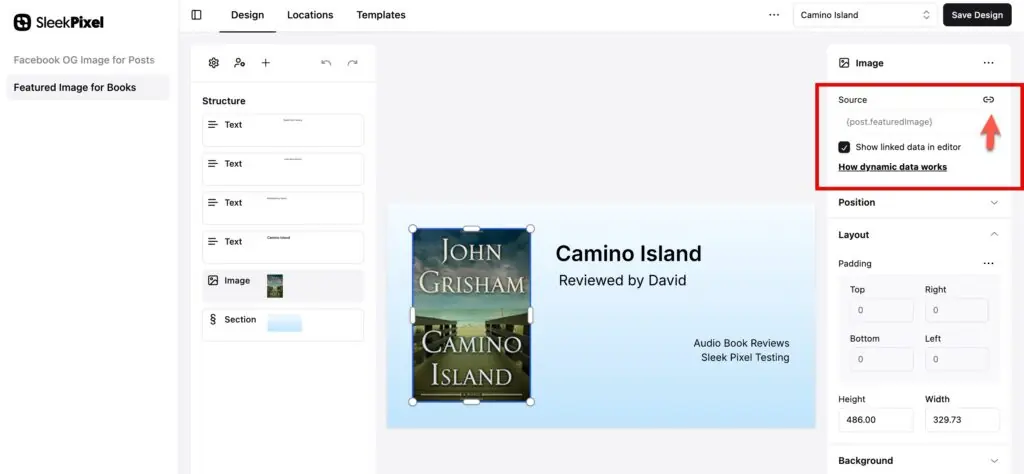
In the next steps I add text elements and map them to dynamic data, such as the post title and author. Also, I add the site title and tagline.
So you’ll need to use a little imagination here. For example, for the background, you could put an image and then layer items on top of it. So you could have a gradient image or you could have a background. Sometimes you see images where there’s a divider here and they’re different colors. And then you have some text on this side and some on that. So really, there’s a lot that you can do here.
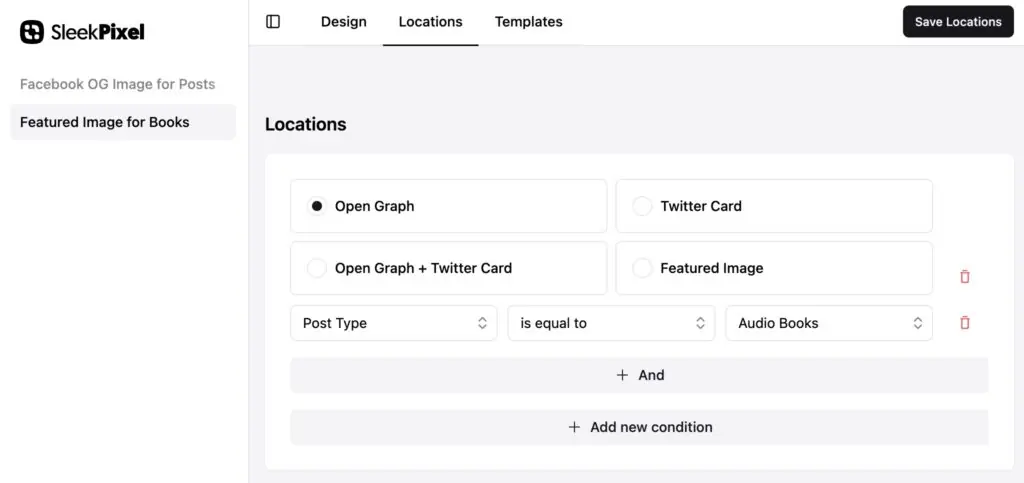
And now let’s go to locations. Let’s add a location and we want this one to be featured image. Let’s add where post type is equal to audio books. And let’s save locations.
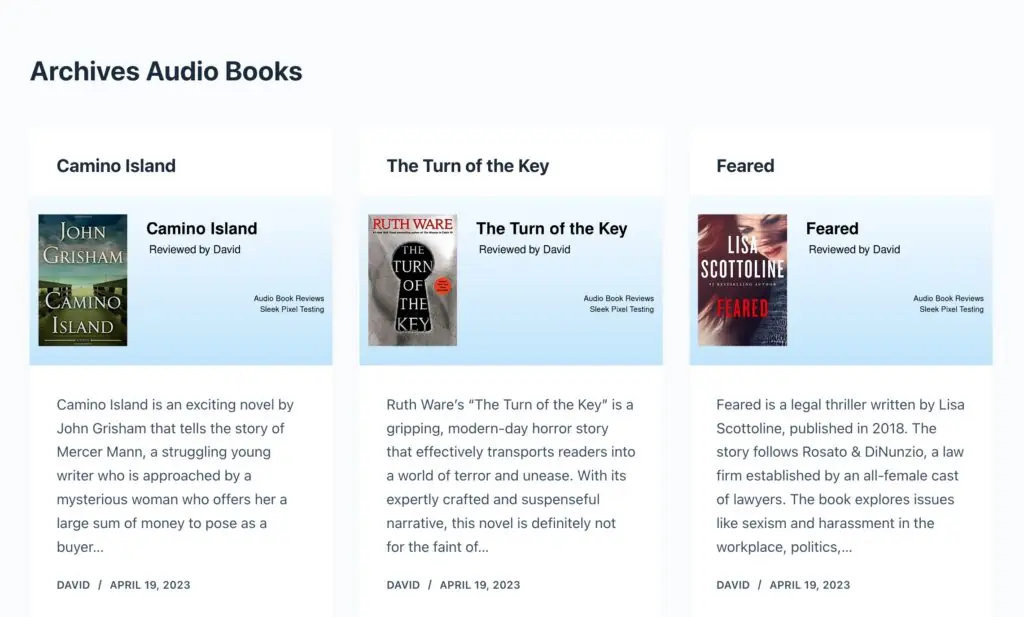
Looking on the front end we see it created our featured images. So that’s cool. On some websites you’re going to want to have a very custom featured image for each article. But there are also a lot of websites where you can use a template like this and really speed up the whole process. I think this is awesome.
Discussion and Conclusions
Now that we’ve done a walk through looking at the features, let’s do a little bit of discussion. Over the years, I’ve seen several plug ins that tried to deliver automatic featured images. Those plug ins were clunky and they did not work well. SleekPixel, on the other hand, does seem to work pretty well. The interface is easy to navigate and has a fair number of features.
Not every website will want to create featured images with Sleep Pixel. But for open graph images and social images, I think it’ll be a real boon.
Note, for example, that while there are conditions for display for different taxonomies and taxonomy terms, there is not the ability to output the taxonomy term using one of the dynamic tags. Also, it would be nice to have an icon library in the editor to pull from, give you a little more flexibility and options when you’re creating the templates.
Note also that when SleekPixel creates images, they’re not being saved to the media library. For Open Graph images, that could be a big boon because creating a couple of images for every single post just for Facebook and X, your media library size grows fairly quickly. For featured images, though, I could see some people wanting to have the featured image saved to the media library.
SleekPixel is under active development. I know, for example, that the taxonomy terms, the ability to include those on the templates, that that’s coming. I believe the developer has a number of things on the list of feedback that he’s gotten from early users. So if people need something like the featured image saved to the media library, then it would be good to go ahead and make a case for that.
The developer, Dennis Josak, is obviously very creative and seems to be a good programmer as well as a good designer. So I’m definitely planning to use SleekPixel on several of my sites. I think it’s a keeper. I’m pretty excited about it. So if it looks like something that maybe you could use, I encourage you to take a look at it.